
Updated: October 14, 2026 | Windows 10 & Windows 11 | Steam Troubleshooting
If Steam displays “The Steam Service on your machine requires some maintenance,” it usually means its Windows background service needs installation, repair or updated permissions. First, close Steam completely and restart your computer. If the popup returns, select Install Service in the genuine Steam client and approve the verified Valve administrator prompt. If installation fails, repair the service using Steam’s official repair command.
You normally do not need to uninstall Steam or delete your games.
What Does the Steam Service Error Mean?
The Steam Client Service is a Windows background component used by Steam for certain system-level operations, including game installation, updates and functionality required by some anti-cheat systems.
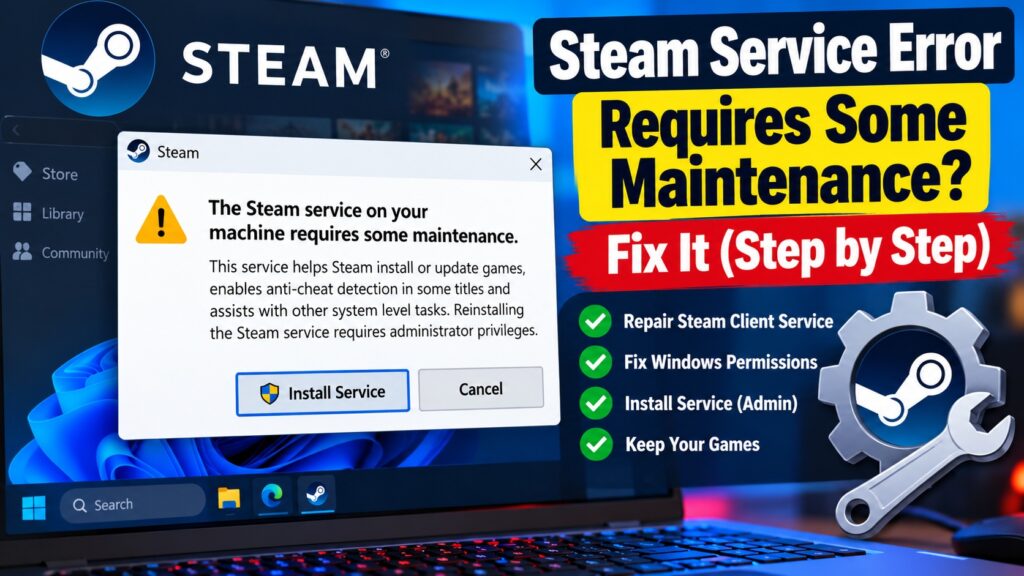
When Steam cannot access or correctly initialize this service, it may display the following message:
The Steam Service on your machine requires some maintenance. This service helps Steam install or update games, enables anti-cheat detection in some titles and assists with other system level tasks. Reinstalling the Steam service requires administrator privileges.
Available buttons: Install Service | Cancel
The message can appear after Steam updates, Windows changes or service configuration problems. It does not automatically mean that your account has been compromised or that Steam’s servers are unavailable.
How to Fix Steam Service Error on Windows
Method 1: Restart Steam and Windows
- Close Steam from its menu using Steam → Exit.
- Open Task Manager and confirm Steam is no longer running.
- Restart Windows.
- Open Steam normally.
- Check whether the maintenance message returns.
This is the safest first step because a pending Steam update or temporary service problem may resolve after a complete restart.
Method 2: Click Install Service in Steam
If the popup is displayed by your genuine Steam installation, use its built-in repair option.
- Launch Steam from your normal desktop shortcut.
- When the maintenance popup appears, click Install Service.
- Review the Windows User Account Control prompt.
- Confirm that the program and publisher are legitimate before approving administrator access.
- Allow Steam to complete the installation.
- Restart Steam and test again.
Method 3: Repair Steam Client Service Using Command Prompt
Valve documents a command for repairing the Steam service. This is the recommended next step when the normal installation option fails.
- Exit Steam completely.
- Open the Windows Start menu.
- Search for Command Prompt.
- Select Run as administrator.
- Enter the command below.
"C:\Program Files (x86)\Steam\bin\SteamService.exe" /repairPress Enter and allow the repair process to finish. Then reopen Steam.
If Steam is installed on another drive or folder, replace the path with the actual location of SteamService.exe.
Method 4: Check Steam Client Service in Windows
If the message keeps returning, inspect the Windows service configuration.
- Press Windows + R.
- Type
services.mscand press Enter. - Locate Steam Client Service.
- Double-click the service.
- Review its startup type and status.
- If the service is disabled, change the startup type to Manual.
- Click Apply and try launching Steam again.
Steam commonly uses a manual or on-demand service configuration. You do not need to force it to Automatic merely because the service is not running while Steam is closed.
If the service is missing entirely, return to the official repair command rather than downloading a replacement executable.
Method 5: Check Antivirus and Security Software
Security software can sometimes prevent applications from updating or repairing Windows services.
Check your security application’s protection history for a blocked Steam executable. If you find one, verify the file location and publisher before restoring it or creating an exception.
Avoid permanently disabling Windows Defender or other antivirus protection just to launch Steam.
Method 6: Repair Steam Without Deleting Installed Games
If the service repair still fails, reinstalling the Steam client into its existing installation directory may repair damaged client files.
- Exit Steam.
- Confirm the location of your Steam installation.
- Back up important game saves and any custom files not synchronized to Steam Cloud.
- Download the official Steam installer.
- Run the installer and select the existing Steam installation location.
- Allow the client to update and test the service again.
Valve notes that installing Steam into its existing location can preserve installed games.
Valve warns that uninstalling Steam can remove installed game content. A repair installation is different from uninstalling the client and should be attempted first.
Steam Service Error: Causes and Solutions
| Symptom | Possible explanation | Recommended fix |
|---|---|---|
| Popup appears once after an update | Steam service needs updating. | Use Install Service in the genuine client. |
| Popup returns on every launch | Service repair is not completing or configuration is incorrect. | Run the official repair command. |
| Administrator permission error | Repair lacks required Windows privileges. | Open Command Prompt as administrator. |
| Steam Client Service missing | Service installation may be incomplete. | Repair Steam or reinstall into the existing directory. |
| Access denied during repair | Windows permissions or security software may be blocking changes. | Review security logs and permissions. |
| Games fail to update | Could involve the service, library permissions or download cache. | Repair the service, then troubleshoot Steam downloads separately. |
Is the Steam Service Maintenance Popup Safe?
The maintenance message is a known Steam client prompt and has appeared in Steam community discussions for several years.
It is generally safe to use the repair function when the message originates from the legitimate Steam application and Windows identifies the expected publisher.
However, do not trust a random website, email or downloaded executable that imitates the Steam popup.
Why Does Steam Keep Asking to Install the Service?
If Steam asks to install the service every time it starts, the underlying repair may not be completing successfully.
Check whether the service exists in Windows Services, run the repair command with administrator permissions and examine any errors returned by Windows.
Changing the service to Automatic is sometimes suggested in community discussions, but it is not a universal fix. Restoring a disabled service to Manual and repairing its installation is a more targeted approach.
Steam Service Error After Windows Update
Some users report seeing the popup after Windows or Steam updates. A fresh October 14, 2026 community report described the message after routine updates, although the poster did not establish that Windows caused the error.
If the issue began after an update, try restarting Windows and repairing the Steam service before considering any Windows rollback.
There is currently insufficient evidence to attribute this error to a specific October 2026 Windows update.
Steam Service Error vs Steam Server Maintenance
These two issues are different.
| Steam service maintenance | Steam server maintenance |
|---|---|
| Usually affects a Windows component on your PC. | Affects access to online Steam services. |
| May require administrator privileges. | Usually cannot be fixed by repairing Windows services. |
| Often resolved through local service repair. | May require waiting for Valve to restore online functionality. |
| Can appear even when Steam’s online services work. | May affect multiple users simultaneously. |
Related Steam Troubleshooting Guides
Official Steam Support References
- Steam Support: Repair the Steam Service
- Steam Support: Update and Installation Issues
- Official Steam Installer
- Steam Community: Maintenance Popup Discussion
The Steam Service Error usually indicates that the Steam Client Service needs repair or installation on your Windows PC. Start by restarting Steam, use the built-in Install Service option, and run Valve’s official SteamService.exe /repair command if necessary.
A complete Steam uninstall is rarely the best first step, especially when you want to preserve installed games.
Editorial note: This is an independent troubleshooting guide. Steam is a trademark of Valve Corporation. Last reviewed October 14, 2026.