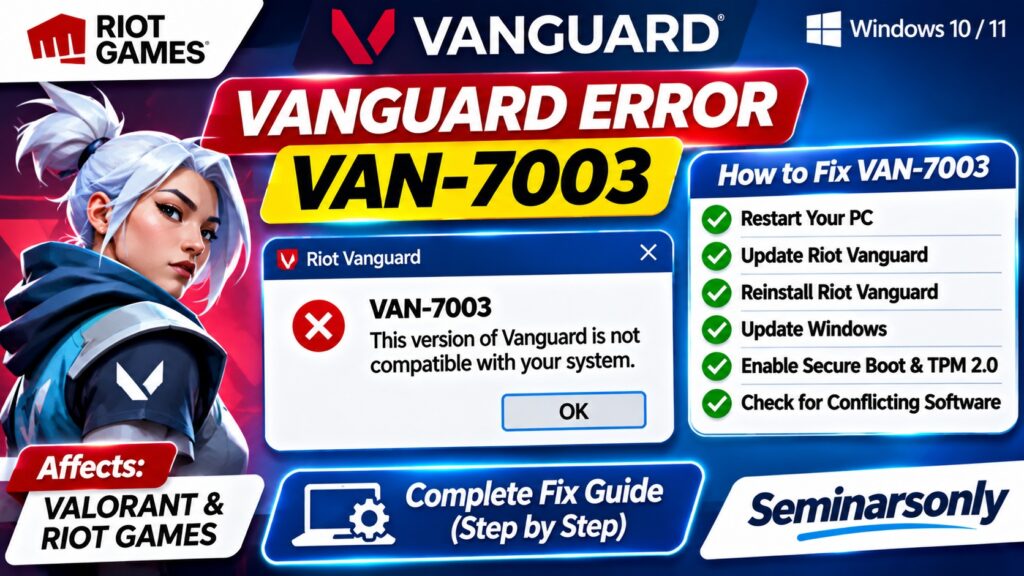

Vanguard Error VAN 7003: How to Fix It in League of Legends
Updated: November 4, 2026 | Game: League of Legends | Platform: Windows PC
Quick Answer: How to Fix Vanguard Error VAN 7003
Vanguard error VAN 7003 occurs when Riot Vanguard cannot detect an active League of Legends client interface while the game is initializing.
Riot Games identifies the “Close client during game” setting as a known cause.
Official fix: Open the League of Legends client, go to Settings, find Close client during game, and turn it off. Then launch a game again.
If VAN 7003 continues, restart the Riot Client and Windows, check for updates, and contact Riot Player Support with your logs.
What Is Vanguard Error VAN 7003?
VAN 7003 is a Riot Vanguard error associated with League of Legends.
Players may encounter it while trying to enter a match or during the game’s initialization process.
The error can appear with a message similar to:
An unexpected error with Vanguard has occurred and the client will now close.
Riot’s official explanation is specific: Vanguard cannot detect the active League Client user interface that it expects to find during initialization.
When that interface is unavailable, the anti-cheat system may stop the game from continuing.
This is different from an error that specifically indicates TPM 2.0, Secure Boot, incompatible drivers or a missing Vanguard installation.
Understanding the distinction helps players avoid unnecessary changes to Windows security settings.
Why Does League of Legends Show VAN 7003?
According to Riot Games, a known cause is the League Client setting called Close client during game.
This setting controls what happens to the League Client interface when a match starts.
When enabled, the client may close while the game launches.
However, Vanguard expects to detect an active League Client UI during initialization.
If the interface closes at the wrong time, Vanguard may fail its initialization check and display VAN 7003.
Riot’s documented solution is to disable that setting.
| Issue | Explanation | Recommended Action |
|---|---|---|
| Close client during game enabled | League Client UI may close during initialization | Disable the setting |
| VAN 7003 when entering a match | Vanguard cannot detect the expected client UI | Keep League Client open |
| Riot Client not responding | Client may not be operating normally | Restart client and Windows |
| Error continues after official fix | Additional diagnosis is required | Collect logs and contact Riot Support |
Fix 1: Turn Off “Close Client During Game”
This is the first fix to try because Riot Games specifically recommends it for VAN 7003.
Official Riot Games Fix
- Open the League of Legends client.
- Click the gear-shaped Settings icon.
- Look for the setting named Close client during game.
- Change the setting to Never or the equivalent option that keeps the client open.
- Close the Settings menu.
- Start a League of Legends match again.
- Check whether VAN 7003 has disappeared.
Source: Riot Games — Error VAN 7003.
Depending on the client version, the setting may be presented as a dropdown rather than a simple checkbox.
The important point is to select the option that keeps the League Client running while the game is active.
Fix 2: Restart League of Legends and Riot Client
If the setting is already disabled but the error continues, try restarting the affected applications.
This is a general troubleshooting step, not Riot’s primary documented VAN 7003 fix.
Restart Instructions
- Close League of Legends.
- Exit Riot Client.
- Check the Windows system tray for any remaining Riot Client icon.
- Exit the application completely if it is still running.
- Wait a few seconds.
- Open Riot Client again.
- Launch League of Legends.
- Confirm that Close client during game remains disabled.
- Try entering a match.
A complete client restart can clear temporary application state that may persist when only the game window is closed.
Do not manually terminate Vanguard’s system driver or delete anti-cheat files while troubleshooting this particular setting.
Fix 3: Restart Your Windows Computer
If restarting the Riot Client does not help, restart Windows.
- Save any open documents.
- Open the Windows Start menu.
- Select Power.
- Click Restart.
- Wait for Windows to load completely.
- Open Riot Client.
- Launch League of Legends.
- Try joining a game again.
A Windows restart can help when the client or background services are not functioning normally.
However, restarting alone may not permanently resolve VAN 7003 if the Close client during game option remains enabled.
Check the setting again after restarting.
Fix 4: Check for Riot Client and League Updates
Outdated or incomplete game files can sometimes cause launch problems.
Although Riot has not identified outdated files as the specific cause of VAN 7003, keeping League of Legends updated is a reasonable secondary troubleshooting step.
- Open Riot Client.
- Select League of Legends.
- Check whether an update is available.
- Allow any pending download or installation to finish.
- Restart the client if requested.
- Launch League again.
Avoid interrupting an update or manually replacing Riot game files with downloads from third-party websites.
Fix 5: Check Whether Riot Vanguard Is Running Normally
Riot Vanguard is Riot Games’ anti-cheat software.
League of Legends relies on Vanguard for its supported Windows gameplay environment.
If the game displays several different Vanguard errors, there may be a broader anti-cheat or client issue.
However, VAN 7003 should not automatically be treated as proof that Vanguard is missing or corrupted.
Riot has identified a more specific cause involving the League Client interface.
Therefore, check the official setting first.
If other Vanguard error codes appear, use Riot’s error-code documentation to identify the appropriate procedure for those codes.
Riot Games — League of Legends Performance Support
Fix 6: Avoid Unnecessary TPM and Secure Boot Changes
Some online tutorials recommend changing TPM 2.0 or Secure Boot settings whenever a Vanguard error appears.
Those settings can be relevant to particular Vanguard security errors.
However, Riot’s official VAN 7003 support article does not instruct players to modify TPM or Secure Boot to resolve this code.
Changing BIOS or UEFI settings without understanding the system configuration can create additional startup or security problems.
Likewise, reinstalling Windows or League of Legends should not be the first response to this error.
Fix 7: Collect Logs and Contact Riot Player Support
If VAN 7003 continues after disabling Close client during game, Riot recommends submitting a support ticket with logs.
Logs help Riot investigate whether the client is closing unexpectedly or whether another issue is preventing Vanguard from detecting the required interface.
Information to Include
- The exact error code: VAN 7003.
- The complete error message.
- When the error occurs, such as during match loading.
- Whether Close client during game is disabled.
- Your Windows version.
- Whether the problem started after a recent update.
- Any troubleshooting steps already completed.
- Relevant logs requested by Riot Support.
Riot provides the Riot Repair Tool to help gather diagnostic logs.
Use the official Riot support website rather than third-party diagnostic downloads.
VAN 7003 vs Other Vanguard Errors
Riot Vanguard displays several error codes, but they do not all have the same cause.
| Error | What to Check | Recommended Approach |
|---|---|---|
| VAN 7003 | League Client UI detection | Disable Close client during game |
| VAN 57 | Vanguard initialization or service issue | Follow Riot’s VAN 57 instructions |
| VAN 128 | Vanguard connection or initialization problem | Use the specific Riot troubleshooting guide |
| VAN 9001 / 9003 | System security requirements in applicable environments | Follow Riot’s TPM or Secure Boot guidance |
| VAN 84 | Connection-related issue | Follow the official VAN 84 guide |
Do not assume that instructions for VAN 9003 apply to VAN 7003 merely because the numbers look similar.
Does VAN 7003 Affect VALORANT?
Vanguard is used across multiple Riot Games titles, including League of Legends and VALORANT.
However, Riot’s newly published VAN 7003 article specifically addresses League of Legends and its client interface.
The documented fix refers to a setting within the League Client.
That setting does not provide a direct troubleshooting procedure for VALORANT.
If VALORANT displays VAN 7003, record the exact message and submit a Riot support request rather than assuming the League-specific setting is available.
Will Reinstalling Riot Vanguard Fix VAN 7003?
Reinstalling Vanguard may be appropriate for some anti-cheat installation problems, but it is not Riot’s recommended first fix for VAN 7003.
The official explanation points to the League Client interface closing during initialization.
Disabling the relevant setting is faster and less disruptive than reinstalling anti-cheat software.
If Riot Support later determines that Vanguard installation files are damaged, follow its specific reinstall instructions.
Why Does VAN 7003 Appear When Entering a League Match?
League of Legends uses a client interface for activities such as matchmaking and champion selection, while the game itself runs separately.
When a match begins, the client may be configured to close.
Riot states that Vanguard expects an active League Client UI during initialization.
If that interface closes, Vanguard may be unable to detect it and can terminate the game with VAN 7003.
Keeping the League Client open addresses this documented condition.
How to Prevent VAN 7003 From Returning
Once the error is resolved, a few simple practices can reduce the likelihood of repeating the same problem.
- Keep Close client during game disabled.
- Check the setting after major client updates if the error returns.
- Allow Riot Client updates to complete normally.
- Restart the client if it becomes unresponsive.
- Avoid unofficial game modifications.
- Follow Riot’s guidance for any new error code.
These practices do not guarantee that every Vanguard problem will be prevented, but they address the known VAN 7003 trigger and support a stable client environment.
Frequently Asked Questions
What does Vanguard error VAN 7003 mean?
It means Vanguard cannot detect an active League Client interface during initialization, according to Riot Games.
What is the official fix for VAN 7003?
Open League of Legends Settings and disable the Close client during game option.
Why does VAN 7003 happen when I enter a match?
The League Client may close when the match begins, preventing Vanguard from detecting the interface it expects during initialization.
Do I need to reinstall Vanguard?
Not as the first step. Riot recommends changing the League Client setting before attempting more extensive troubleshooting.
Should I enable TPM 2.0 to fix VAN 7003?
Riot’s VAN 7003 instructions do not identify TPM 2.0 as the cause. Follow the specific guidance for any security-related error code instead.
Does VAN 7003 mean my Riot account is banned?
The official VAN 7003 description concerns client detection during initialization, not an account ban. If you also receive a separate account restriction notice, contact Riot Support.
What if VAN 7003 continues after disabling the setting?
Restart the Riot Client and Windows. If the problem persists, submit a support ticket with logs, as Riot recommends.
Official Sources
- Riot Games — Error VAN 7003 (Official Fix)
- Riot Games — League of Legends Performance Support
- Riot Games — Player Support
Related Gaming Error Guides
For more game errors, launcher troubleshooting and Windows gaming fixes, visit Seminarsonly News.
Related guides include Fortnite launcher errors, Helldivers 2 startup failures and League of Legends connection problems.
Add direct links to existing published articles after verifying their URLs.
TL;DR: Vanguard Error VAN 7003 Fix
- Error: VAN 7003.
- Game: League of Legends.
- Cause: Vanguard cannot detect the active League Client UI during initialization.
- Known trigger: Close client during game is enabled.
- Official fix: Disable that setting in League Client Settings.
- If unresolved: Restart the client and Windows.
- Still failing: Submit logs to Riot Player Support.
- Not recommended as a first fix: Reinstalling Windows, resetting TPM or changing BIOS settings.
Bottom line: For League of Legends VAN 7003, start by turning off Close client during game. This is Riot’s specifically documented solution.
Editorial note: Updated November 4, 2026. This independent guide is based on Riot Games’ published VAN 7003 support instructions. It is not affiliated with Riot Games.