
Updated: November 16, 2026 | Platform: Windows PC | Category: Gaming Errors
QUICK ANSWER: To fix Rainbow Six Siege error 49666, close Siege, Steam and Ubisoft Connect completely, then restart your PC. If the error continues, locate the game’s multiexe folder and rename it to multiexe_backup while all game processes are closed. Some players report that this resolves the QB Anti-Cheat executable staging error. Next, verify your game files and use Ubisoft’s official Anti-Cheat repair tool. If only one Ubisoft account is affected, the problem may require an Ubisoft-side fix.
Rainbow Six Siege players are reporting QB Anti-Cheat Error 49666, which can prevent the game from launching correctly or connecting to online matches.
The problem has attracted renewed attention following the November 13, 2026 update. Some affected users report that Siege works on one Ubisoft account but fails on another account using the same computer and installation.
This guide explains what error 49666 means, which fixes are supported by Ubisoft, and which community workarounds may be worth trying without damaging your game installation.
What Is Rainbow Six Siege Error 49666?
Error 49666 is associated with the QB Anti-Cheat component used during Rainbow Six Siege startup and security validation.
Players commonly see this message:
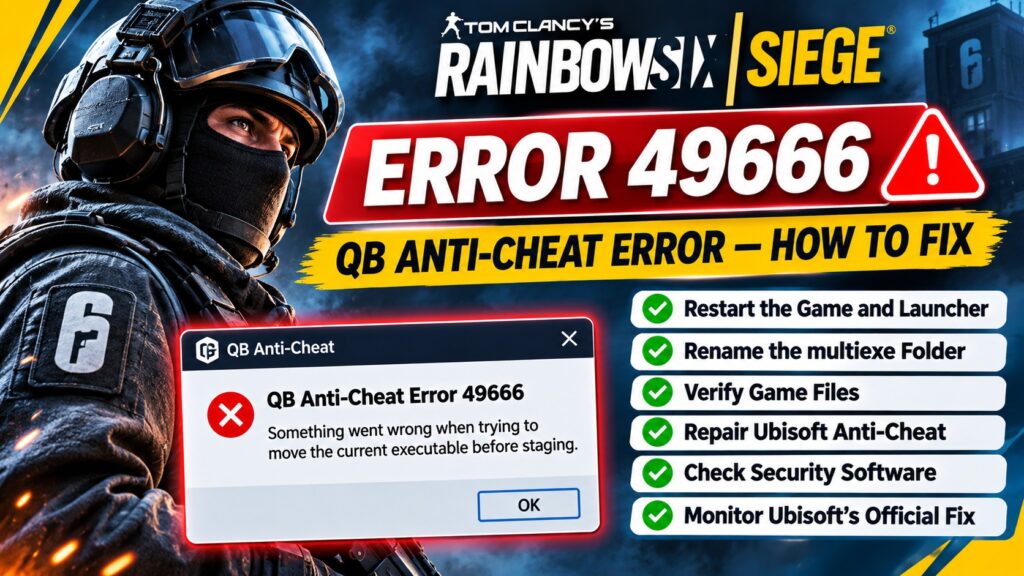
QB Anti-Cheat Error 49666Something went wrong when trying to move the current executable before staging.
Something went wrong with security measure validation. All retry attempts failed. You can continue offline.
The message indicates that the anti-cheat startup or executable staging process did not complete successfully.
The word staging generally refers to preparing a file or executable before it is used. However, Ubisoft has not publicly established a single root cause for every occurrence of error 49666.
The official Ubisoft Bug Reporter contains a report identified as R6S-5291, describing account-specific failures following the November 13 update.
View Ubisoft’s official Error 49666 bug report.
Why Does Rainbow Six Siege Show Error 49666?
| Possible reason | What happens | Recommended action |
|---|---|---|
| Executable staging problem | QB Anti-Cheat cannot complete startup validation | Restart the game and consider the multiexe folder workaround |
| Account-specific validation issue | One Ubisoft account works while another fails | Check the official bug report and contact Ubisoft |
| Corrupted game files | Required files may be missing or damaged | Verify game files |
| Anti-cheat installation issue | Security component fails during startup | Repair Ubisoft Anti-Cheat |
| Security software interference | Security software may block a required operation | Review protection history and official compatibility guidance |
| Recent game update | Error begins after an update | Check Ubisoft reports and install subsequent fixes |
These are possible explanations rather than confirmed causes for every affected PC.
Fix 1: Restart Rainbow Six Siege and Ubisoft Connect
Begin with a complete restart. This ensures that old game processes are no longer holding files open.
- Close Rainbow Six Siege.
- Exit Ubisoft Connect completely, including its system tray icon.
- If you use Steam, exit Steam as well.
- Press Ctrl + Shift + Esc to open Task Manager.
- Check whether any Rainbow Six Siege process is still running.
- Close remaining game processes if it is safe to do so.
- Restart Windows.
- Open Ubisoft Connect and launch the game again.
If the error disappears, no additional changes are necessary.
Fix 2: Rename the Rainbow Six Siege multiexe Folder
One community-reported workaround involves resetting the game’s multiexe folder.
Players have reported that stale executable files in this folder can interfere with the staging process. This explanation is based on community troubleshooting, not an officially confirmed diagnosis for every player.
Step-by-step multiexe workaround
- Exit Rainbow Six Siege, Ubisoft Connect and Steam.
- Open Task Manager and confirm the game is no longer running.
- Open File Explorer.
- Find your Rainbow Six Siege installation directory.
- Locate the folder named
multiexe. - Rename it to
multiexe_backup. - Restart Ubisoft Connect and launch Rainbow Six Siege.
Typical installation locations include:
Ubisoft Connect:
C:\Program Files (x86)\Ubisoft\Ubisoft Game Launcher\games\Tom Clancy's Rainbow Six Siege\
Steam:
C:\Program Files (x86)\Steam\steamapps\common\Tom Clancy's Rainbow Six Siege\
Your installation folder may have a different name or be located on another drive.
multiexe folder. Do not delete the entire Rainbow Six Siege installation, Ubisoft launcher directory, or unrelated executable files. If the game does not recreate the folder or behaves unexpectedly, close it and restore the original folder name.This workaround has been reported by community members but is not guaranteed to fix account-specific anti-cheat validation failures.
Fix 3: Verify Rainbow Six Siege Game Files
Ubisoft officially recommends verifying game files when troubleshooting Anti-Cheat problems.
For Ubisoft Connect players
- Open Ubisoft Connect.
- Navigate to your game library.
- Select Rainbow Six Siege.
- Open the game’s properties or management options.
- Select Verify files.
- Wait for the verification and repair process to finish.
- Restart the launcher and test the game.
For Steam players
- Open Steam.
- Right-click Rainbow Six Siege in your library.
- Select Properties.
- Open Installed Files.
- Click Verify integrity of game files.
- Wait until Steam completes verification.
Verification can restore missing or corrupted game files. However, some players with error 49666 have reported that verification did not resolve the problem.
Fix 4: Repair Ubisoft Anti-Cheat
If the error continues, use Ubisoft’s official Anti-Cheat installer rather than downloading third-party repair tools.
- Open your Rainbow Six Siege installation folder.
- Find the Sentinel folder.
- Locate
UbisoftAntiCheatInstaller.exe. - Right-click the installer and select Run as administrator.
- Select Repair.
- Allow the repair process to complete.
- Restart Windows and test the game.
If Repair does not work, Ubisoft also documents an Install option for reinstalling the anti-cheat component.
Official Ubisoft Anti-Cheat troubleshooting instructions.
Fix 5: Check Windows Security and Antivirus Interference
Anti-cheat systems interact with security-sensitive parts of the operating system. Security software may occasionally interfere with required file operations.
- Open Windows Security.
- Select Virus & threat protection.
- Open Protection history.
- Check for recent actions involving Rainbow Six Siege or Ubisoft Anti-Cheat.
- If a legitimate game file was blocked, follow Ubisoft’s official compatibility instructions.
Do not disable your firewall or antivirus permanently. Avoid adding broad exclusions for entire drives or unknown files.
If you suspect third-party software interference, Ubisoft’s general troubleshooting guidance may help you perform a controlled clean-boot test.
Fix 6: Check Whether the Error Affects Only One Ubisoft Account
This is particularly important for the November 2026 reports.
In Ubisoft Bug Reporter issue R6S-5291, a player described an unusual pattern:
- The main Ubisoft account consistently received error 49666.
- An alternate account worked on the same Windows PC.
- Both accounts used the same game installation.
- Verifying files, repairing anti-cheat and clearing launcher cache did not fix the main account.
Other players have reported similar behavior.
Do not repeatedly reinstall Windows or purchase another copy of the game simply because one Ubisoft account cannot pass validation.
Fix 7: Reset Ubisoft Connect Cache Safely
Corrupted launcher cache files can cause some Ubisoft Connect problems. Cache reset is a general troubleshooting measure, not a confirmed solution for error 49666.
- Exit Ubisoft Connect completely.
- Open its installation directory, commonly
C:\Program Files (x86)\Ubisoft\Ubisoft Game Launcher\. - Find the folder named
cache. - Rename it to
cache_backup. - Restart Ubisoft Connect and sign in again.
- Test Rainbow Six Siege.
Do not delete the entire Ubisoft directory or the Ubisoft Game Launcher folder. Renaming the cache folder is more reversible than deleting unrelated launcher data.
Fix 8: Check Rainbow Six Siege Server Status
Although error 49666 is primarily being reported during anti-cheat validation, checking service status helps rule out a separate online-service interruption.
Visit the official Rainbow Six Siege Server Status page.
At the time of this article’s November 16 check, Ubisoft’s status page displayed no general PC service issues. That does not rule out individual anti-cheat failures or account-specific problems.
Which Error 49666 Fix Should You Try First?
| Situation | Best next action | Confidence |
|---|---|---|
| Error began after restarting the game | Close all launchers and restart Windows | Safe first step |
| Executable staging message appears | Try the reversible multiexe folder rename | Community-reported workaround |
| Game files may be damaged | Verify files through Steam or Ubisoft Connect | Official troubleshooting step |
| Anti-cheat installation appears damaged | Run Ubisoft Anti-Cheat Repair | Official troubleshooting step |
| One Ubisoft account works, another fails | Follow the official bug report and contact Ubisoft | Account-specific issue reported |
| Nothing works after the November update | Submit diagnostics and monitor Ubisoft updates | May require a developer-side fix |
Is Rainbow Six Siege Error 49666 Fixed Yet?
As of November 16, 2026, the official Ubisoft Bug Reporter lists issue R6S-5291 as Pending Review. Multiple players have reported similar problems.
Some community workarounds have helped individual players, but there is no confirmed universal resolution for all affected accounts.
Check the issue directly for any status changes:
Rainbow Six Siege Error 49666 — Ubisoft Bug Reporter.
If you are still affected, use Ubisoft’s support channels and provide the exact error message, the date the problem began, your launcher, and the troubleshooting steps already attempted.
Frequently Asked Questions
What does Rainbow Six Siege error 49666 mean?
It is a QB Anti-Cheat error associated with executable staging or security validation during game startup. The message may state that the current executable could not be moved before staging.
How do I fix QB Anti-Cheat error 49666?
Restart the game and launcher, try the reversible multiexe folder workaround, verify game files, and repair Ubisoft Anti-Cheat using Ubisoft’s official installer. These steps are not guaranteed to fix account-specific problems.
Did the November 13, 2026 Rainbow Six Siege update cause error 49666?
Several players reported the issue after that update. The timing is documented in Ubisoft’s Bug Reporter, but the update has not been conclusively established as the cause in every case.
Why does error 49666 happen only on my main Ubisoft account?
Some reports describe one account failing while another works on the same PC. This suggests an account-specific validation problem in those cases, but Ubisoft has not confirmed a universal explanation.
Should I reinstall Rainbow Six Siege?
Not immediately. Try file verification and the official Anti-Cheat repair process first. Some affected players have reported that reinstalling the game did not resolve error 49666.
Is Rainbow Six Siege error 49666 a ban?
Error 49666 alone does not establish that an account has been banned. It is reported as a QB Anti-Cheat validation or staging error. Check official account notifications if you suspect an enforcement action.
Does deleting the multiexe folder fix error 49666?
Some community members report success. Renaming the folder while the game is closed is a more reversible approach, but it is not an officially confirmed universal fix.
Can I play Rainbow Six Siege offline after error 49666?
The error may offer an offline continuation option, but online matchmaking remains unavailable if anti-cheat security validation does not complete successfully.
Official Sources and References
- Ubisoft Bug Reporter — QB Anti-Cheat Error 49666
- Ubisoft Bug Reporter — Additional Error 49666 Reports
- Ubisoft Help — Troubleshooting Ubisoft Anti-Cheat
- Ubisoft Help — Troubleshooting Technical Issues in Rainbow Six Siege
- Official Rainbow Six Siege Service Status
- Steam Community — Error 49666 Workaround Discussion
Editorial note: This guide combines Ubisoft’s documented anti-cheat troubleshooting with clearly identified player-reported workarounds. The exact cause and universal resolution for error 49666 remain unconfirmed as of the stated update date.