
Quick Answer: How to Fix Gemini Error 1155
If Google Gemini displays “Something went wrong (1155)”, retry the prompt once, start a new chat, remove any attachments, and check your internet connection. If the error continues, refresh Gemini or restart the mobile app, wait about five minutes, and try again.
Google classifies most Gemini Apps errors in the 1000+ range as unexpected problems encountered while processing a prompt. Google does not publish a separate confirmed root cause for code 1155.
Official source: Google Gemini Error Code Troubleshooting.
Gemini error 1155 can interrupt a conversation when you submit a question, upload an attachment, or request a response. The message may appear in the Gemini web interface or mobile app.
The good news is that Google’s official troubleshooting guide provides several safe steps to try before changing advanced browser or device settings.
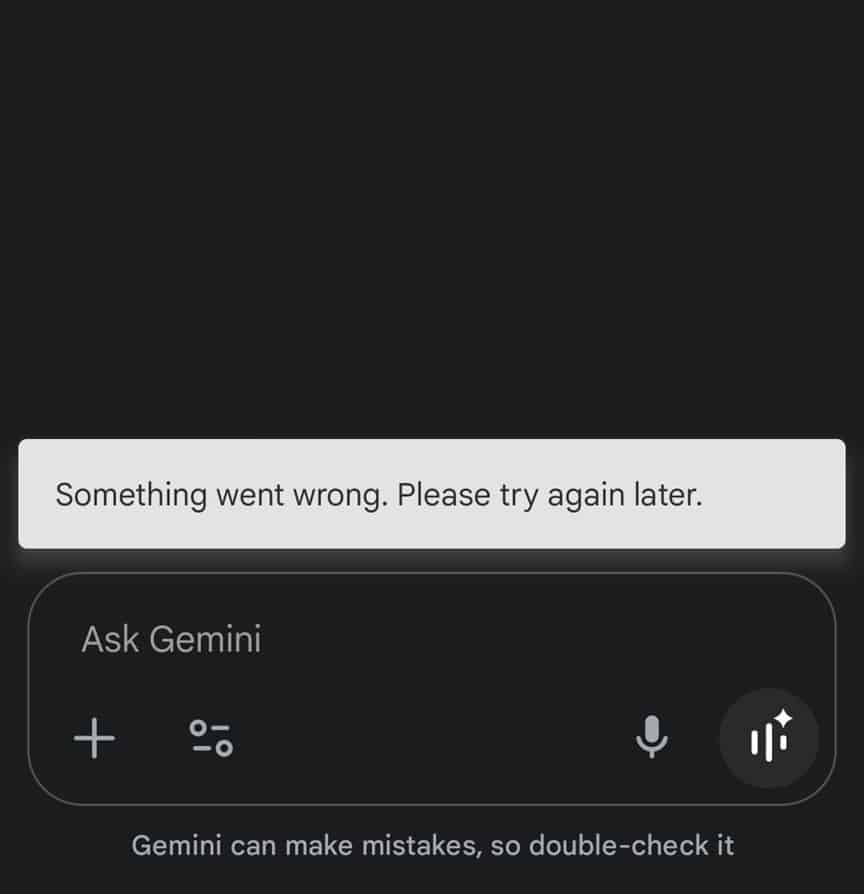
What Does Gemini Error 1155 Mean?
Google’s Gemini Apps Help Center explains that error codes in the 1000+ range generally indicate an unexpected issue while processing a prompt. Its examples include codes such as 1099 and 1185.
Error 1155 falls within that broad numerical range. However, Google does not identify a unique technical cause for 1155 in its published guide.
| Error | Google’s documented explanation | Recommended action |
|---|---|---|
| 1155 | Falls within the 1000+ unexpected-processing-error category; no separate cause published | Use the standard Gemini troubleshooting steps |
| 1099 | Example of a 1000+ unexpected-processing error | Retry, start a new chat, and check the connection |
| 1185 | Example of a 1000+ unexpected-processing error | Use Google’s general error troubleshooting guidance |
| 1060 | Gemini Apps may not be available in your country or region | Check regional availability |
| (2), (5), (7) | Unexpected issue processing a prompt | Try the standard recovery steps |
Also Read : KlikBCA Error Hari Ini 16 November 2026
7 Steps to Fix Gemini Error 1155
Fix 1: Retry Your Prompt
Google recommends trying the prompt again because temporary connection or service issues can resolve quickly.
- Wait a few seconds after the error appears.
- Check that your internet connection is active.
- Submit the same prompt again.
- If it fails repeatedly, move to the next fix.
If the prompt includes a large file or multiple attachments, try a shorter text-only version first.
Fix 2: Start a New Gemini Chat
A new conversation is one of Google’s recommended troubleshooting steps.
- Open gemini.google.com.
- Select the option to start a new chat.
- Enter a short test prompt such as “Explain photosynthesis in one sentence.”
- Check whether Gemini generates a response.
If a new chat works but the original conversation still fails, the problem may be associated with that particular conversation or its contents. This test does not prove that a conversation token was corrupted.
Before abandoning an important conversation, preserve any information you can still access.
Fix 3: Remove Attachments and Try Text Only
Google specifically recommends removing attachments when troubleshooting Gemini errors.
If you uploaded a PDF, image, video, or another file:
- Start a new chat.
- Remove the attachment from your test prompt.
- Submit a short text-only request.
- If the text prompt works, review the attachment type and applicable upload limits.
- Try a supported file with a smaller or simpler request.
An attachment-related failure may involve file compatibility, upload limits, connectivity, or processing issues. It does not establish that error 1155 always means the file is too large.
Fix 4: Check Your Internet Connection
An unstable connection may interrupt Gemini requests.
- Check whether other websites load normally.
- Reconnect to your Wi-Fi network if necessary.
- Try another trusted network.
- On mobile, compare Wi-Fi with mobile data.
- Restart your router only if your connection is generally malfunctioning.
If Gemini works on one network but not another, investigate the network configuration before changing Google account settings.
Fix 5: Wait Five Minutes and Retry
Google recommends waiting approximately five minutes if Gemini Apps are experiencing high traffic.
Close the failed request, wait briefly, and submit a simple prompt again.
Repeatedly refreshing or submitting the same request many times is unlikely to help if the service is temporarily unavailable.
Do not assume a widespread outage based only on one error message. Test another device or network where practical.
Fix 6: Refresh Gemini or Restart the App
On Windows or Mac:
- Save any important text you can access.
- Refresh the Gemini browser tab.
- Open Gemini again if the page fails to load.
- Try a short text prompt in a new chat.
On Android or iPhone:
- Close the Gemini app.
- Reopen it.
- Check whether an app update is available.
- Try a new conversation.
Updating an app is a reasonable maintenance step, but Google’s official error-code guide primarily recommends refreshing or restarting the app.
Fix 7: Check Browser Settings and Account Restrictions
If the earlier fixes do not work, perform a few controlled checks.
- Try Gemini in a current version of another browser.
- Test a private browsing window if permitted.
- Temporarily disable an extension that may interfere with the site.
- If using a personal VPN, test whether the issue persists on a normal trusted connection.
- Check whether your Google account is eligible to use the requested Gemini feature.
These are diagnostic tests, not guaranteed fixes for error 1155.
For work or school accounts, organizational restrictions may apply. Contact your administrator rather than bypassing workplace security controls.
Gemini Error 1155 on Windows 11
If you encounter the error in Chrome, Edge, or another supported browser on Windows 11, first determine whether the problem is specific to your current browser session.
- Open Gemini in your usual browser.
- Try a new conversation with a short text prompt.
- Open a private browsing window and sign in if needed.
- Test Gemini in another up-to-date browser.
- Compare the results.
If the error occurs only in one browser, investigate that browser’s extensions, site settings, and stored data.
If you decide to clear site data, be aware that you may be signed out and may lose locally stored website preferences. Do not clear all browsing data unnecessarily.
Gemini Error 1155 on Android
On Android, begin with Google’s recommended restart and connection checks.
- Close and reopen the Gemini app.
- Check your internet connection.
- Try a new text-only chat.
- Check Google Play for an available app update.
- Restart your phone if the problem persists.
- Compare the result with Gemini in a browser.
If Gemini works in the browser but not the Android app, the problem may be specific to the app installation, permissions, or local configuration.
Do not clear all app data as an initial troubleshooting step. Review the consequences before resetting an application.
Gemini Error 1155 on iPhone or iPad
If the Gemini iOS app displays error 1155:
- Close and reopen the app.
- Check Wi-Fi or cellular connectivity.
- Try a new chat without attachments.
- Check the App Store for an available update.
- Restart the device if necessary.
- Test Gemini in a supported browser.
If the error affects both the app and browser, it may involve the account, request, network, or service rather than the app alone.
Gemini Error 1155: Troubleshooting by Symptom
| What happens? | What it may indicate | Best next test |
|---|---|---|
| Only one conversation fails | Issue associated with that chat or its contents | Start a new chat |
| Error appears after uploading a file | Possible attachment or processing issue | Remove the file and try text only |
| Every prompt fails | Possible connection, account, or service issue | Test another network and wait briefly |
| Only one browser fails | Possible browser-specific interference | Try another browser |
| Only the mobile app fails | Possible app-specific problem | Restart and update the app |
| Only a work or school account fails | Possible organizational restriction | Check with the administrator |
| Media generation fails but text works | Possible feature, request, or usage restriction | Start a new chat and review feature availability |
These are diagnostic possibilities rather than confirmed internal explanations for code 1155.
Is Gemini Error 1155 a Google Server Problem?
It can occur during a temporary service or processing issue, but the error number alone does not prove that Google’s servers are down.
Google’s guidance mentions temporary connection issues and high traffic as possible reasons that retrying or waiting may help.
If the error occurs across multiple devices and networks, that is useful diagnostic information. However, it still does not establish a confirmed global outage.
For managed Google Workspace services, administrators can consult the Google Workspace Status Dashboard. This dashboard should not be treated as a complete live status monitor for every consumer Gemini feature.
Does a VPN Cause Gemini Error 1155?
A VPN, proxy, firewall, or browser extension can sometimes interfere with website connectivity. However, Google has not identified VPN usage as the specific cause of error 1155.
If you use a personal VPN and can safely disconnect it, compare Gemini’s behavior with and without the VPN.
If Gemini works without the VPN, investigate the VPN connection or network configuration.
If your employer or school requires a VPN, do not disable it to bypass organizational security policies. Ask your administrator for assistance.
How to Report Gemini Error 1155 to Google
If the error persists after basic troubleshooting, Google recommends sending feedback that includes the error code.
- Open Gemini and sign in.
- Open the Settings menu.
- Select Send feedback.
- Describe what you were doing when error 1155 appeared.
- Include the error number, device, browser or app version, and steps already attempted.
- Attach a screenshot if appropriate, after removing sensitive information.
- Submit the report.
Google notes that feedback availability can vary for work and school accounts.
Frequently Asked Questions
What is Gemini error 1155?
It is a numerical error that can appear when Gemini fails to process a request. Google’s official documentation places most 1000+ Gemini Apps errors in the unexpected-processing-error category but does not provide a separate confirmed definition for 1155.
How do I fix Something Went Wrong (1155)?
Retry the prompt, start a new chat, remove attachments, check your internet connection, wait five minutes, and restart Gemini. These steps follow Google’s official troubleshooting guidance.
Does error 1155 mean my Google account is banned?
No such conclusion can be drawn from the error code alone. Google documents separate account eligibility, policy, and access restrictions that may affect Gemini features.
Will clearing cookies fix Gemini error 1155?
It may help with some browser-specific problems, but it is not a guaranteed fix. Try Google’s simpler recommended steps first and consider targeted site-data troubleshooting only if needed.
Can Gemini error 1155 occur on Android?
Gemini Apps can display numerical errors on supported platforms. On Android, restart the app, check connectivity, and test a new text-only chat.
Is error 1155 caused by uploading too many files?
Google does not identify excessive file uploads as the specific cause of 1155. Removing attachments is nevertheless one of Google’s recommended troubleshooting steps.
How long should I wait before retrying Gemini?
Google recommends waiting approximately five minutes when high traffic may be contributing to an error.
Is Gemini error 1155 the same as error 1185?
Both fall within the broad 1000+ error category described by Google. The official documentation does not establish a distinct internal cause for each number.
Related Gemini Troubleshooting Guides
If you encounter another Gemini error, read our Gemini Error 1185 troubleshooting guide.
Google groups many 1000+ errors under similar general troubleshooting guidance. The exact number is useful when reporting a problem, but it does not always identify a unique cause.
Official Sources
- Google Gemini Apps Help — Troubleshoot Error Codes
- Google Gemini — Official Web App
- Google Gemini Apps Help Center
- Google Workspace Status Dashboard
Editorial review: November 11, 2026. This article applies to Gemini Apps. Error messages, features, and troubleshooting instructions may change. Seminarsonly.com is an independent information website and is not affiliated with Google.


Pingback: Citibank Site Not Working? Quick Fixes & Live Outage Status - Seminarsonly.com