
Last updated: November 16, 2026 | Category: Technology / Error Fixes
Quick Answer:
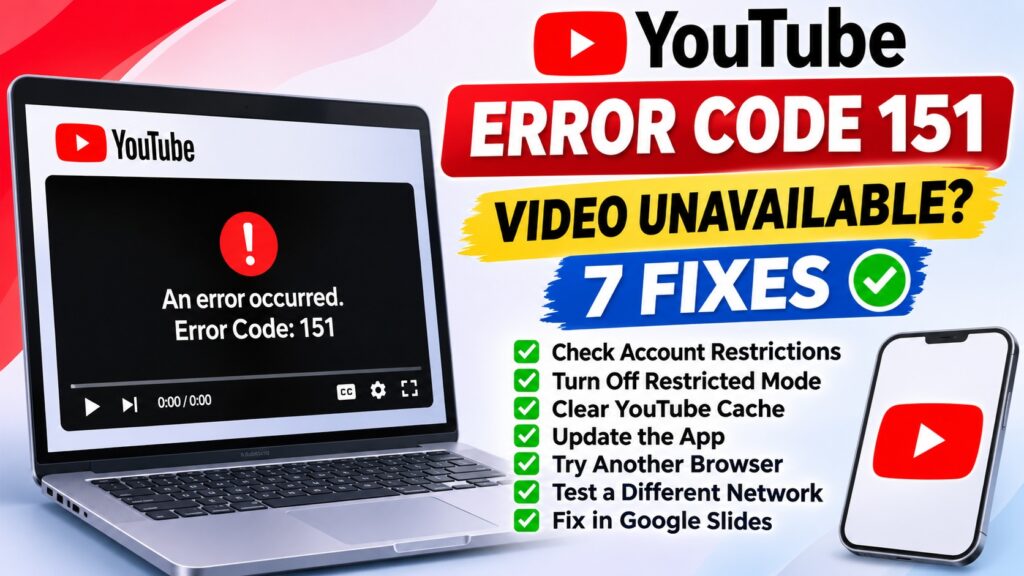
YouTube error code 151 can appear when a video cannot be played with the current Google account, app, browser, or embedded player. If you see “This video isn’t available for your account,” first open the same video directly on YouTube, check Restricted Mode and account supervision, and test another permitted account or device. On Android, restart YouTube, clear its cache, and check for app updates. The code does not have one officially documented cause.
Are you seeing YouTube error code 151 while watching a video on Android, iPhone, Chrome, or Google Slides? The message may appear even when your internet connection works and other videos play normally.
Recent reports describe error 151 affecting supervised accounts, certain videos, and embedded YouTube playback. Because different situations can produce similar symptoms, the most effective solution is to identify whether the problem follows your account, the particular video, or the device.
What Does YouTube Error Code 151 Mean?
Error 151 is a reported YouTube playback error. Users have encountered messages such as “This video isn’t available for your account” and “Unable to play video. Error: 151.”
Google’s published YouTube IFrame Player API documentation lists errors 5, 100, 101, 150 and 153, but does not provide an official definition for 151. Therefore, it would be inaccurate to say every error 151 is caused by copyright, parental controls, or a particular app update.
Why Am I Getting YouTube Error 151?
| Possible cause | What you may notice | What to check |
|---|---|---|
| Account restrictions | Video plays for someone else but not your account | Supervision, age eligibility, managed account settings |
| Restricted Mode | Certain videos are unavailable | YouTube Restricted Mode and network restrictions |
| Embedded player | Video works on YouTube but not in Google Slides or another website | Embedding permissions and account environment |
| App or browser issue | Error occurs on one device or app | Updates, cache, browser extensions |
| Video availability | One particular video fails everywhere | Privacy, removal, age or regional restrictions |
| Network filtering | Videos work on mobile data but not school or office Wi-Fi | Network administrator or content filters |
How to Fix YouTube Error Code 151
Fix 1: Open the Video Directly on YouTube
Start by finding out whether the error is specific to an embedded player.
- Copy the link to the affected video.
- Open youtube.com or the official YouTube app.
- Paste the video URL and try playing it.
- If the video plays directly but fails in Google Slides or another website, focus on the embedding environment.
- If it fails directly too, continue checking your account and device.
This simple comparison prevents unnecessary troubleshooting of a browser or app when the underlying issue is account-specific.
Fix 2: Check YouTube Restricted Mode
Restricted Mode is designed to filter potentially mature content. It may be enabled by the viewer, a parent, a school, an employer, or a network administrator.
On a computer:
- Open YouTube and sign in.
- Click your profile picture.
- Select Restricted Mode.
- Check whether it is enabled.
- If you control the setting and are permitted to change it, turn it off temporarily to test playback.
On Android: Open YouTube, tap your profile picture, then go to Settings > General > Restricted Mode.
If the setting is enforced by a parent, school, employer, or administrator, contact the person responsible rather than attempting to bypass the restriction.
You can also visit Google’s YouTube Content Restrictions checker to investigate restrictions affecting your account or network.
Fix 3: Test Another Account or Device
If the video is unavailable for your Google account, try the same link on another device or in a private browsing window, where permitted.
- Works when signed out: The issue may be connected to your signed-in account or its restrictions.
- Works on a different device with the same account: Investigate the original device or app.
- Fails across devices with the same account: Account-level settings deserve closer attention.
- Fails for everyone: Check the video’s availability and whether it has been removed or restricted.
Private browsing does not remove age restrictions, and some videos require an eligible signed-in account.
Fix 4: Clear YouTube Cache on Android
If the error occurs only in the Android app, clearing temporary app data may help.
- Open your phone’s Settings.
- Tap Apps or Applications.
- Select YouTube.
- Open Storage or Storage & cache.
- Tap Clear cache.
- Restart YouTube and test the video.
Clearing cache is different from clearing app storage. Clearing storage can reset app settings and remove downloaded content, so avoid that more disruptive step unless necessary.
Fix 5: Update or Restart the YouTube App
Google generally recommends keeping the YouTube app updated and restarting the app or device when playback errors occur.
- Close YouTube completely.
- Restart your Android phone or iPhone.
- Open the Play Store or App Store.
- Check for an available YouTube update.
- Install the update and test playback again.
Fix 6: Troubleshoot Chrome, Edge, or Firefox
If error 151 appears in a web browser:
- Refresh the YouTube page.
- Update your browser.
- Test the video in a private window with extensions disabled.
- Temporarily disable browser extensions that interfere with video playback.
- Clear YouTube-related cached data and cookies if necessary.
- Sign in again and retry.
Clearing cookies may sign you out of websites. Make sure you can access your account before removing saved site data.
Fix 7: Test a Different Internet Connection
Network-level filtering can affect video availability, particularly on school, workplace, or public networks.
- Try the same video on mobile data instead of Wi-Fi.
- Compare the result with your usual connection.
- If the problem happens only on a managed network, contact its administrator.
- If the problem happens everywhere, return to account and device troubleshooting.
Changing networks is a diagnostic test, not proof that an internet connection caused error 151.
YouTube Error 151 on Google Slides
Google Slides users have reported videos that play normally on YouTube but show error 151 inside a presentation.
If this happens:
- Open the video’s original YouTube link.
- Confirm that the video is available to the account presenting the slides.
- Check whether the Google Slides presentation uses a school or work account.
- Ask the administrator whether YouTube access or content filtering is restricted.
- Test the presentation in another supported browser.
- If permitted, try reinserting the video using its original YouTube URL.
Reinserting a video will not fix an account restriction or a video owner’s embedding restriction.
YouTube Error 151 on a Child or Supervised Account
Some reports from October 2026 describe error 151 appearing on supervised teen accounts, including videos that played when the user was signed out or used an adult account.
This pattern suggests that account eligibility or filtering may be involved in those cases, but it does not establish the exact cause of every error 151.
Parents can review the applicable supervision and YouTube content settings. If a video is blocked under account rules, the appropriate action is to review the restriction rather than bypass it.
How to Identify the Problem Quickly
| Test result | Most useful next step |
|---|---|
| Video works directly on YouTube, not in Slides | Check embedded playback and managed account settings |
| Video works signed out, not signed in | Review account restrictions and eligibility |
| Video fails only in Android app | Clear cache, restart and update app |
| Video fails only in one browser | Check extensions and browser data |
| Video fails only on school Wi-Fi | Contact network administrator |
| Only one video fails on every device | Check video availability or restrictions |
What If YouTube Error Code 151 Still Appears?
If none of these steps works, record the exact error message, affected video URL, account type, device, operating system, and YouTube app version.
Use the Send feedback option in YouTube or consult the official YouTube Help Community. Include a screenshot with private account information hidden.
Do not install unofficial modified YouTube apps or download unknown APK files claiming to fix error 151. These may introduce security or account risks.
Frequently Asked Questions
What is YouTube error code 151?
It is a reported YouTube playback error that can appear when a video is unavailable in the current account, app, browser, or embedded player. YouTube does not publish one definitive technical explanation for code 151.
Why does YouTube say this video isn’t available for your account?
The video may be affected by account supervision, age eligibility, Restricted Mode, administrator settings, or other availability restrictions. Compare playback across permitted accounts and devices to narrow down the cause.
How do I fix YouTube error 151 on Android?
Restart the app, check Restricted Mode, clear YouTube’s cache, update the app and test the video directly in a browser. If the error follows your account across devices, investigate account restrictions.
Is YouTube error 151 caused by copyright?
Not necessarily. YouTube documents embedded-player error 150 as a video-owner embedding restriction, but does not publish an equivalent official definition for error 151.
Can error 151 occur in Google Slides?
Yes. Users have reported error 151 when YouTube videos are embedded in Google Slides, including cases where the same video plays directly on YouTube. Managed account and embedded-player conditions should be checked.
Does clearing YouTube cache fix error 151?
It may help if the problem is caused by temporary app data, but it cannot remove account restrictions or restore unavailable videos.
Is YouTube error 151 a worldwide outage?
Reports of error 151 alone do not establish a worldwide YouTube outage. Check whether the problem affects multiple accounts, videos, devices and networks before drawing that conclusion.
Official Sources and Further Reading
- YouTube Help: Troubleshoot video errors
- YouTube Help: Restricted Mode settings
- YouTube Help: Android video troubleshooting
- Google Developers: YouTube IFrame Player API error codes
- YouTube Community: Supervised-account error 151 reports
- Google Docs Editors Community: Error 151 in Google Slides
Editorial note: This guide distinguishes Google’s documented troubleshooting recommendations from community-reported error 151 experiences. It does not claim that any one workaround is guaranteed to resolve the error.