
Gmail Account Is Already Added Error on Android: How to Fix It
Gmail Current Status — September 23, 2026
Status: Google-confirmed incident. Mitigation in progress.
- Incident started: September 18, 2026.
- Affected service: Gmail Android app, particularly users on the latest affected release.
- Symptoms: Unexpected logout, Gmail failing to recognize an existing Google Account, and an account-already-added message.
- Official workaround: Uninstall recent Gmail app updates to return to the system version, or use Gmail in your mobile browser.
- Last verified: September 23, 2026, using Google’s official incident update at 02:56 UTC.
Google has identified the root cause and is working on mitigation. This status is a dated snapshot, not a live outage feed.
Check Live Google Incident Status
Quick Answer: How Do You Fix the Gmail Account Already Added Error?
- Open Android Settings > Apps > Gmail.
- Tap the three-dot menu and select Uninstall updates, if available.
- Open Gmail again and check whether your existing Google Account appears.
- If the problem continues, temporarily access your inbox through mail.google.com.
- Check Google’s incident dashboard before reinstalling the latest Gmail version.
- Do not repeatedly remove your Google Account or factory-reset your phone for this known app issue.
Is Gmail asking you to add an email address even though your Google Account is already on your Android phone? You may be experiencing a confirmed Gmail Android issue that prevents the application from recognizing an existing account.
Google has acknowledged the problem, which can leave users stuck between the Gmail welcome screen and an account-already-exists error. Fortunately, there are official temporary workarounds that can restore access to your email while Google completes its fix.
What Is the Gmail Account Already Added Error?
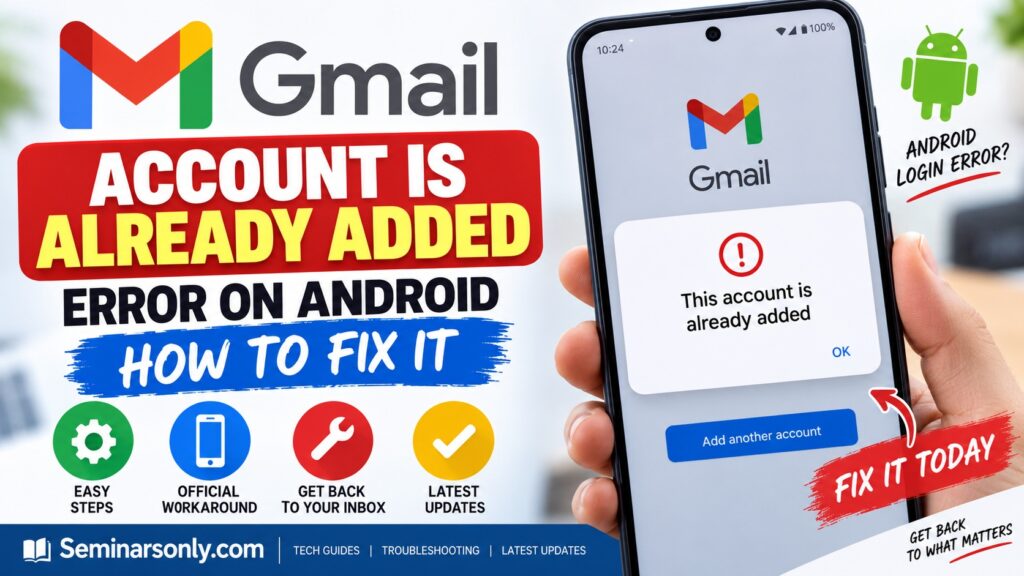
The Gmail account-already-added error occurs when the Gmail Android app fails to recognize a Google Account that is already registered on the device.
During the September 2026 incident, users reported being unexpectedly logged out. When they attempted to sign back in, Android recognized the Google Account, but Gmail continued asking them to add it.
This can create a frustrating login loop: Gmail requests an account, Android says the account already exists, and Gmail still refuses to display the inbox.
| Problem | What It Means |
|---|---|
| Account already added | Android recognizes an account that Gmail is failing to display. |
| Gmail unexpectedly logged out | A documented symptom of the current Gmail Android incident. |
| Add an email address | Gmail may display its setup screen despite an existing account. |
| Inbox not opening | The affected app cannot complete access to the existing account. |
Why Is Gmail Saying My Account Already Exists?
Google has confirmed that its latest affected Gmail Android release can produce this behavior. Its engineering team has identified the underlying cause, although the public incident notice does not disclose the complete technical explanation.
It would therefore be inaccurate to blame a particular Android manufacturer, Google Play services component or account-sync setting without further evidence.
The important distinction is that the account may already be correctly registered on your phone. The problem can be with Gmail recognizing that account, rather than with your password or the account itself.
Also Read : McGraw Hill Error Code L500: Fix Connect Fast
Method 1: Uninstall Recent Gmail Updates
This is Google’s documented temporary workaround for the September 2026 incident. Reverting Gmail to its system version may allow the app to recognize your existing account again.
Steps for Android
- Open your phone’s Settings application.
- Select Apps or Applications.
- Tap See all apps, if necessary.
- Find and select Gmail.
- Tap the three-dot menu in the upper-right corner, if available.
- Select Uninstall updates.
- Confirm the action and wait for Android to restore the factory-installed Gmail version.
- Open Gmail and check whether your account and inbox are accessible.
On devices where Gmail is a preinstalled system application, uninstalling updates usually reverts the app rather than deleting Gmail from your Google Account.
Nevertheless, protect any unsent local drafts and important app-specific settings before modifying the application.
Method 2: Access Gmail Through Your Mobile Browser
If you urgently need to read or send email, Google’s alternative workaround is to use the Gmail website.
- Open Google Chrome or another trusted browser.
- Visit https://mail.google.com.
- Sign in using your existing Google Account if prompted.
- Open your inbox and continue using Gmail through the browser.
This method avoids the affected Gmail Android app. It does not require deleting or re-adding your Google Account.
If the browser version also fails, investigate the exact error shown there separately rather than assuming it is the same Android application issue.
Method 3: Check for a New Gmail Update
Google may release a corrected application version after resolving the incident. Check the official incident dashboard for the latest information before installing the newest release.
- Open the Google Play Store.
- Search for Gmail.
- Open Gmail’s official app listing.
- If an appropriate updated version is available, tap Update.
- Open Gmail and verify that the account-recognition problem has been resolved.
If reinstalling the latest version immediately reproduces the issue, return to Google’s current incident instructions.
A successful update on one device does not establish that the incident has been resolved for every affected user.
Should You Turn Off Gmail Automatic Updates?
Some affected users have reported that their Gmail app updated automatically after they reverted to the system version, causing the issue to return.
If the affected release keeps reinstalling, temporarily disabling automatic updates specifically for Gmail may help preserve the working version until a corrected release becomes available.
- Open the Google Play Store.
- Find the official Gmail app listing.
- Open the three-dot menu, if available.
- Turn off Enable auto update for Gmail.
- Check Google’s incident dashboard for the resolution notice.
- Re-enable automatic updates when a corrected version is available.
This is an optional, temporary measure based on affected-user reports, not a requirement in Google’s official incident workaround. Keeping applications updated is important for security.
What Should You Avoid Doing?
Because Google has acknowledged this particular issue, avoid unnecessarily disruptive troubleshooting steps.
| Action | Why to Avoid It Initially |
|---|---|
| Factory-resetting your phone | Unnecessary for a known Gmail app incident and may cause data loss. |
| Repeatedly removing your Google Account | Can disrupt access to other Google applications and synchronized data. |
| Clearing all Gmail storage | May erase local drafts and settings without fixing the underlying incident. |
| Installing Gmail APKs from unknown websites | Introduces unnecessary security risks. |
| Changing your Google password repeatedly | Does not address the documented app-recognition issue. |
What If Gmail Still Doesn’t Work?
If Gmail continues to display the error after Google’s incident has been resolved, check whether the problem is limited to the app or affects your Google Account more broadly.
- Browser works, Gmail app fails: Check the installed Gmail version and official Android troubleshooting guidance.
- Browser and app both fail: Investigate the exact sign-in or account error.
- Work or school account affected: Contact your organization’s Google Workspace administrator.
- Only new messages are missing: Follow Google’s separate Gmail synchronization troubleshooting guidance.
Google also provides a procedure for clearing Gmail application storage, but recommends using it only after less disruptive troubleshooting fails because it can erase local drafts and settings.
Does the Error Mean Your Gmail Account Is Deleted?
No. The account-already-added message does not, by itself, mean your Google Account has been deleted or suspended.
During the confirmed incident, Android can recognize the account even when Gmail fails to display it correctly.
Try accessing your inbox through the official Gmail website. If your account works there, that is useful evidence that the problem is limited to the Android application or its interaction with the device.
Official Google Sources
- Google Workspace Status — Official Gmail Android Incident
- Google Help — Fix Gmail App Synchronization Errors
- Google Help — Remove an Account From Gmail
- Google Help — Update the Gmail Application
Related Troubleshooting Guides
Find additional technology and service-error articles in our latest technology news and troubleshooting section and technology guides.
Gmail Account Already Added Error: Quick Answers
- Why does Gmail say my account is already added? A confirmed September 2026 Gmail Android issue can prevent the app from recognizing an account already registered on the device.
- What is Google’s official workaround? Uninstall recent Gmail app updates to return to the system version, or use Gmail through a mobile browser.
- Will removing my Google Account fix it? Account removal is not Google’s recommended workaround for this incident and can disrupt other applications.
- Can I access my emails while the app is broken? Yes, try the official Gmail website at mail.google.com.
- Should I reinstall Gmail updates? Check Google’s incident status and install a corrected version when available.
- Is the error a sign that my account has been deleted? Not by itself. The confirmed incident involves Gmail failing to recognize an existing account.
Editorial update: September 23, 2026. This guide uses Google’s official incident report and Gmail support documentation. The incident status should be reviewed and updated whenever Google publishes new information.

Pingback: Fix Gmail Error 2005 Instantly: Why "Oops, the System Encountered a Problem" Appears & 6 Proven Fixes - Seminarsonly.Com