
Stop Fraud Cold: How Do I Activate BFS Cyberscout Today?
Your complete, step-by-step guide to unlocking your premium identity and fraud protection services.
Quick Answer: Activating BFS Cyberscout
Activating BFS Cyberscout is a seamless process. Follow these core steps to get protected immediately:
- Locate your Activation Code from your Welcome Email or letter.
- Visit the official activation portal linked in that communication.
- Click ‘Activate’ or ‘Get Started’.
- Enter your Personal Information and Code.
- Complete the Identity Verification process.
- Set up your secure credentials.
(Full detailed steps are provided below.)
Identity theft and fraud are growing threats. If you have been provided access to BFS Cyberscout—a leading service for comprehensive identity monitoring, fraud resolve, and cyber protection—activating it is the most critical first step. This guide provides the definitive answer to “How do I activate BFS Cyberscout?”, detailing every stage of the process to ensure you can claim your protection without delay.
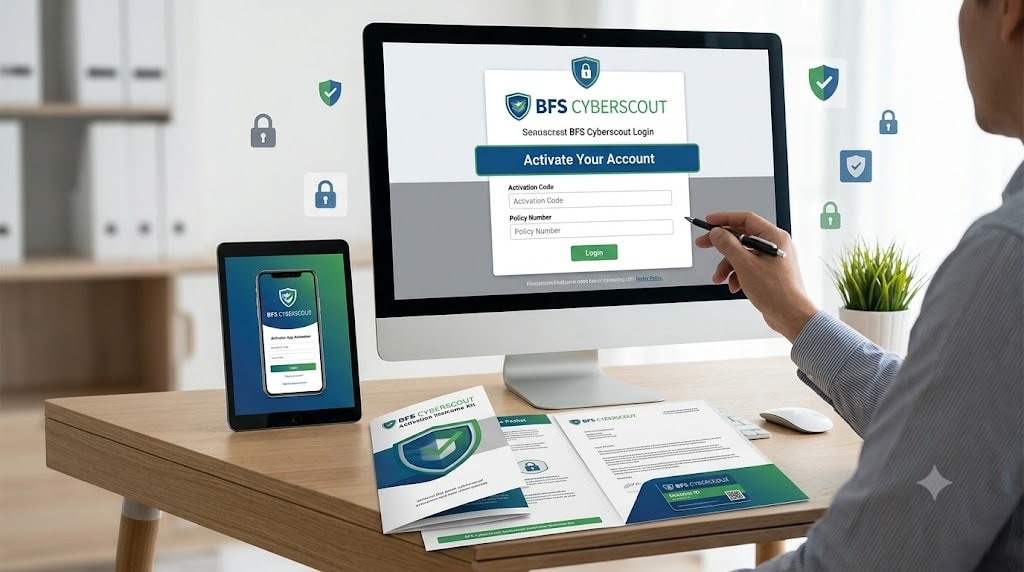
BFS Cyberscout offers powerful, proactive tools to guard your data, including credit monitoring, dark web scans, and expert resolution services if the worst happens. However, these services are not active until you complete the setup. Let’s get started.
Your Complete Activation Checklist: Pre-Requisites
Before you jump online, collect the necessary items to make the activation smooth and continuous. The identity verification stage is sensitive, and having everything ready prevents session timeouts.
- Activation Code/Link: This is a unique identifier typically sent in a Welcome Email from BFS or your program sponsor (like your bank or employer). If you didn’t get one, contact them.
- Full Legal Name: Use the name exactly as it appears on official documents.
- Social Security Number (SSN): This is crucial for matching you to credit bureau files.
- Date of Birth: Essential for age and identity verification.
- Current and Previous Addresses: You may be asked questions about where you have lived for verification.
- A Valid Email Address: This will be your login ID and your primary point of contact for alerts.
- A Secure Device: Complete this process on a trusted computer or mobile phone with a secure internet connection.
Step-by-Step Guide: How to Activate BFS Cyberscout
Here are the precise mechanical steps to move from ‘unprotected’ to ‘fully covered’. This is the core of the activation process.
1Locate and Click Your Activation Link
Your Welcome Email contains a unique, secure URL. This is the simplest path. Clicking it should pre-fill your activation code. Alternatively, you can visit the generic BFS Cyberscout activation domain and manually enter the code provided in the same communication.
2Enter Personal Information and Code
The activation screen will ask for your foundational data. This includes your full name, date of birth, SSN, and your unique activation code (if it isn’t automatically populated). This data is transmitted securely and is only used to create your profile and access credit files.
3Complete Identity Verification (KBA)
This is the most critical stage. BFS Cyberscout must confirm you are who you claim to be. This is done via Knowledge-Based Authentication (KBA). You will be asked multiple-choice questions derived from your historical credit and public records, such as:
- “Which of these addresses have you lived at?”
- “What is the approximate monthly payment for your auto loan opened in 2019?”
- “Which of these individuals are you associated with?”
Answer these carefully. Incorrect answers can lock the activation session.
4Create Your Credentials
Once verified, you will set your account login details. This includes choosing your username (usually your email address) and creating a strong, unique password. You may also be prompted to set up Multi-Factor Authentication (MFA) for added security, which is highly recommended.
5Log In and Configure Alerts
With credentials in hand, you will be taken to your dashboard. The service is active, but you must now configure which items you want monitored, such as adding your bank account numbers, credit card numbers, driver’s license, and passport information for dark web monitoring.
Troubleshooting Activation Issues
Sometimes the process doesn’t go as planned. Below is a table of common activation hurdles and how to resolve them quickly.
| Activation Issue | Common Cause | Resolution Step |
|---|---|---|
| “Code Invalid” Error | Typo, code expired, or code already used. | Carefully re-type the code. Verify the expiration date in the Welcome Email. If it’s expired, request a new code from BFS. |
| “Identity Not Found” | Missing or incorrect SSN/DOB, or a very thin credit file. | Double-check your entry. If the error persists and your credit history is established, you must call BFS customer support for manual activation. |
| Failed KBA Questions | Incorrect answers to authentication questions. | Your online session will be locked for 24-48 hours. When you retry, ensure you have access to your own records. A second failure usually requires manual support. |
| Account already exists | You may have activated a previous BFS service with the same email. | Try logging in with your email address and resetting your password. If you cannot log in, contact support. |
Why Activation is Non-Negotiable
Some users ask, “I have the service through my bank; isn’t it working already?” The answer is always no. Your program sponsor provides access, but security privacy laws require your explicit consent for a third party to monitor your personal credit and financial files. Activation is your authorization for BFS Cyberscout to begin its critical work. Until you complete this process, your dark web scans are not running, your credit is not being monitored, and your identity remains vulnerable.
Expert Tip on Post-Activation:
The most powerful part of BFS Cyberscout is the personalized monitoring. Spend at least 15 minutes immediately after activation adding all relevant financial account numbers, credit card numbers, and other sensitive PII to your secure vault for maximum protection.
This guide is provided for educational purposes based on general activation protocols for BFS Cyberscout services. Specific user interfaces may vary by program sponsor. For direct assistance, contact BFS Cyberscout customer support.

Pingback: Fix Gmail Error 2005 Instantly: Why "Oops, the System Encountered a Problem" Appears & 6 Proven Fixes - Seminarsonly.Com