
Quick answer
If YouTube TV keeps freezing or will not open on Roku, unplug the Roku for a full minute, clear the cache, then remove and reinstall the app. A late 2025 Roku update caused a wave of these problems before Roku pulled it back, so a clean restart fixes most cases. Most people are watching again in under five minutes, and you do not need to call anyone.
You sit down for a game or a show, open YouTube TV on your Roku, and the app freezes, crashes, or just spins forever. It is one of the most common Roku complaints, and the good news is that it almost always comes down to the cache, the Roku software, or a temporary app bug rather than your internet. Here is how to clear it, in the order that actually works.
On this page
Why YouTube TV breaks on Roku
The fix order that works
Error signs and quick fixes
If the app is missing from the store
FAQs
Why YouTube TV breaks on Roku
YouTube TV has had a bumpy relationship with Roku for years, and software updates make it worse from time to time. In late 2025 a Roku system update knocked out several streaming apps, including some big names, before Roku noticed the complaints and rolled the update back. On top of that, YouTube TV itself has shipped versions that freeze after a few minutes of playback. So when your app stalls, it is usually the cache, the Roku software, or a temporary app bug. Your connection is rarely the real problem.
The fix order that works
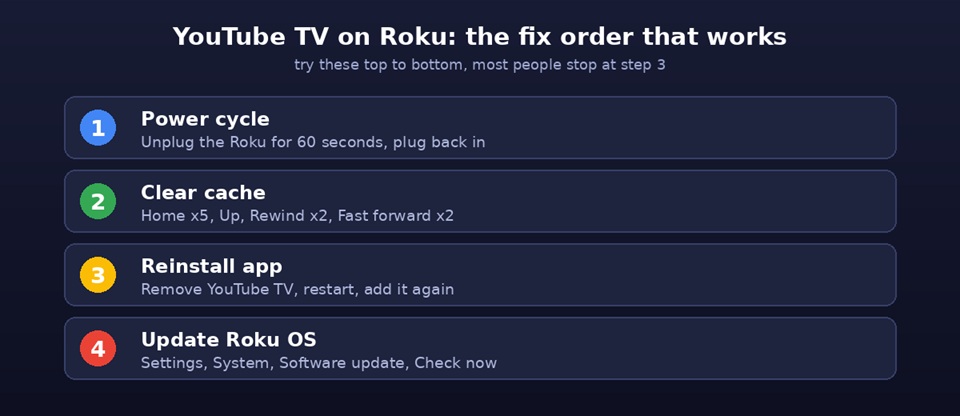
Work through these from the top. They are ordered by how often they solve the problem, not by effort, so most people never reach the last step.
- Power cycle the Roku. Pull the power cable out of the back of the device, wait a full 60 seconds, then plug it back in. This clears the most common freezing bug and works more reliably than any in app option.
- Clear the cache. On the home screen press Home five times, then Up once, Rewind twice, and Fast forward twice. The screen blanks for a moment and the Roku restarts itself. Your apps and logins stay put.
- Remove and reinstall YouTube TV. Highlight the app, press the star button on the remote, choose Remove channel, restart the Roku, then add the app again from the Channel Store. If you cannot find it to reinstall, see the section below.
- Check for a Roku software update. Go to Settings, then System, then Software update, then Check now. Install whatever is offered and restart.
- Match your display output. If the picture stutters rather than freezes, open Settings, then Display type, and pick the setting that matches your TV, such as 4K HDR 60 Hz.
Error signs and quick fixes
| What you see | Most likely cause | First thing to try |
|---|---|---|
| App freezes after a few minutes | Known YouTube TV or Roku update bug | Power cycle for 60 seconds |
| App will not open at all | Corrupted cache | Clear the cache, then reinstall |
| Black or yellow screen | Display or HDCP handshake | Reseat the HDMI cable, set display type |
| Constant buffering | Weak or congested connection | Run a speed test, move closer to the router |
| App vanished from the store | Google and Roku dispute | Open YouTube TV inside the YouTube app |
If the app is missing from the store
Because of the long running dispute between Google and Roku, YouTube TV has been pulled from the Roku Channel Store more than once. When that happens you cannot reinstall it the usual way, but you can usually still reach your subscription by opening the ordinary YouTube app on the same Roku, since your YouTube TV content plays there too. It is a clean workaround while the two companies sort things out.
A quick safety note
If a search result offers a phone number for instant Roku help, be careful. Many of those numbers are scams that charge for steps you can do for free in a few minutes. Use only the official Roku and YouTube TV help centres, and never share your password or payment details with a so called support agent who contacted you first.
FAQs
Why does YouTube TV keep freezing on Roku?
Most freezing comes from a stale app cache or a Roku software update that did not settle correctly. A late 2025 Roku update broke several streaming apps for a while before Roku rolled it back, so a clean power cycle plus a cache clear fixes the majority of cases. If the picture freezes after a few minutes every time, reinstalling the app is the next move.
How do I clear the cache on Roku?
From the Roku home screen, press Home five times, then Up once, then Rewind twice, then Fast forward twice. The screen goes black for a few seconds while the cache clears, and the Roku restarts on its own. You do not lose any apps or logins doing this.
Is YouTube TV still on the Roku Channel Store?
Availability has gone back and forth because of the long running disagreement between Google and Roku. If you cannot find YouTube TV to reinstall, you can usually still reach your subscription through the regular YouTube app on the same Roku, since YouTube TV content plays there too.
Do I need to call a support number to fix YouTube TV on Roku?
No. This is a do it yourself fix. Be wary of search results that push a phone number for instant help, since many of those are scams that charge for steps you can do free in minutes. Use only the official Roku and YouTube TV help centres, and never share your password or payment details with someone who contacted you first.
Published on seminarsonly.com/news. Steps reflect Roku and YouTube TV behaviour as of 2026 and may change as both update their apps.

Pingback: NBC Sports Network on Optimum: Full Channel List USA 2026 - Seminarsonly.com