
Quick answer
If Disney+ says it is not available in your region (error 73), switch off any VPN or proxy, restart the app and the device, and make sure your account region matches the country you are actually in. If you are travelling, a VPN set to your home country brings your normal access back. The message is geoblocking, not a broken account, and most people clear it in under ten minutes.
You open Disney+ ready to watch, and instead you get a flat message that it is not available in your region, often with the code error 73. Nothing is broken. Disney only holds the rights to show certain shows in certain countries, so the app checks where your internet connection appears to be and decides what you can see. Here is what triggers it and how to clear it, depending on your situation.
On this page
What error 73 actually means
Fixes by situation
The sequence that clears most cases
The honest truth about VPNs
FAQs
What error 73 actually means
When Disney+ says a title or the whole service is not available in your region, that is geoblocking. The app reads the IP address your device is using and compares it to the regions where the content is licensed. If the two do not match, you get the block, usually shown as error 73. The message looks alarming, but it is a location check, not a fault with your account or your payment.
Fixes by situation
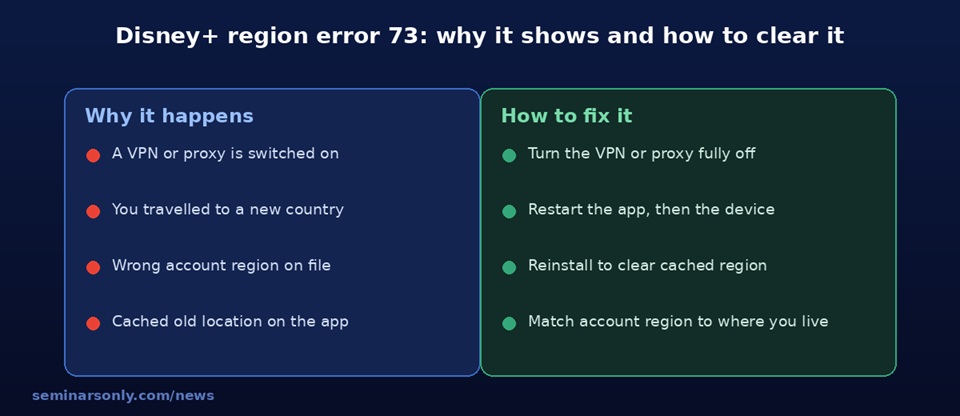
The right fix depends on one question: are you at home in your normal country, somewhere new, or running a VPN. Find your row and follow it.
| Your situation | Why error 73 shows | What clears it |
|---|---|---|
| Home, with a VPN running | Disney+ blocks the VPN server | Turn the VPN fully off and reopen the app |
| Travelling abroad | Local catalogue differs or is blocked | Connect a VPN to your home country |
| Home, no VPN, still blocked | Cached location or wrong account region | Restart, then reinstall to refresh location |
| One device blocked, others fine | Proxy or DNS set on that device | Disable the proxy or DNS override |
The sequence that clears most cases
If you are not sure which row fits, this order works for almost every case.
- Close Disney+ completely and reopen it. This alone drops a stale cached location more often than people expect.
- Restart the device. A clean reboot clears temporary network state on phones, TVs, and streaming sticks.
- Turn off any VPN, proxy, or custom DNS. Any of these can make Disney+ think you are somewhere you are not.
- Confirm the app is the latest version. An outdated app sometimes mishandles the location check.
- Uninstall and reinstall. A fresh install reads your real location with no leftover region data.
- Test on a phone or browser. If it works there, the problem is the one device, not your account.
The honest truth about VPNs
VPNs come up constantly with the region error, so it is worth being straight about them. A VPN moves the apparent location of your connection, which is genuinely useful when you travel and want your normal home catalogue back. It is the same tool, though, that can trigger error 73 in the first place when Disney+ recognises a VPN server and shuts the door.
One more thing worth saying plainly. Using a VPN to reach a different country’s library goes against the Disney+ terms of use, and Disney blocks a lot of VPN servers, so even when it works it can stop working without warning. For travel inside the rules, pointing a VPN at your own home country is the sensible use. Reaching for foreign catalogues is a grey area, and you should decide that one for yourself.
A quick safety note
If a search result offers a phone number for instant Disney+ help, be careful. Many of those numbers are scams that charge for steps you can do for free in a few minutes. Use only the official Disney+ help centre, and never share your password or payment details with a so called support agent who contacted you first.
FAQs
What is Disney+ error 73?
Error 73 means Disney+ thinks you are trying to watch from a country where that content, or the whole service, is not licensed. It is a location check, not an account fault. Disney+ reads the IP address your device is using and compares it to the regions where the title is allowed.
Can a VPN fix Disney+ not available in my region?
It can in two situations. If you are travelling and Disney+ suddenly blocks you, a VPN set to your home country restores your normal access. If a VPN or proxy is what triggered the error in the first place, turning it off is the fix. Work out which case you are in before reaching for a VPN.
Will using a VPN get my Disney+ account banned?
Disney+ does not generally ban accounts for this, but using a VPN to reach another country’s catalogue goes against its terms of use, and Disney actively blocks many VPN servers, so streams can drop. For travel, staying on your own home region is the safest approach.
Disney+ says unavailable but I am home with no VPN. Why?
Check for a proxy or DNS tool you forgot was on, a misconfigured router, or an account whose region was set to the wrong country when it was created. Restart the app to drop any cached location, and if that fails, reinstall it so the app reads your real location fresh.
Do I need to call a support number to fix the Disney+ region error?
No. This is a do it yourself fix. Be wary of search results that push a phone number for instant help, since many of those are scams. Use only the official Disney+ help centre, and never share your password or payment details with someone who contacted you first.
Published on seminarsonly.com/news. Steps reflect Disney+ behaviour as of 2026 and may change as the service updates its app.

Pingback: YouTube TV Roku Update Issues | Fixes That Work - Seminarsonly.com