
Quick Answer
To fix the “the game has initialized incorrectly” error in Dead by Daylight on PC:
- Step 1: Press
Windows Key + R, type%localappdata%\DeadByDaylight\Saved\, and hit Enter. - Step 2: Look for a folder named PersistentDownloadDir (make sure hidden folders are visible) and delete it.
- Step 3: Restart Steam or Epic Games, and launch Dead by Daylight. This clears corrupted save caches and usually resolves the error instantly.
Few things are more terrifying in Dead by Daylight (DBD) than surviving a brutal match against the killer, only to be met with a main menu error. The message, “The game has initialized incorrectly and may not save your game properly. Restarting your game may resolve the problem,” is a notorious initialization glitch that plagues Steam, Epic Games, and Xbox App users alike.
This initialization error occurs when Dead by Daylight’s local save files become corrupted, often following a new chapter update or a sudden game crash. If simply restarting the game doesn’t work, follow these proven troubleshooting steps to get back into the fog.
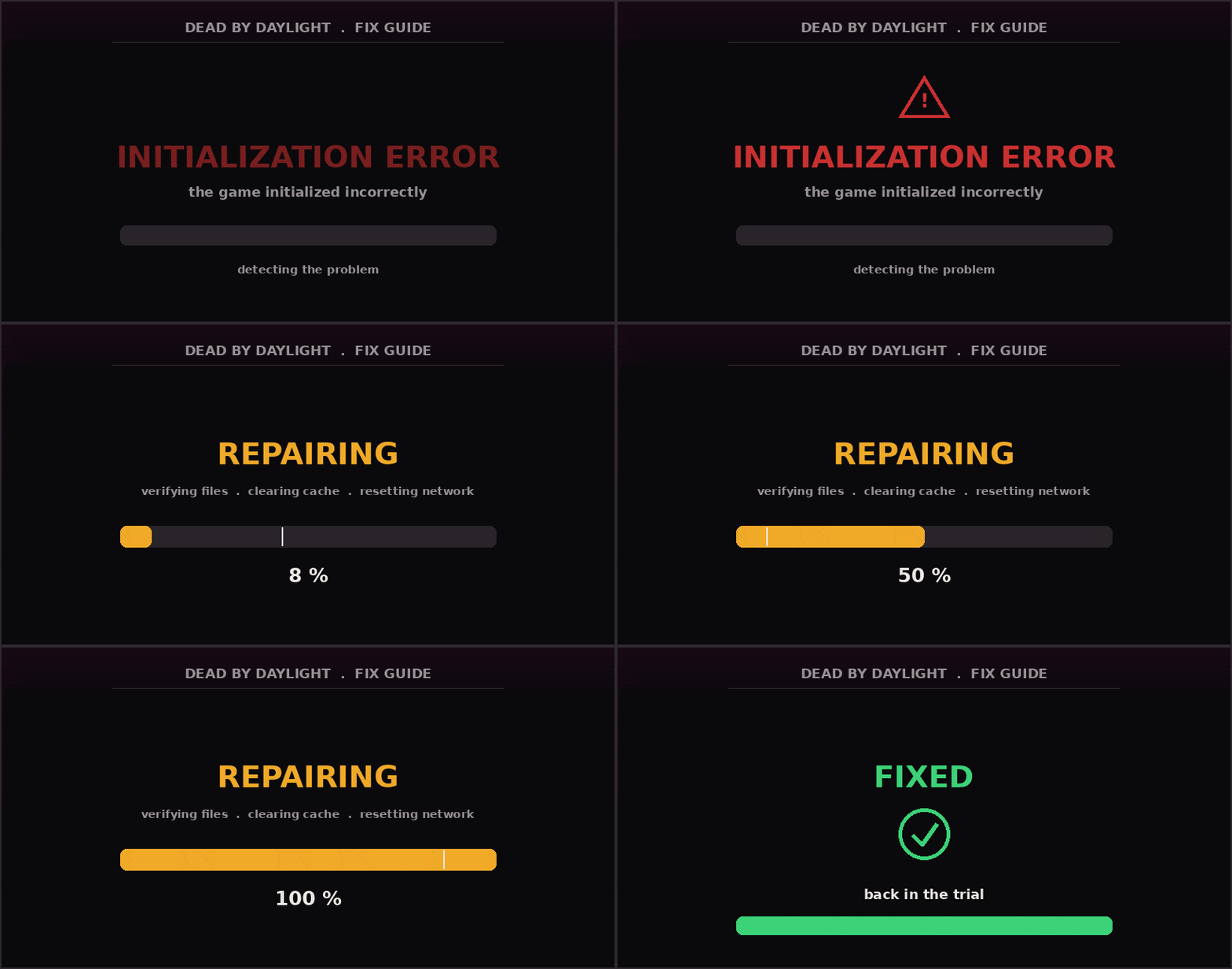
Top Fixes for the DBD Initialization Error
We have ranked the best solutions below based on their success rate in the DBD community. Try them in order from top to bottom.
| Troubleshooting Method | How it Works | Success Rate |
|---|---|---|
| 1. Delete Persistent Cache | Removes corrupted local configuration files so the game generates fresh ones on launch. | Very High |
| 2. Verify Game Files | Scans the installation folder via Steam/Epic and redownloads missing backend files. | High |
| 3. Repair Easy Anti-Cheat | Fixes broken anti-cheat background services that prevent the game from authenticating. | Medium |
Detailed Guide: Verifying Game Integrity
If deleting the PersistentDownloadDir folder did not work, your core game files might be damaged. You do not need to reinstall the entire 60GB game; you can just verify the files.
- On Steam: Right-click Dead by Daylight in your Library > Select Properties > Click on Installed Files > Click Verify integrity of game files.
- On Epic Games: Go to your Library > Click the three dots next to Dead by Daylight > Select Manage > Click Verify.
- On Xbox App (PC): Right-click the game > Select Manage > Navigate to the Files tab > Click Verify and Repair.
Fixing Easy Anti-Cheat (EAC) Conflicts
Sometimes, the initialization error is a disguised network or anti-cheat block. If EAC fails to boot, Dead by Daylight will not connect to the matchmaking servers.
Navigate to your Dead by Daylight installation folder (usually located at C:\Program Files (x86)\Steam\steamapps\common\Dead by Daylight). Open the EasyAntiCheat folder, right-click on EasyAntiCheat_Setup.exe, and select Run as administrator. Once the window opens, select Dead by Daylight from the drop-down menu and click Repair Service.
ChatGPT: I Wasn’t Able to Generate the Image Due to an Error on My Side
When to Contact Support
If you have tried the steps above, reset your router, and flushed your DNS, but the error persists, there may be an active server outage on Behaviour Interactive’s end. Always check the official Dead by Daylight Support Page or their official Twitter (X) account for live server status updates before ripping your hair out.
Furthermore, if you are experiencing broader issues with your digital library not updating properly, check out our guide on How to Fix Common Steam Download and Launch Errors.
TLDR Summary
The “the game has initialized incorrectly dead by daylight” error is predominantly caused by corrupted local cache files or a misfiring Easy Anti-Cheat service.
To fix it immediately, navigate to %localappdata%\DeadByDaylight\Saved\ on your Windows PC and delete the hidden PersistentDownloadDir folder. If you are still locked out, run the Steam/Epic “Verify Integrity of Game Files” tool to repair any missing core data.
