
By Anup V Naick | Updated July 9, 2026 | Verified against NVIDIA’s official forums and driver documentation
Trying to install the NVIDIA app or GeForce driver and hitting “NVIDIA Installer cannot continue, error code 0xE60000”? You are not alone, this is one of the most reported NVIDIA install failures on Windows 10 and 11, and it is fixable in most cases without reinstalling Windows.
Quick answer
Error 0xE60000, also shown as 0xE6000000 depending on the source, appears when the NVIDIA installer decides your system configuration is not supported or that no NVIDIA GPU was detected. The most common causes are an unsupported or older graphics card, leftover files from a previous driver install, a disabled GPU in Device Manager, or a conflicting second graphics adapter. Cleaning old drivers with Display Driver Uninstaller and confirming your GPU is on NVIDIA’s supported list resolves this for most users.
What error 0xE60000 actually means
This error surfaces while installing the NVIDIA app or GeForce Experience, or while updating a GeForce driver. It typically comes with one of two messages:
- Your system configuration is not supported by this installer
- NVIDIA App requires an NVIDIA GPU
Both messages point to the same root issue: the installer’s compatibility check failed, either because it could not detect a supported NVIDIA GPU, or because it found a hardware or driver conflict it refuses to install over.
Common causes, ranked by frequency
| Cause | How common | Fix below |
|---|---|---|
| Older or unsupported GPU model | Very common | Fix 1 |
| Leftover files from a previous driver | Very common | Fix 2 |
| A second, unrelated GPU driver installed | Common | Fix 3 |
| GPU disabled in Device Manager | Occasional | Fix 4 |
| NVIDIA background services not running | Occasional | Fix 5 |
| Physical hardware issue | Rare | Fix 6 |
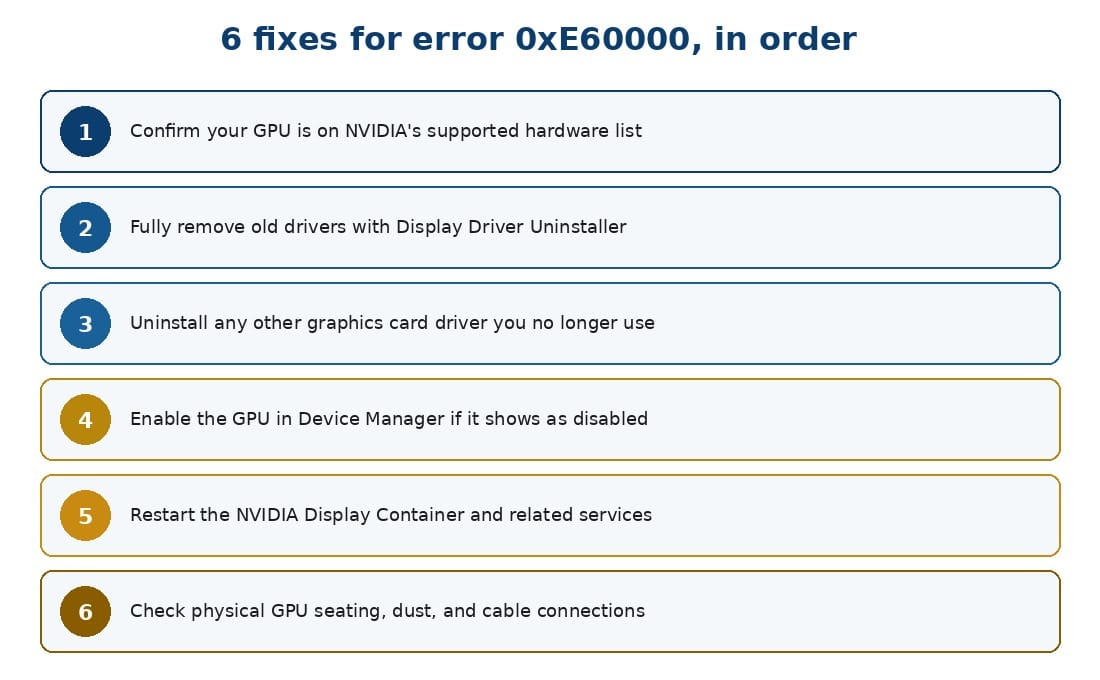
The six fixes for error 0xE60000, in the order to try them
Six fixes, in the order to try them
Fix 1: Confirm your GPU is actually supported
Check your exact GPU model against NVIDIA’s current supported hardware list before doing anything else. If your card has aged out of driver support, no amount of troubleshooting will install the latest NVIDIA app, and you will need an older driver package instead.
Fix 2: Remove old drivers completely before reinstalling
Partial leftovers from a previous NVIDIA installation are one of the most frequent causes of this error. Key steps:
- Use Display Driver Uninstaller in Safe Mode to remove all NVIDIA driver traces
- Restart your PC after the clean removal
- Download a fresh driver package directly from NVIDIA’s official site, not a third-party mirror
Microsoft.com/link Minecraft Sign-In: Step-by-Step Guide (2026)
Fix 3: Uninstall any other graphics driver you are not using
If you previously used a different graphics card, or your system has integrated graphics alongside the NVIDIA GPU, an old driver from that other adapter can block the installer. Remove any driver that is not for your current NVIDIA card, regardless of manufacturer.
Fix 4: Enable the GPU in Device Manager
Open Device Manager, expand Display adapters, and confirm your NVIDIA GPU is not showing as disabled. If it is, right click it and choose Enable device, then try the installer again.
Fix 5: Restart the NVIDIA background services
Open the Services panel and locate the NVIDIA Display Container LS and related NVIDIA services. Stop and then start each one, since a stuck service can cause the installer’s hardware check to fail even on supported systems.
Hardware checks if software fixes fail
Fix 6: Rule out a physical connection issue
If none of the software fixes work, and you are comfortable opening your PC case, check these physical points:
- Reseat the graphics card fully in its motherboard slot
- Clean any dust buildup around the card and its fan
- Reseat your RAM sticks, since some users report this resolving detection issues
- Try a different HDMI or DisplayPort cable
Only attempt these steps if you are familiar with handling internal PC hardware, or ask a technician for help.
Related on this site: our gaming and driver error fix guides and the full Windows error fix category.
Frequently asked questions
Is 0xE60000 the same as 0xE6000000
Yes, in practice these refer to the same NVIDIA installer error. The difference in zero count comes from how different sources and video titles have shortened or written out the hexadecimal code, not a separate error.
Why does my supported GPU still show this error
This usually means leftover driver files or a conflicting second GPU are interfering, rather than a genuine compatibility problem. Run a clean driver removal with Display Driver Uninstaller before trying again.
Do I need to reinstall Windows to fix this
No. The overwhelming majority of reported cases resolve through a clean driver reinstall, enabling the GPU in Device Manager, or removing a conflicting driver. Reinstalling Windows is rarely necessary.
TLDR
- Error 0xE60000, also written 0xE6000000, means the NVIDIA installer’s hardware check failed
- First confirm your GPU model is on NVIDIA’s current supported hardware list
- Clean removal of old drivers with Display Driver Uninstaller fixes most cases
- Remove conflicting second GPU drivers and check the GPU is enabled in Device Manager
- Physical hardware issues are the least common cause, check them last
Sources: Official NVIDIA GeForce forum thread on this error, NVIDIA official driver download page.
Anup Naick

About the Author
Anup V Naik is the founder of Wings Infotech and writes troubleshooting guides for gaming, driver, and software errors. He holds a Mechanical Engineering degree from Manipal Institute of Technology and an MBA from TKM Institute of Management. This guide is cross-checked against NVIDIA’s own forum reports and driver documentation, and updated as NVIDIA changes its supported hardware list. Corrections are welcome via the comments section.

Pingback: Is PayYourBill.APSMedical.com a Scam? 2026 Investigation & Safety Guide - Seminarsonly.com