
Updated: October 14, 2026 | Windows 11 24H2, 25H2 and 26H2
If Run as administrator is not working after installing Windows 11 KB5127648, first restart your PC, confirm that your account has administrator privileges, and test whether the problem affects one app or all elevated programs. If you receive “The requested operation requires elevation”, launch the program from an elevated terminal or have an administrator approve the UAC prompt. If multiple apps fail, check Windows system integrity and any organization-managed security policies.
Important: Microsoft has not confirmed this as a KB5127648-specific regression.
Is KB5127648 Causing Run as Administrator Problems?
Microsoft released KB5127648 on October 13, 2026, as part of its monthly Windows 11 security updates.
The update applies to Windows 11 versions 24H2, 25H2 and 26H2, bringing security improvements and several reliability fixes.
Although administrator elevation failures may be noticed after installing an update, timing alone does not prove that the update caused them.
Microsoft’s published KB5127648 release notes do not list a newly confirmed Run as Administrator or UAC elevation regression. Treat this as a troubleshooting guide for affected computers, not evidence of a widespread Windows outage.
Common Symptoms
Users troubleshooting administrator elevation may encounter one or more of these symptoms:
- Run as administrator does nothing.
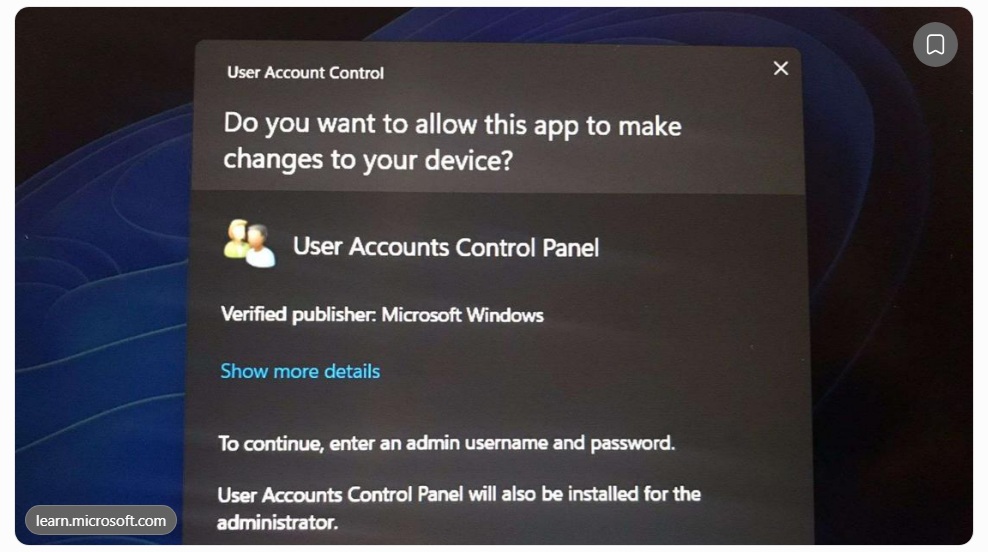
- The UAC prompt appears but the program does not open.
- Windows displays “The requested operation requires elevation.”
- An application reports “Access is denied.”
- PowerShell or Command Prompt opens without administrator privileges.
- Administrative tools cannot access protected folders or network resources.
These symptoms can have different causes. For example, a network-share access failure is not necessarily a UAC failure.
How to Fix Run as Administrator Not Working
Method 1: Restart Windows and test again
- Save your work.
- Open Start → Power → Restart.
- Wait for Windows to finish restarting.
- Right-click a trusted application.
- Select Run as administrator.
- Check whether the UAC prompt appears and the application launches.
A restart can finish pending update operations and clear temporary process failures.
Method 2: Confirm your Windows account type
Administrator elevation requires an account with the appropriate privileges or approval from an administrator.
- Open Settings.
- Go to Accounts → Your info.
- Review whether the account is an Administrator or Standard user.
- If it is a Standard account, request authorized administrator credentials.
On company or school computers, administrator access may be restricted by policy. Contact your IT administrator rather than attempting to bypass those restrictions.
Method 3: Test administrator elevation using Windows Terminal
- Right-click the Start button.
- Select Terminal (Admin), if available.
- Approve the legitimate Windows UAC prompt.
- In the terminal, run:
whoami /groupsReview the output for the Administrators group and its status. Membership alone does not prove that the current process has an elevated token.
For a more direct test, run:
net sessionIf the command reports an access-denied or elevation-related error, the terminal may not have an elevated token. Other service-related failures can also affect this command, so interpret the result together with the terminal title and UAC behavior.
Method 4: Repair Windows system files
If administrator elevation works for Windows Terminal but certain Windows components are malfunctioning, use Microsoft’s system-repair tools.
Open Terminal (Admin) and run:
DISM /Online /Cleanup-Image /RestoreHealthWait for the process to finish. Then run:
sfc /scannowRestart the computer after completing the checks.
Method 5: Check whether the problem affects one application
If Windows Terminal opens with administrator privileges but one specific program fails, investigate that program rather than assuming Windows elevation is broken.
- Check that the application’s executable is in the expected installation folder.
- Verify that the publisher is legitimate.
- Check the program’s compatibility settings.
- Look for an application-specific error in Event Viewer.
- Repair or reinstall the application using its official installer if appropriate.
Do not change ownership of protected Windows folders or grant Everyone full control to resolve an application error.
Method 6: Check Administrator Protection and UAC policies
Windows security settings can affect how administrative elevation behaves, especially on managed devices.
If your organization uses Administrator Protection, Group Policy or endpoint security software, ask your IT team to review recent policy changes and applicable Windows security documentation.
Do not disable Administrator Protection, UAC or endpoint security simply to suppress an elevation prompt. Doing so may reduce system security without addressing the actual cause.
How to Check Whether KB5127648 Is Installed
- Open Settings.
- Select Windows Update.
- Click Update history.
- Find KB5127648 under quality updates.
- Record the installation date and Windows build number.
You can also press Windows + R, type winver and press Enter.
| Windows version | KB5127648 OS build |
|---|---|
| Windows 11 26H2 | 26300.9711 |
| Windows 11 25H2 | 26200.9711 |
| Windows 11 24H2 | 26100.9711 |
What Does “The Requested Operation Requires Elevation” Mean?
This message generally means that an operation requires a higher Windows security privilege level than the current process possesses.
Possible explanations include:
- The application was launched without elevation.
- The account does not have the necessary privileges.
- The process attempted a protected system operation.
- Organizational security policy blocked the action.
- The application requested privileges incorrectly.
The message alone cannot identify KB5127648 as the cause.
Should You Uninstall KB5127648?
Not as the first troubleshooting step.
KB5127648 is a security update. Removing it can also remove important security protections.
If the problem began immediately after installation and affects critical work, an IT administrator can review the update history, Microsoft known-issues documentation and available recovery options.
Only consider uninstalling the update when the evidence supports a causal connection, the rollback is permitted and the security implications are understood.
Quick Troubleshooting Table
| Problem | Best next step |
|---|---|
| One application fails to elevate | Check that application’s installation and permissions. |
| Every application fails to elevate | Check account type, UAC behavior and device policies. |
| Standard user receives credential prompt | Use authorized administrator credentials. |
| Terminal (Admin) works, app does not | Investigate the specific application. |
| System files appear damaged | Run DISM and SFC from an elevated terminal. |
| Managed work PC has access restrictions | Contact IT to review Group Policy and security controls. |
| Problem started after KB5127648 | Record the timing and check Microsoft’s known-issues updates. |
Related Windows Troubleshooting Guides
- Windows 11 KB5124010 Games Crashing
- How to Fix Windows 11 Printing Font Error KB5120708
- Windows 11 Boot Failures (KB5094126)
- QuickBooks Error 1406 Fix
Official Microsoft References
- Microsoft: KB5127648 Release Notes and Known Issues
- Microsoft Windows Support
- Microsoft Learn: User Account Control
- Microsoft: Repair Windows System Files
If Run as Administrator stops working after KB5127648, check whether the problem affects all programs or just one. Verify account permissions, test a trusted elevated application and repair Windows system files when appropriate.
As of October 14, 2026, Microsoft has not confirmed a KB5127648-specific administrator elevation regression. Avoid disabling security features or uninstalling the security update without evidence that those actions are necessary.
Editorial note: This independent troubleshooting guide is not affiliated with Microsoft. Updated October 14, 2026. Information about newly reported update issues may change.
