
How To Stop Siri from Reading Messages on Airpods : Announce notifications with Siri on AirPods
When you’re wearing your AirPods or compatible Beats headphones, Siri can announce incoming notifications from apps such as Messages and Reminders, and from supported third-party apps. Then you can reply instantly, hands-free.
What you need
You can have Siri announce your incoming notifications with these headphones:
- AirPods Max
- AirPods (2nd generation) or later
- AirPods Pro
- Beats Fit Pro
- Powerbeats
- Powerbeats Pro
- Beats Solo Pro
Your compatible headphones need to be paired with one of these devices:
- iPhone with iOS 15
- iPad with iPadOS 15
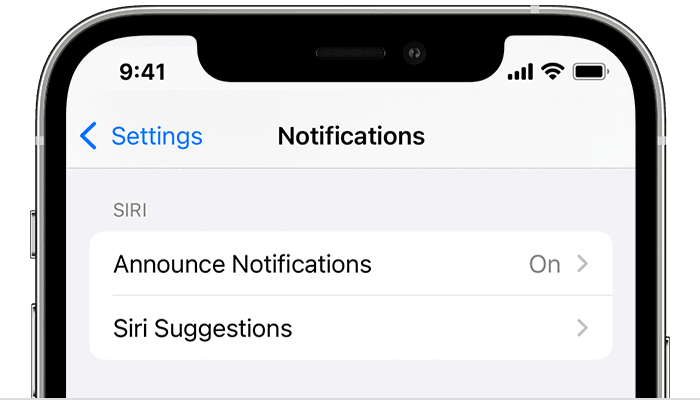
Turn on Announce Notifications
- Open the Settings app
- Tap Notifications
- Tap Announce Notifications

- Turn on Announce Notifications.
Use Announce Notifications
With this feature turned on, Siri announces incoming notifications from apps such as Messages and Reminders, and from supported third-party apps. Siri reads your incoming notifications out loud when your headphones are connected to your iPhone or iPad, you’re wearing them, and your device is locked.
If the app that you’re using classifies a notification as time sensitive or as a direct message, Siri plays a tone, then announces the notification automatically. You can also choose which notifications Siri reads:
- On your iPhone or iPad, go to Settings > Notifications > Announce Notifications.
- Tap Messages.
- Select either Time Sensitive and Direct Messages or All Notifications.
If you customize Control Center on your iPhone or iPad to include Announce Notifications, you can use Control Center to turn the feature on or off quickly.
If you’re receiving multiple notifications at once, you can stop Siri from announcing them all by taking out one of your earbuds or removing your headphones.
Reply to notifications
For apps in which you can send a reply, such as Messages, you can reply to the notifications that Siri announces on compatible headphones or in a vehicle that supports CarPlay:
- Wait for Siri to read the notification. Siri then listens for your reply.
- Tell Siri that you’d like to reply, then speak your message. Say something like “Reply ‘I’m on my way'” or “Tell her ‘I’ll meet you there.'” When you stop talking, Siri reads your reply back to you and asks if you want to send it.
If you don’t hear Siri announcements
If you don’t hear Siri announce your notifications, try these steps:
- Make sure that you’re using a compatible device.
- Make sure that your AirPods or your compatible Beats headphones are paired to your device in Settings > Bluetooth.
- Go to Settings > Notifications > Announce Notifications and make sure that Announce Notifications is turned on.
- Make sure that your iPhone or iPad is locked and its screen is dark. Siri doesn’t announce messages if you’re using your device.
Change when Siri responds
Go to Settings  > Siri & Search, then do any of the following:
- Prevent Siri from responding to the voice command “Hey Siri”: Turn off Listen for “Hey Siri.”
- Prevent Siri from responding to the Home button or the top button: Turn off Press Home for Siri (on an iPad with a Home button) or Press Top Button for Siri (on other iPad models).
- Prevent access to Siri when iPad is locked: Turn off Allow Siri When Locked.
- Change the language Siri responds to: Tap Language, then select a new language.
You can also activate Siri by typing.
Embarkvet.com Activate Code and Login: Register your Embarkvet Kit with Code
Go to Settings > Siri & Search, then do any of the following:
- Change the voice for Siri: (not available in all languages) Tap Siri Voice, then choose a different variety or voice.
- Change when Siri provides voice responses: Tap Siri Responses, then choose an option below Spoken Responses.
- Always see the response from Siri onscreen: Tap Siri Responses, then turn on Always Show Siri Captions.
- See your request onscreen: Tap Siri Responses, then turn on Always Show Speech.

Comments are closed