
Contents
hide
How To Log Out of Netflix on TV
Here’s how to log out of Netflix on your TV:
General Steps (May vary slightly depending on your TV model)
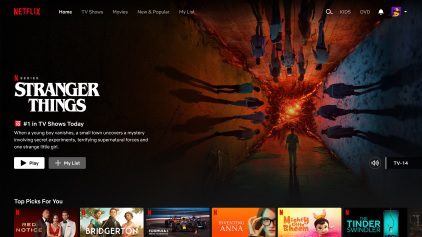
1. Open the Netflix app: Turn on your TV and navigate to the Netflix app using your remote.
2. Access the menu: Once in the Netflix app, look for a menu option. This could be represented by three horizontal lines, a gear icon, or the word “Menu.” Use your remote to navigate to and select this option.
3. Find the “Sign Out” or “Log Out” option: Scroll through the menu options until you find “Sign Out” or “Log Out.” Select this option.
4. Confirm: You’ll likely be asked to confirm that you want to sign out. Select “Yes” or “Confirm.”
Specific Instructions for some Smart TVs
Samsung TVs:
-
- Go to the left side menu and scroll down to “Get Help.”
- On the next screen, scroll to the bottom and select “Sign Out.”
LG TVs:
-
- Press the “Settings” or gear icon on your remote.
- Scroll down and select “Sign Out.”
If you can’t find the sign out option on your TV:
Sign out from the Netflix website:
-
- Go to Netflix.com on a computer or mobile device.
- Sign in to your account.
- Go to your “Account” settings.
- Under “Security & Privacy,” select “Manage access and devices.”
- Find the TV you want to sign out of and select “Sign Out.”
Additional Tips
- If you’re concerned about someone else accessing your account, consider changing your Netflix password after signing out.
- Remember to sign out of Netflix on all devices if you’re concerned about unauthorized access.
