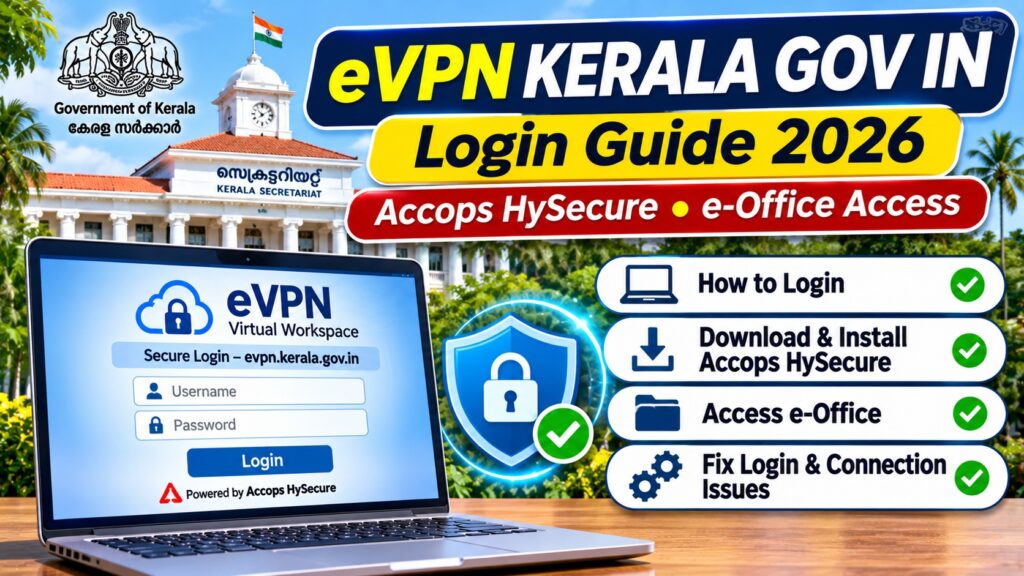

Updated: November 10, 2026 | Service: Kerala Government eVPN | Official Portal: evpn.kerala.gov.in
Quick Answer: How to Login to eVPN Kerala
eVPN Kerala is the official Virtual Private Network service used by authorised Kerala Government personnel to access protected government applications remotely.
To access the service, visit https://evpn.kerala.gov.in/, use your department-issued VPN credentials and complete the authentication steps required for your account.
For desktop access, the Kerala Government’s published instructions describe installing the Accops HySecure Client and entering evpn.kerala.gov.in as the VPN server address.
Important: A VPN account must be authorised and provisioned through the appropriate government department and Kerala State IT Mission.
What Is evpn.kerala.gov.in?
The website evpn.kerala.gov.in provides secure remote access to Kerala Government’s internal digital services.
It uses a virtual workspace platform associated with Accops HySecure technology.
Its purpose is to allow authorised employees to access protected applications without requiring direct access to the government office network.
Examples of services that may be available to approved users include:
- Kerala Government e-Office applications.
- Departmental intranet applications.
- Internal web-based government systems.
- Approved remote desktop resources.
- Other department-authorised services.
Actual access depends on the permissions assigned to each account.
eVPN Kerala Official Login Link
| Service | Official Information |
|---|---|
| Portal | Kerala Government Virtual Workspace |
| Website | evpn.kerala.gov.in |
| VPN server | evpn.kerala.gov.in |
| Client software | Accops HySecure |
| Access | Authorised government personnel |
| Account provisioning | Through approved departmental procedures and Kerala State IT Mission |
| Authentication | Assigned credentials and any configured additional verification |
Users should always verify the kerala.gov.in domain before entering login credentials.
How to Login to eVPN Kerala Government Portal
Step 1: Open the Official Website
Open a supported browser and visit:
The page should display the Virtual Workspace login interface.
Step 2: Enter Your VPN Username
Enter the username supplied through your government department or authorised administrator.
Do not substitute your personal email address unless specifically instructed.
Step 3: Enter Your Password
Use the password assigned to your VPN account.
Ensure that Caps Lock and keyboard settings are correct.
Step 4: Complete Additional Authentication
Depending on your account configuration, the portal may request a CAPTCHA, OTP, registered device PIN or certificate-based authentication.
Follow only the authentication method enabled for your account.
Step 5: Access Authorised Applications
After successful authentication, open the departmental application assigned to your account.
Some applications require an installed VPN client and a separate browser session.
How to Download Accops HySecure Client for Kerala eVPN
The official eVPN portal provides download options for supported client software.
Kerala Government departmental instructions specifically reference the Accops HySecure client for remote access.
- Visit the official eVPN Kerala website.
- Find the HySecure Client download option.
- Select the version appropriate for your operating system.
- Download the installer from the official portal.
- Install it according to your department’s IT instructions.
- Open the Accops HySecure application.
- Enter the VPN server address and authorised credentials.
Do not download modified VPN installers from third-party file-sharing websites.
How to Configure Accops HySecure VPN
Kerala Government’s published user manuals provide the following basic connection procedure.
VPN Configuration Steps
- Install the approved Accops HySecure client.
- Launch the application.
- Enter
evpn.kerala.gov.inin the server field. - Enter your assigned VPN username.
- Enter your VPN password.
- Complete any required verification.
- Connect to the VPN.
- Open the authorised e-Office or departmental application.
The exact appearance of the client may vary by software version, operating system and department configuration.
eVPN Kerala Login for Windows, Mac and Ubuntu
| Operating System | Recommended Approach |
|---|---|
| Windows | Use the department-approved Accops HySecure client. |
| macOS | Check the official portal for its Mac client and installation requirements. |
| Ubuntu/Linux | Use the official Ubuntu client where supported and approved. |
| Mobile devices | Follow department-specific guidance for supported VPN access. |
Kerala Government’s 2022 VPN guidelines describe remote access across several operating systems, but the supported client versions and authentication methods may change.
How to Access Kerala e-Office Through eVPN
One major purpose of Kerala’s government VPN is to provide remote access to e-Office systems.
e-Office supports electronic file processing, document movement and other government administrative workflows.
Employees working outside the Kerala State Wide Area Network (KSWAN) may require VPN access before opening protected e-Office applications.
Typical Access Procedure
- Obtain authorised VPN credentials.
- Install the approved VPN client.
- Connect to
evpn.kerala.gov.in. - Wait until the client confirms a successful connection.
- Open the e-Office address provided by your department.
- Sign in using the appropriate e-Office credentials.
For example, the Kerala Forest Department’s official manual references the e-Office address https://esarkar.kerala.gov.in.
Other departments may use different e-Office addresses. Always use the address provided by your department.
Who Can Get an eVPN Kerala Account?
Kerala Government’s official VPN guidelines state that accounts are provided to authorised users who need access to e-Office or other e-Governance applications from remote locations.
The request should be recommended by the relevant Head of Department or institution.
Kerala State IT Mission is responsible for account provisioning under the published guidelines.
How to Request an Account
- Contact your department’s IT administrator or designated nodal officer.
- Explain the official need for remote VPN access.
- Complete the applicable departmental VPN request form.
- Obtain the required departmental recommendation.
- Submit the request through the approved official channel.
- Wait for account provisioning and instructions.
The government’s published circular lists departmental forwarding channels, including:
- Secretariat requests: itcell@kerala.gov.in
- Line departments/institutions: office.ksitm@kerala.gov.in
These addresses appear in the 2022 guidelines. Confirm the current submission procedure with your department before sending a request.
eVPN Kerala Gov In Not Working: Common Errors and Fixes
| Problem | Possible Solution |
|---|---|
| Website not opening | Check internet connectivity, DNS and official service notices. |
| Invalid username or password | Verify credentials and contact the authorised administrator. |
| OTP not received | Check the registered authentication method and request assistance. |
| Client cannot connect | Verify the server address and approved client version. |
| Certificate error | Ask IT support to check certificate enrolment and validity. |
| Device registration required | Follow the department’s authorised registration procedure. |
| VPN connected but e-Office unavailable | Verify the departmental application URL and assigned permissions. |
| Session expired | Sign in again through the approved process. |
Fix 1: eVPN Kerala Website Not Opening
If the website does not load:
- Check that your internet connection is working.
- Verify that you entered the correct HTTPS address.
- Try a current version of Chrome, Firefox or Edge.
- Check whether your department has announced maintenance.
- Contact departmental IT support if the problem persists.
Do not disable browser certificate warnings or install unknown root certificates to force the website to open.
Fix 2: Invalid Username or Password
If the portal rejects your login details:
- Confirm the exact username assigned to you.
- Check keyboard layout and Caps Lock.
- Use the correct authentication option.
- Check whether your password has expired.
- Ask your department’s VPN administrator about the approved reset procedure.
Repeated unsuccessful attempts may trigger account restrictions depending on the authentication policy.
Fix 3: eVPN Kerala OTP Not Received
Some account configurations use one-time passwords or additional authentication factors.
If an OTP does not arrive:
- Confirm that you are using the correct login method.
- Check the registered authentication device or channel.
- Allow time for delivery.
- Request a fresh OTP only through the official portal.
- Contact the authorised administrator if delivery repeatedly fails.
Never share an OTP with anyone claiming to be technical support.
Fix 4: Accops HySecure Client Not Connecting
If the client displays a connection failure:
- Check the server address:
evpn.kerala.gov.in. - Verify your internet connection.
- Confirm that the client version is supported.
- Restart the application.
- Check whether the account or device requires registration.
- Contact the department’s IT support team.
Firewall, proxy and endpoint security settings may be managed by the department. Do not disable government-mandated security controls to troubleshoot the connection.
Fix 5: VPN Connected but e-Office Not Opening
A successful VPN connection does not automatically guarantee access to every internal application.
Check whether:
- You are opening the correct departmental e-Office URL.
- Your account has permission to access that application.
- The application is temporarily unavailable.
- Your browser meets the department’s requirements.
- The VPN session is still active.
If necessary, provide the error message to your authorised IT administrator.
What Is the Difference Between eVPN and KSWAN?
| Feature | eVPN Kerala | KSWAN |
|---|---|---|
| Full name | Electronic/remote VPN access portal | Kerala State Wide Area Network |
| Primary purpose | Secure remote access to authorised applications | Government network connectivity |
| Typical access | Approved VPN client or portal | Government network infrastructure |
| Users | Authorised personnel with remote access requirements | Connected government offices and institutions |
| Account requirements | Approved VPN credentials | Network access and relevant application credentials |
Kerala Government’s infrastructure documentation describes KSWAN as a core network for e-Governance and Kerala State IT Mission’s VPN service as a way to access applications remotely.
eVPN Kerala Security Guidelines
Because this service can provide access to government systems, users should follow departmental information-security rules.
- Use only your assigned credentials.
- Keep passwords and OTPs confidential.
- Use approved devices and software.
- Do not share access with unauthorised persons.
- Disconnect after completing official work.
- Report suspicious login activity to IT support.
- Do not bypass certificate or device-registration requirements.
The official portal states that unauthorised access is prohibited and that access is logged through the HySecure Gateway.
Frequently Asked Questions
What is evpn.kerala.gov.in?
It is the Kerala Government’s Virtual Workspace portal for authorised remote access to internal government applications.
How do I login to eVPN Kerala?
Visit https://evpn.kerala.gov.in/, enter your assigned credentials and complete the required authentication steps.
What is the eVPN Kerala server address?
The server address specified in Kerala Government’s departmental manuals is evpn.kerala.gov.in.
Which VPN software is used?
Official instructions reference Accops HySecure. The portal also provides downloads for supported client applications.
Can the public register for eVPN Kerala?
No general public registration process is documented. VPN accounts are provisioned for authorised users through government departmental procedures.
How do I download Accops HySecure?
Visit the official eVPN portal and use its HySecure Client download option, following departmental installation instructions.
Why is my eVPN Kerala login failing?
Possible reasons include incorrect credentials, expired passwords, authentication problems, device registration requirements or service connectivity issues.
Can I use eVPN Kerala on Ubuntu?
The official portal lists an Ubuntu client. Compatibility and setup should be confirmed with departmental IT support.
Can I access Kerala e-Office without VPN?
Access depends on the department and network. Some users on approved government networks can access their e-Office systems directly, while remote users may need VPN authentication.
Who provides eVPN Kerala accounts?
Kerala State IT Mission provides accounts under government guidelines, following appropriate departmental authorisation.
Is eVPN Kerala free?
The official guidelines describe it as a government service for authorised personnel. They do not establish a general public subscription or registration fee.
What should I do if my account is locked?
Contact your department’s authorised VPN administrator and follow the approved account recovery procedure.
Official Sources and References
- Kerala Government — Official eVPN Portal
- Kerala Forest Department — Accops HySecure VPN Installation Manual
- Government of Kerala — VPN Implementation Guidelines
- Directorate of Technical Education — e-Office VPN Instructions
- Kerala Electronics and IT Department — KSWAN and VPN Infrastructure
More Government Login and Technology Guides
For additional government portal login instructions, software troubleshooting and digital service guides, visit Seminarsonly News.
TL;DR: eVPN Kerala Gov In Login
- Official website: evpn.kerala.gov.in
- Service: Kerala Government Virtual Workspace.
- VPN client: Accops HySecure.
- Server: evpn.kerala.gov.in.
- Purpose: Secure access to e-Office and authorised internal applications.
- Eligibility: Government personnel with approved access.
- Login: Assigned credentials and required authentication.
- Common problems: Incorrect credentials, OTP, device registration and connectivity issues.
- Support: Contact your department’s authorised IT administrator.
Bottom line: Use the official eVPN Kerala portal and department-approved VPN software. If you do not have an authorised account, request access through your department rather than attempting public registration.
Editorial note: Updated November 10, 2026. This independent guide is based on official Kerala Government portal information and departmental VPN instructions. It is not affiliated with Kerala State IT Mission or Accops. Software screens and procedures may change.
