
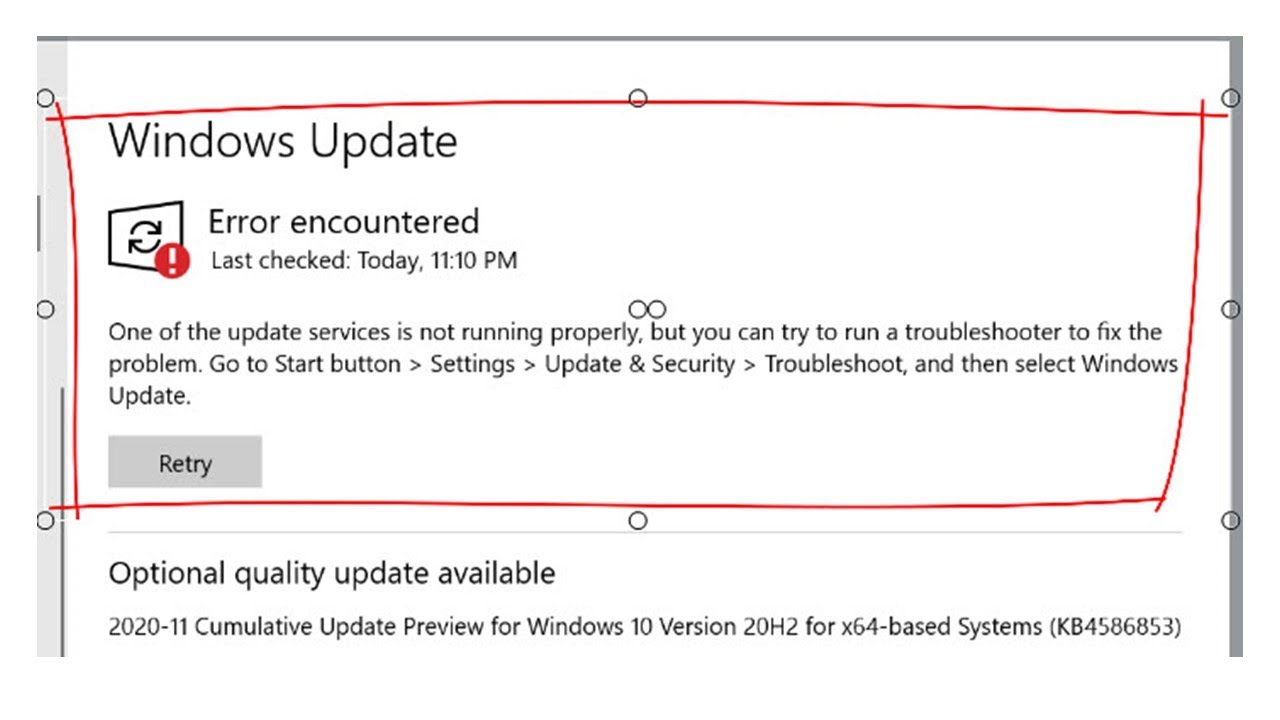
Quick Answer: How to Fix a Windows Update Error
When your PC is stuck and you are wondering how to fix a Windows update error, these are the most effective steps to get things moving again:
- Run the Troubleshooter: Go to Settings > System > Troubleshoot > Other troubleshooters > Run Windows Update.
- Clear the Cache: Stop the Windows Update service, delete the contents of
C:\Windows\SoftwareDistribution, and restart the service. - Use SFC and DISM: Open Command Prompt as Administrator, type
sfc /scannow, press Enter. Follow up withDISM /Online /Cleanup-Image /RestoreHealth. - Manually Install: Look up the specific update number (e.g., KB5079473) on the Microsoft Update Catalog and install it manually.
Keeping your computer up to date is essential for security and performance, but there is nothing more frustrating than a stalled installation. Whether you are seeing error code 0x80070002, 0x800f081f, or just a generic “Updates Failed” message, Windows update errors are a common headache for both Windows 10 and Windows 11 users.
These errors typically occur because of missing system files, corrupted update caches, or conflicting third-party software. In this comprehensive guide, we will break down the exact steps to troubleshoot and permanently resolve these stubborn installation failures.
Why Do Windows Updates Fail?
Before diving into complex command-line fixes, it helps to understand why the update is failing. The most common triggers include:
- Corrupted SoftwareDistribution Folder: This is where Windows temporarily stores downloaded update files. If a file here gets corrupted, the entire update fails.
- Missing System Files: Critical core files required for the Deployment Image Servicing and Management (DISM) tool or the update process are damaged.
- Antivirus Interference: Third-party security software often blocks Microsoft from modifying core system folders during an update.
- Insufficient Drive Space: A major feature update requires at least 16 GB to 20 GB of free space to unpack and install.
Common Windows Update Error Codes & Solutions
Identify your specific error code below to find the most targeted fix:
Advanced Fix: The SFC and DISM Commands
If clearing the cache does not work, repairing your system image is the most reliable fallback.
- Press the Windows Key, type cmd, right-click Command Prompt, and select Run as administrator.
- Type
sfc /scannowand press Enter. Let the scan finish to 100%. - Next, type
DISM /Online /Cleanup-Image /RestoreHealthand press Enter. This contacts Microsoft servers to download fresh replacement files for any corruption found. - Restart your PC and try updating again.
Experiencing crashes after a successful update? Read our internal guide on How to Fix the Blue Screen of Death in Windows. You can also review the Official Microsoft Troubleshooting Guide for deeper technical insights.
Related Topics
- “Windows update error 0x800f081f fix”
Keyword Intent: Specific Code Resolution. Explanation: This error explicitly means the Deployment Image Servicing and Management (DISM) tool cannot find the files it needs to proceed. Short Answer: Run the DISM RestoreHealth command in an elevated command prompt. - “How to clear Windows update cache”
Keyword Intent: Routine Troubleshooting. Explanation: A corrupted cache is the #1 cause of stalled updates. Short Answer: Stop the Windows Update Service, navigate toC:\Windows\SoftwareDistribution, delete all folders inside, and restart the service. - “Windows 11 update failing to install”
Keyword Intent: OS-Specific Issues. Explanation: Windows 11 updates often fail due to hardware compatibility checks like TPM 2.0 or Secure Boot. Short Answer: Use the PC Health Check app to ensure compliance, or manually install the update package via the Microsoft Update Catalog. - “SFC scannow found corrupt files but was unable to fix some of them”
Keyword Intent: Advanced Repair. Explanation: The System File Checker relies on a local component store. If that store is broken, SFC cannot pull clean files. Short Answer: You must run theDISM RestoreHealthcommand first to fix the local image, then run SFC again. - “Windows Update Troubleshooter not working”
Keyword Intent: Escalation. Explanation: The built-in troubleshooter only fixes basic service interruptions. Short Answer: If the automated tool fails, you must manually download the update via the Microsoft Update Catalog or perform an in-place upgrade using the Media Creation Tool.
TL;DR – Key Takeaways
- Always start by running the built-in Windows Update Troubleshooter.
- If an update hangs at 99%, pause updates, clear the SoftwareDistribution folder, and resume.
- Use the SFC and DISM command-line tools to repair underlying operating system corruption.
- If automatic updates repeatedly fail, identify the KB number and download it directly from the Microsoft Update Catalog.
