
How to Fix Error 500121: Microsoft MFA & Authenticator Sign-in Resolution
Updated August 2026 | By Senior Enterprise Identity & Security Engineer | 7 min read
Quick AnswerWhat is Error 500121 & How Do You Fix It?
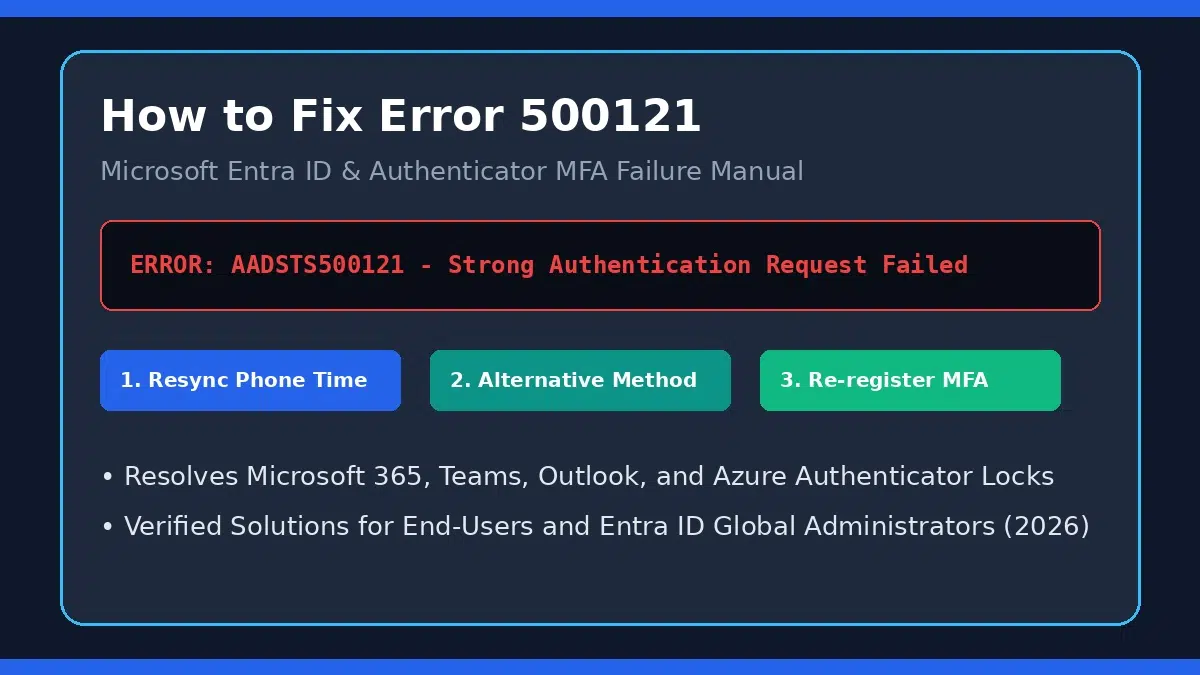
Error 500121 (often logged as AADSTS500121: UserAuthFailedDuplicateRequest or “Authentication failed during strong authentication request”) occurs in Microsoft 365, Teams, and Azure Portal when Multi-Factor Authentication (MFA) fails to complete.
Fast Fix: Resync your phone’s automatic date and time, tap “Sign in another way” to use SMS/phone code, clear Microsoft Authenticator app cache, or have a Global Admin require an MFA re-registration via Microsoft Entra Admin Center.
Understanding Root Causes of Error 500121
When logging into Microsoft 365 applications like Teams, Outlook, or Azure, Microsoft Entra ID enforces a Strong Authentication Request. If the user fails to successfully confirm the prompt within the active security window, the authentication handshake breaks, resulting in Error Code 500121.
Security log analyses across enterprise tenants show that Error 500121 is triggered by specific operational issues:
Primary Causes of Error 500121
- Missed or Timed-out Push Notification: The user did not approve the number-matching prompt in the Microsoft Authenticator app before the 60-second timer expired.
- Accidental Rejection (“No, it’s not me”): Accidental tapping of the rejection option blocks subsequent token requests.
- Device Clock Desynchronization: If your mobile phone’s system time differs from network time by even a few seconds, Time-based One-Time Passwords (TOTP) become invalid.
- User Principal Name (UPN) / Email Changes: Changing an employee’s primary email or domain leaves stale authentication tokens in the local Authenticator app.
- Stale Authenticator Registration: Upgrading or restoring a mobile phone without re-registering the account breaks the device binding key.
Home Office Pre-Settled Status Error: How to Fix & Correct eVisa
Error 500121 Scenarios & Action Plan Matrix
Identify your specific user role and scenario below to apply the exact resolution method:
| User Scenario | Affected Apps | Underlying Cause | Recommended Fix |
|---|---|---|---|
| End User (Standard Access) | Teams, Outlook, M365 Portal | Notification timeout or mobile clock drift | Enable automatic phone time & use alternative sign-in method |
| User Changed Phone / Email | Microsoft Authenticator App | Stale token binding / UPN domain mismatch | Admin resets MFA & user re-scans QR code via MySignIns |
| Sole Global Admin Locked Out | Azure Portal / Entra Admin Center | No secondary Global Admin available | Contact Microsoft Data Protection / Tenant Recovery Team |
Step-by-Step Instructions: How to Resolve Error 500121
Follow these solutions starting with end-user troubleshooting, followed by IT Administrator steps:
Part 1: End-User Solutions
- Enable Automatic Date & Time: Go to your mobile phone settings (Settings > General > Date & Time on iOS, or Settings > System > Date & time on Android) and toggle on Set Automatically to eliminate clock drift.
- Use Alternative Sign-in Methods: On the login screen, click “Sign in another way” or “I can’t use my Microsoft Authenticator app right now” to request an SMS text code or phone call.
- Clear Authenticator Cache & Re-add Account: Delete the account profile from Microsoft Authenticator, clear app cache, open an Incognito browser window, sign in to
mysignins.microsoft.com, and re-scan the setup QR code.
Part 2: IT Admin Reset via Microsoft Entra Admin Center
- Sign in to the Microsoft Entra Admin Center as an Authentication Administrator or Global Admin.
- Navigate to Entra ID > Users > All Users and select the affected user account.
- Select Authentication methods from the left navigation panel.
- Click Revoke multifactor authentication sessions, then select Require re-register multifactor authentication.
- Have the user sign in again to set up the Authenticator app from scratch.
For official technical documentation on Azure/Entra MFA errors, visit Microsoft Q&A MFA Error Code 500121 Solutions. You can also review our detailed Microsoft 365 authentication troubleshooting guide for additional identity fixes.
