
How Do I Activate Voice to Text on Samsung
Voice-to-text and TTS are enabled on most Android phones. In Samsung, Turn on/off Android voice-to-text if it’s not activated.
The Samsung keyboard is the default keyboard used for typing on your Galaxy phone. Here are some useful features if you’re using the Samsung keyboard. You can easily undo and redo with just two fingers, and you can use the translation function, voice recognition function, and Samsung Pass easily through the keyboard.
Launch Settings.
- Start by opening Android Settings.
- Find this app in your app drawer or by hitting the gear button on your home screen.
Select “Language & input”.
In the Settings app, scroll down to “System” and touch “Language & input.” (or Settings > General Management > Language and input on earlier devices)
Enable “Google Voice Typing”
- From the “Language & input” menu, select “Keyboard & Input Methods” and press “Virtual keyboard.”
- Enable “Google voice typing” by tapping it. Skip to step 4 if this option is enabled.
Pick a voice input language
- After enabling Google’s text Voice Typing, you can choose a voice recognition language.
- To use Voice > Offline voice recognition without wi-fi, download your language.
- Tap “Languages,” then choose your language.
Enable voice recognition
- After enabling Google Voice Typing and choosing a language, activate speech recognition.
- Visit any text-entry program like Messages or Notes.
- Tap the microphone icon after tapping the text box to activate voice recognition.
Before you try the recommendations below, be sure to check if your device’s software and related apps are updated to the latest version. To update your mobile device’s software, follow these steps:
Step 1. Go to Settings > Software update.
Step 2. Tap on Download and install.
Step 3. Follow the on-screen instructions.
Undo and redo using the Samsung keyboard
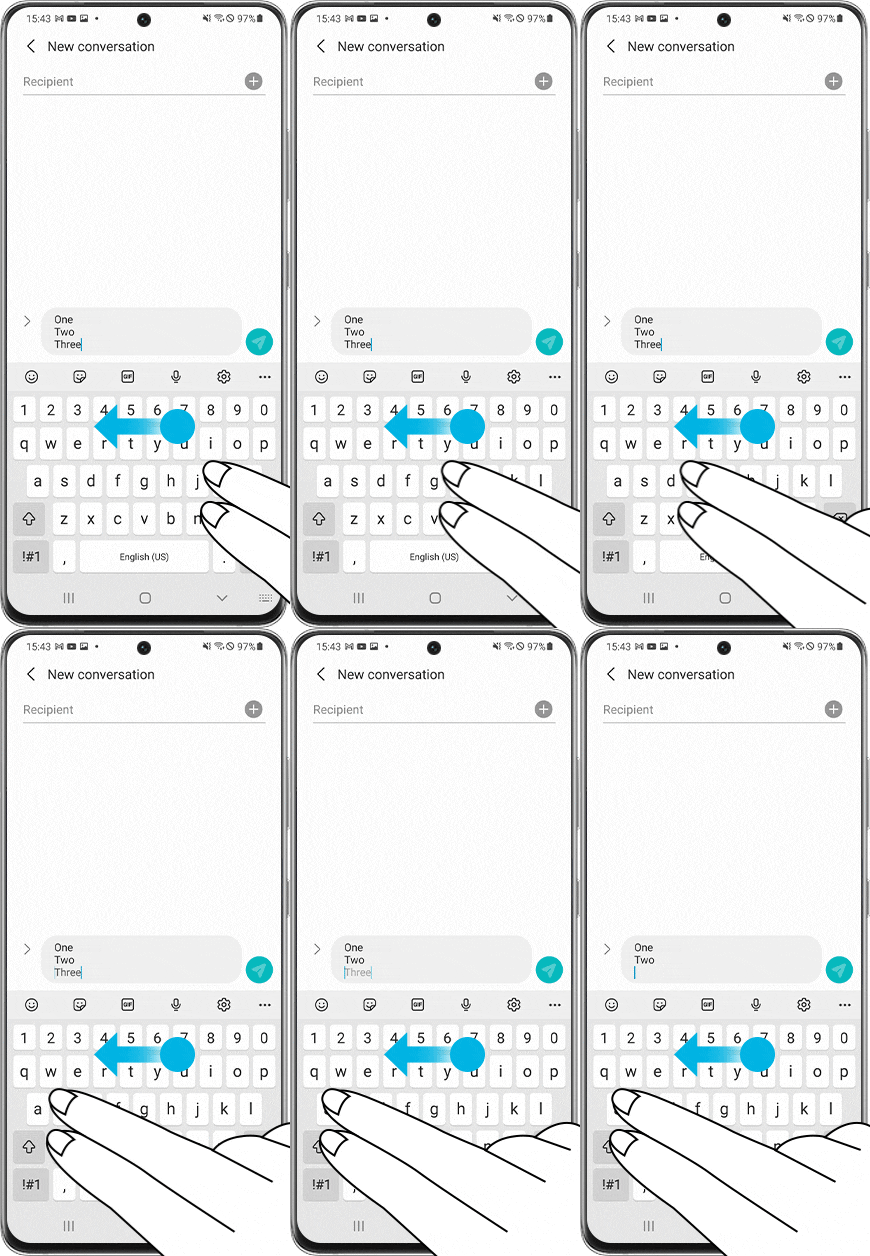
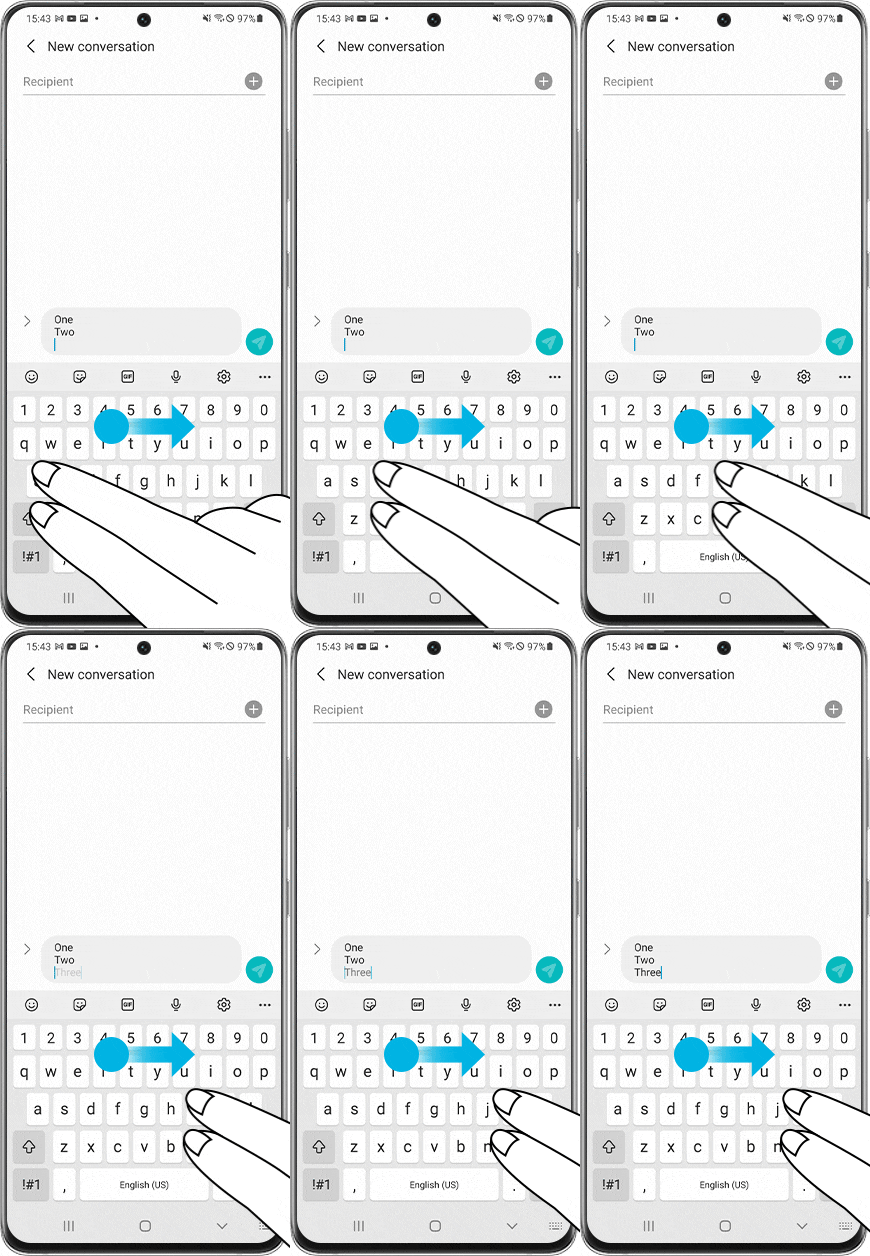
Instead of touching the delete button when deleting text you typed, you can swipe left on the keyboard with two fingers to undo it. If you want to restore the deleted text again, swipe right on the keyboard with two fingers to restore the deleted text.
- Undo: Swipe left.
- Redo: Swipe right.
Quick access to change keyboard input type
There is an easier and faster way to change the keyboard input type settings when using the Samsung keyboard. You don’t even have to open up Settings from the Home screen to find it. If you want to change the keyboard format while already using the Samsung Keyboard, follow the steps below.
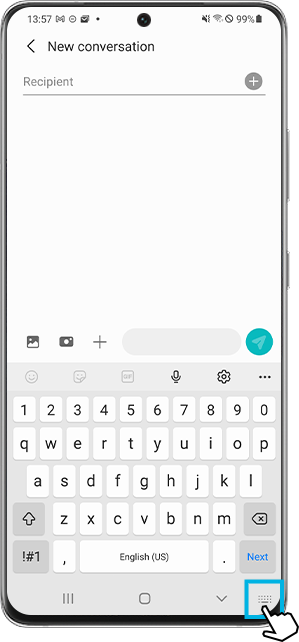
Step 1. Tap the keyboard icon at the bottom of the keyboard.
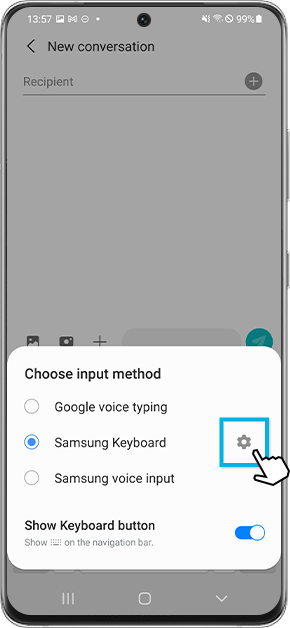
Step 2. Tap the Settings icon on the right side of Samsung Keyboard.
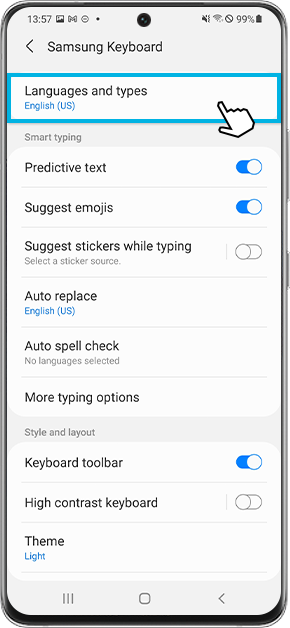
Step 3. Tap Language and types.
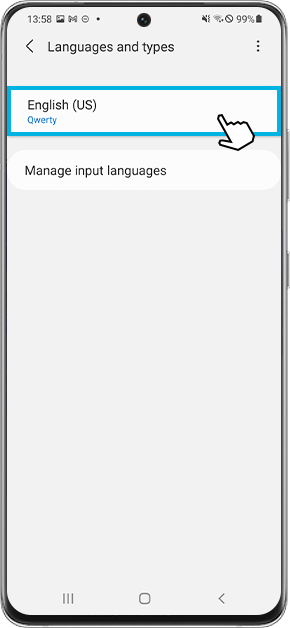
Step 4. Select the language you are using.
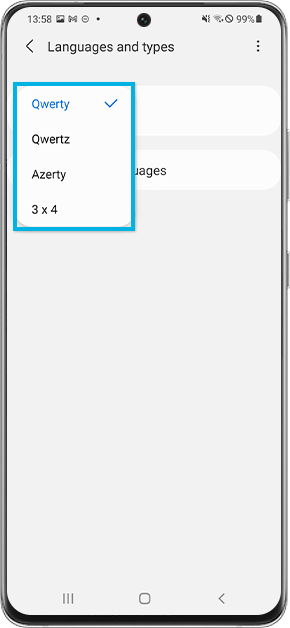
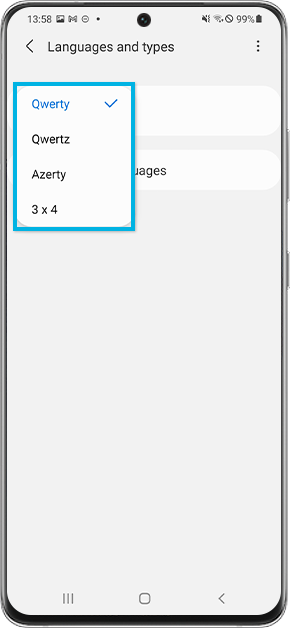
Step 5. Select the language input type you want to use.
How to use the Samsung Keyboard translator function
Did you know that the Samsung Keyboard actually has a translation input function? You can use the translation input function on the Samsung keyboard to easily translate from one language to another while typing a message.
Step 1. Tap More options (the three horizontal dots) in the upper right corner of the keyboard.
Step 2. Select Translate.
Step 3. Select the language you want to input and the language you want to translate.
Step 4. Enter text and tap the Translate button.
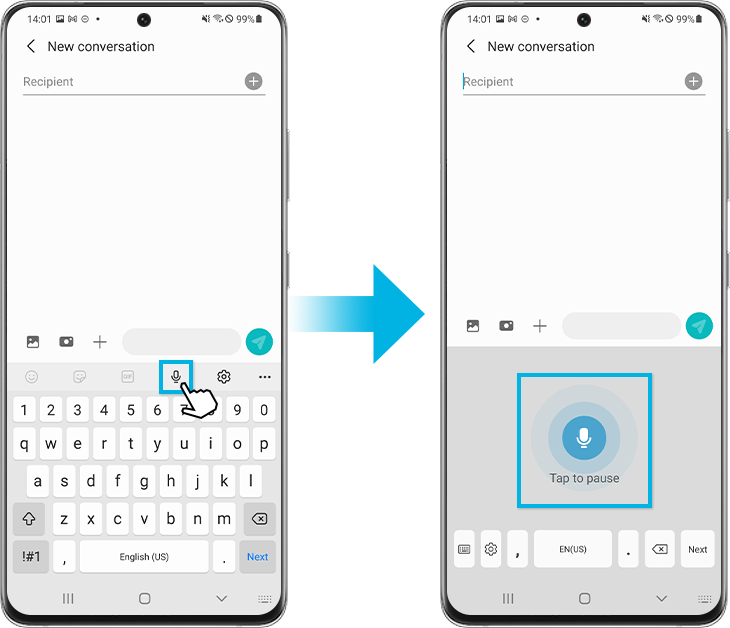
Voice input function
The Samsung keyboard allows you to enter long texts by voice. Follow the steps below.
Step 1. Tap the microphone icon at the top of the keyboard.
Step 2. Immediately say what you want to type, then tap the moving microphone icon. What you say is converted to text and entered correctly.
Access Samsung Pass information from your keyboard
If you use the Samsung Pass on your Galaxy phone, you can conveniently pull out information from your Samsung Pass app while using the Samsung keyboard. Follow the steps below to easily and conveniently enter information stored safely in your Samsung Pass.
Step 1. Tap More options (the three horizontal dots) in the upper right corner of the keyboard.
Step 2. Select the Samsung Pass icon
Step 3. As soon as your identity is verified, the account number saved in Samsung Pass will be displayed. Tap the account number and it will be entered in the text window. In addition, other card information, addresses, and IDs and passwords can also be stored and recalled at any time.
