
⚡ Quick Answer
To fix the Ghost Recon Wildlands launch error service update failed, you must repair Easy Anti-Cheat (EAC). Navigate to your game installation folder (e.g., Steam\steamapps\common\Wildlands\EasyAntiCheat), launch EasyAntiCheat_Setup.exe, and click Repair Service. If the issue persists, ensure GRW.exe is set to run as an administrator.
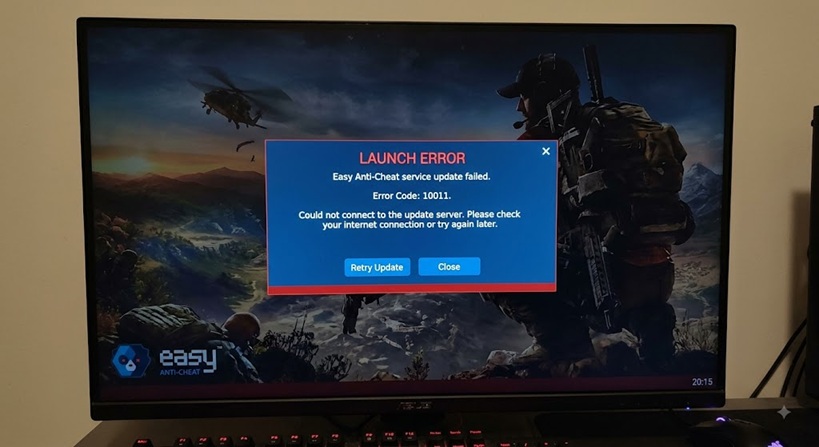
Resolving the Ghost Recon Wildlands “Service Update Failed” Error
Nothing ruins a tactical deployment into Bolivia faster than the dreaded Ghost Recon Wildlands launch error service update failed. This error is primarily triggered by a desync or corruption within the Easy Anti-Cheat (EAC) system, or due to an outdated Ubisoft Connect PC client. When EAC fails to verify the game files or update its background service, it forcefully halts the launch process to prevent potential exploits.
Primary Causes of the Error
- Corrupted Easy Anti-Cheat Files: Recent Windows updates or game patches can corrupt EAC background services.
- Lacking Administrative Privileges: The game executable (GRW.exe) may not have the necessary permissions to initiate the anti-cheat update.
- Outdated Ubisoft Connect Client: Running an old version of the Ubisoft launcher can result in “A Ubisoft Server is unavailable” or service failures.
Step-by-Step Fixes for the Launch Error
Fix 1: Repair Easy Anti-Cheat (EAC) Manually
The most reliable community-verified fix is to force EAC to repair itself directly from the game’s installation directory.
- Close the Ubisoft Connect launcher and Steam completely.
- Navigate to your Wildlands installation folder (e.g.,
C:\Program Files (x86)\Steam\steamapps\common\Wildlands\EasyAntiCheat). - Locate and run
EasyAntiCheat_Setup.exe. - Select Ghost Recon Wildlands from the dropdown menu and click Repair Service.
- If repairing fails, click Uninstall, then immediately Install it again.
Fix 2: Run GRW.exe as Administrator
Granting administrative rights ensures the game can modify and update files without Windows blocking the process.
- Find the main executable file:
GRW.exein your game folder. - Right-click it and select Properties, then navigate to the Compatibility tab.
- Tick the box that says “Run this program as an administrator”.
- Click Apply, then OK. Note: You may receive an EAC prompt asking if the game closed correctly after your sessions; simply click “Yes”.
Internal Resource: Having frame drop issues after fixing your launch error? Check out our PC Gaming Performance Optimization Guide.
Top 5 Google Searches & Keyword Explanations
Below is a breakdown of the most common search queries related to this frustrating glitch, along with quick solutions.
| Topics | Explanation & Short Answer |
|---|---|
| ghost recon wildlands easy anti cheat error 30005 | An error where EAC fails to start the service (StartService failed with 1275). Answer: Often caused by conflicting Windows updates (like KB5044376). Update Windows to the latest version or manually repair the EAC setup. |
| ubisoft connect service update failed | The Ubisoft launcher cannot connect to its servers to update the game. Answer: Close Ubisoft Connect completely from the system tray and download the newest version directly from the official site. |
| wildlands missing downloaded files eac | Steam flags an EAC file as missing or modified. Answer: Delete the EasyAntiCheat.sys file and the Certificates folder, then verify the integrity of your game files through Steam. |
| ghost recon wildlands crashing on pc last rites | Players crash instantly at the menu screen when playing the Last Rites DLC update. Answer: This is a known menu transition bug. Use the base game menu first, disable background overlays, and update display drivers. |
| epic games easy anti cheat wildlands fix | Users unable to update EAC via Steam/Ubisoft. Answer: Download the standalone Anti-Cheat installer from the Epic Games store support page and drop it into your Wildlands directory to force the update. |
If none of these steps resolve your issue, we highly recommend submitting a ticket through the Official Ubisoft Help Portal (External Link) to check for broader server outages.
📌 TL;DR Summary
- Repair EAC: Go to the Wildlands folder, open
EasyAntiCheat_Setup.exe, and click Repair. - Admin Rights: Right-click
GRW.exe, go to Compatibility, and check “Run as Administrator”. - Launcher Updates: Ensure your Ubisoft Connect PC app is fully up-to-date and not running in the background while repairing.
- File Verification: If EAC keeps failing, delete the
EasyAntiCheat.sysfile and verify game files via Steam/Ubisoft Connect.
