
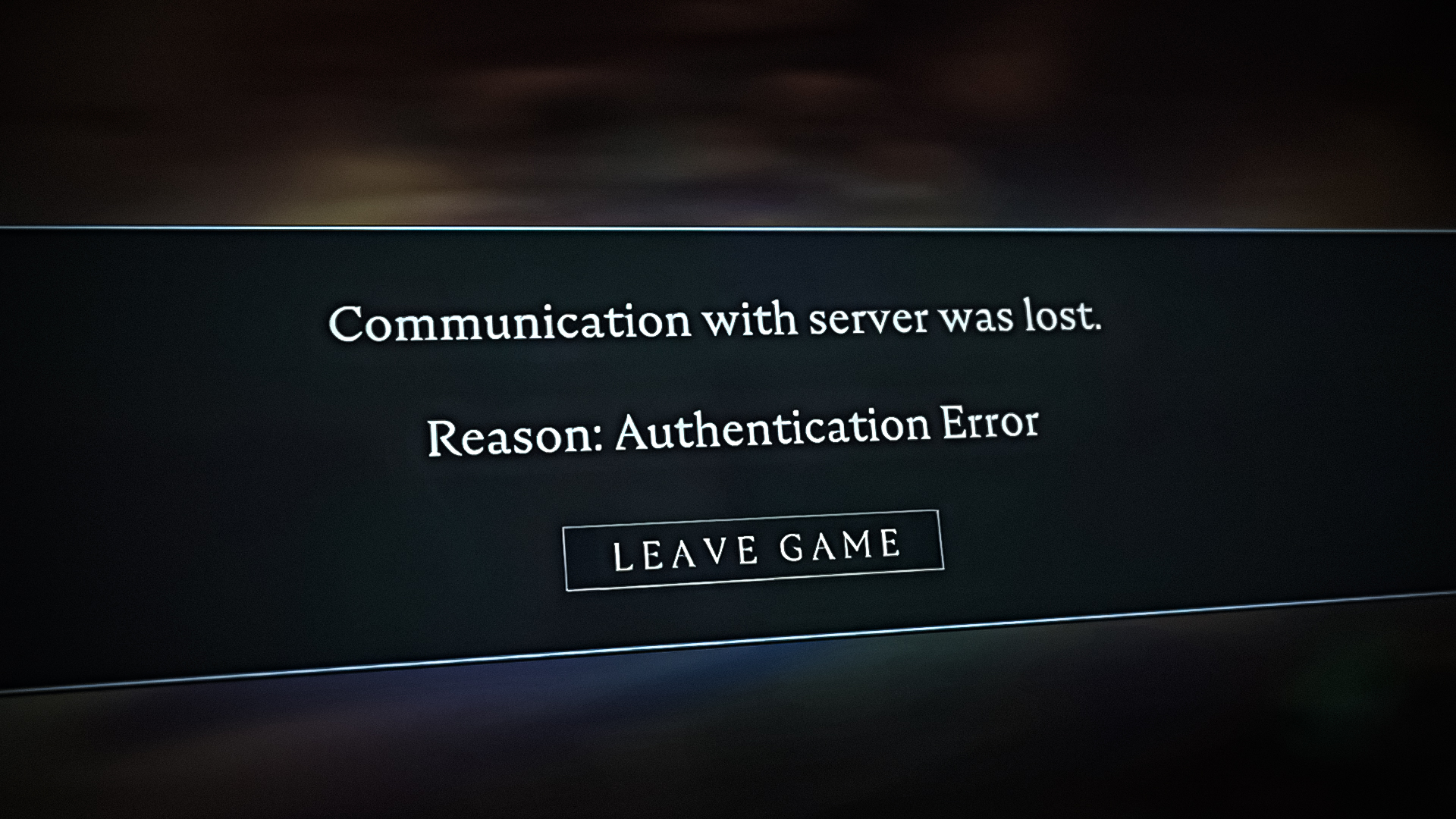
Quick Answer: How to Fix Solo Leveling Arise Errors
A Solo Leveling Arise error usually stems from server routing issues, corrupted cache data, or emulator incompatibilities. To fix it instantly: 1) Clear the game app cache from your device settings, 2) Connect to a reliable VPN (like TunnelBear) to stabilize your connection to the Netmarble servers, and 3) On PC, ensure you are launching the game through the official launcher (like Steam) to avoid SDK Initialization failures.
Common Solo Leveling Arise Error Types
Whether you are a shadow monarch on PC, Android, or iOS, encountering a connection block can ruin the experience. Here are the primary culprits causing issues:
- Network Connection Failed: The game client cannot handshake with the regional servers due to ISP routing or overloaded servers
- SDK Initialization Failed: A desktop-specific bug where the game cannot verify DRM or connect to the Steam backend services
- Stuck on Loading Screen: A hardware or software conflict, usually solved by updating Visual C++ redistributables or graphics drivers
Step-by-Step Troubleshooting Guide
If checking your Wi-Fi didn’t work, follow these platform-specific fixes to bypass the login errors.
Fix 1: The BlueStacks Emulator Airplane Mode Trick
If you are playing on an Android emulator like BlueStacks and facing constant network timeouts, the community has found a reliable workaround:
- Clear the Solo Leveling Arise game cache first.
- Enable Airplane Mode within the emulator right before launching the game.
- Wait until the game fully loads and the network error message pops up.
- Disable Airplane Mode and hit reconnect. This bypasses the initial connection lag loop.
Fix 2: Resolving PC Loading Screen & SDK Errors
If you are playing the PC version and getting stuck on the Overdrive loading screen, manually update your NVIDIA or AMD graphics drivers, and reinstall the latest Microsoft Visual C++ redistributables. If you receive an “SDK initialization failed” error, it means you are likely trying to run the Steam game executable directly from the folder instead of through the Steam Library—always launch through the official client so the game can verify its services.
Destiny 2 Server Maintenance Today: Live Status & Downtime Guide
Solo Leveling Arise Error Troubleshooting Matrix
Use this colored table to identify your specific issue and apply the correct fix quickly. For general emulator performance, see our guide on optimizing Android emulators for high-end mobile games.
| Error Symptom | Probable Cause | Best Solution |
|---|---|---|
| Network Connection Failed | ISP Routing / Server Overload | Run a VPN (e.g., TunnelBear) and switch regions. |
| SDK Initialization Failed | Launched outside of Steam | Launch the game directly from the Steam Library. |
| Stuck on Loading Screen (PC) | Missing Windows Dependencies | Install latest Visual C++ Redistributables. |
| Code Redemption Fails | Wrong Menu / Expired Code | Ensure you are in the “Redeem Code” menu, not the promo screen. |
Related Topics
To provide complete clarity, we have compiled the most frequently searched queries regarding Solo Leveling Arise issues and provided direct answers:
-
1. “Solo Leveling Arise network connection failed”
Explanation: Players cannot bypass the title screen due to server timeout.
Short Answer: The game client is failing to authenticate. Clear your app cache, switch from Wi-Fi to mobile data, or use a VPN to force a new routing path to Netmarble’s servers. -
2. “Solo Leveling Arise SDK initialization failed”
Explanation: A PC-specific crash error message.
Short Answer: This happens when the game fails to hook into Steam’s API. Always launch the game through the Steam launcher, never from a desktop shortcut that points directly to the raw .exe file. -
3. “Solo Leveling Arise stuck on loading screen”
Explanation: The game freezes during the initial loading bar sequence.
Short Answer: Your PC is likely missing critical visual rendering libraries. Updating your GPU drivers and reinstalling Microsoft Visual C++ fixes this 90% of the time. -
4. “Solo Leveling Arise codes not working”
Explanation: Entering promo codes yields no reward or an error message.
Short Answer: Most failures occur because of typos, expired codes, or redeeming them in the wrong UI panel. Ensure you are using the dedicated “Redeem Code” settings tab, not the promotions page. -
5. “Solo Leveling Arise black screen”
Explanation: Launching the app results in a black screen with audio playing in the background.
Short Answer: This is a resource allocation issue. If you are on mobile or an emulator, ensure you have at least 4GB of RAM allocated. Reinstalling the app can fix corrupted game files causing this.
If none of these fixes work, your account might be experiencing a deeper backend sync issue. We recommend reaching out directly to the Official Netmarble Support Center for ticket submission.
TL;DR: The Ultimate Solo Leveling Arise Fix Checklist
- For Mobile/Emulators: Clear the app cache. Toggle Airplane mode on before launching, and off when the error hits to force a connection.
- For Network Errors: Use a VPN to bypass regional blocks or bad ISP routing.
- For PC SDK Errors: Always launch the game through Steam, never from the direct folder executable.
- For PC Loading Freezes: Update your GPU drivers and install Visual C++ redistributables.
- For Code Errors: Double-check expiration dates and ensure you are in the specific “Redeem Code” menu.
