
Quick Answer:
Socket Error 10061 means your computer tried to connect to a server, but the server actively refused the connection. The most common reasons are: 1) The target server/service is not running, 2) A firewall or antivirus is blocking the connection, or 3) You are trying to connect on the wrong port. To fix it, check if the service is active, verify your port settings, and temporarily disable your firewall to troubleshoot.
If you’ve been working with networked applications, setting up a new server, or just trying to connect to a remote service, seeing the dreaded “Socket Error 10061: Connection Refused” message can be incredibly frustrating. It’s a common, yet often misunderstood, networking error. It essentially means your machine successfully reached the target IP address, but the server said, “No, I’m not listening here.”
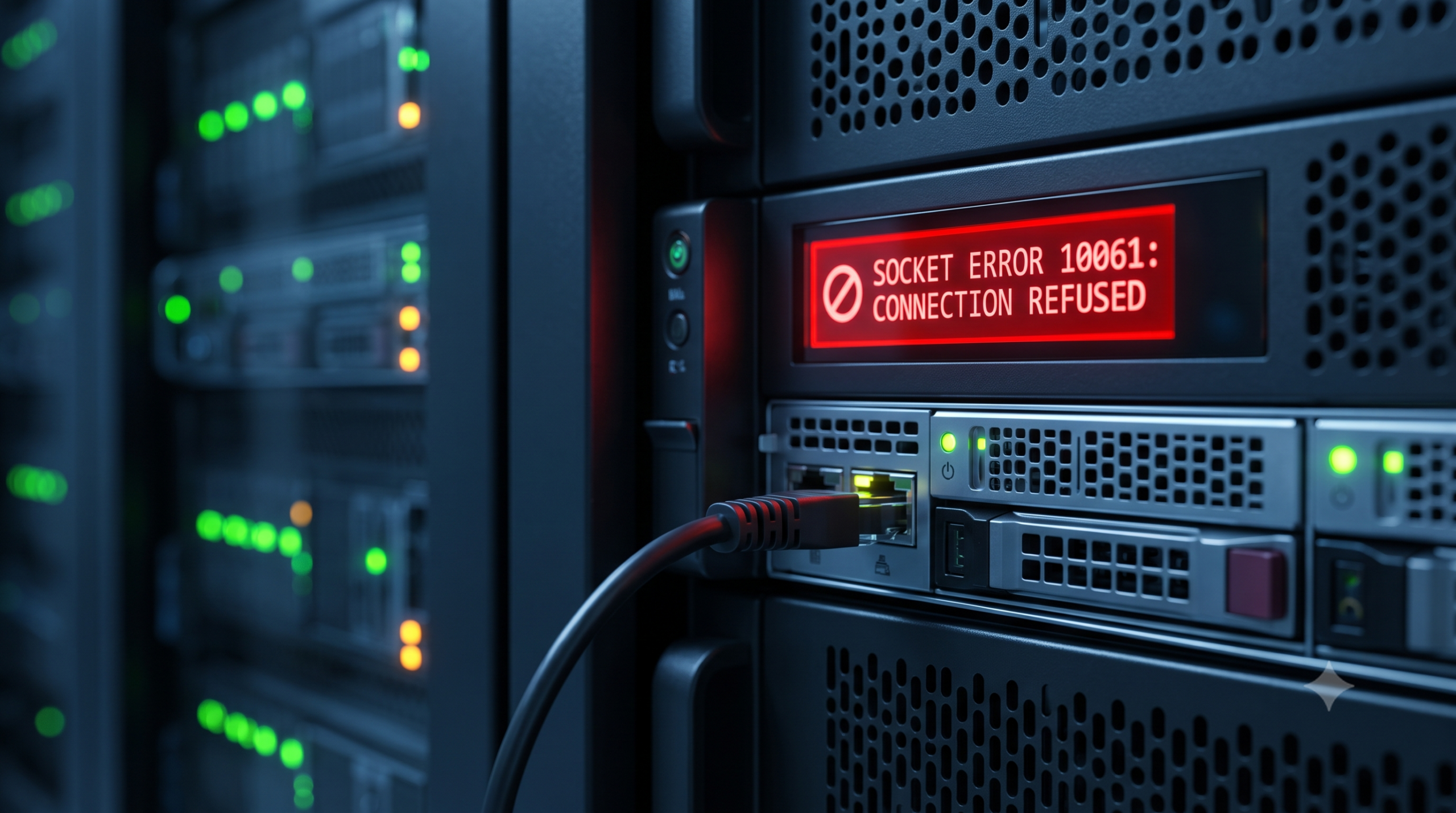
Think of it like making a phone call: you dialed the correct number, and the phone line is working, but the person on the other end actively hit the “Decline” button. This is different from a “Timeout” error (where no one answers) or a “Host Unreachable” error (where the number is disconnected).
Our goal with this guide is to give you a clear, objective understanding of what is happening and walk you through the practical steps to diagnose and solve the problem. Let’s dive in.
Related Reading: Check out our comprehensive guide on troubleshooting common HTTP errors for more networking tips.
The Most Common Causes of Error 10061
To fix the error, we first need to understand *why* the server refused the connection. In almost all cases, it comes down to one of these four scenarios:
- The Target Service is Dead or Stalled: The most frequent culprit. The server machine is on, but the specific software you’re trying to connect to (like a web server, database, or VPN service) is not running, crashed, or currently restarting.
- A Firewall is the Gatekeeper: Your local firewall (on your machine), a corporate firewall, or the server’s own firewall is actively blocking inbound traffic on the requested port. Firewalls are *designed* to do exactly this to prevent unauthorized access.
- You’re Knoking on the Wrong Port: Every networked service listens on a specific “port.” If the server is listening on port 8080 and your application is trying to connect to port 80, the server will refuse the connection.
- The Server is Maxed Out: Less common, but sometimes a heavily overloaded server will start refusing new connections because it cannot handle any more load. This is a common defense against Denial of Service (DoS) situations.
How to Fix Toyota/Lexus Error P1604 (Startability Malfunction)
Step-by-Step Troubleshooting Guide
Follow these steps in order. We’ll start with the simplest checks and move to more complex ones.
Step 1: Check If the Service is Running
The first and easiest check is to confirm that the service you are trying to reach is actually active on the target server. If you are the server administrator, check the service status (e.g., using `systemctl status apache2` on Linux or the Services manager on Windows). If you don’t own the server, verify the status through other means (like a service status page).
Step 2: Double-Check Port and IP Settings
A simple typo can cause this error. Verify you are using the correct IP address or hostname. Then, ensure your application is configured to use the exact port number the service is listening on.
Step 3: Check Firewall and Antivirus Software
Firewalls are the #1 cause of this error when services are running correctly. You need to check for blockages on three potential fronts:
| Firewall Location | What to Check | Action |
|---|---|---|
| Local (Your PC) | Windows Defender, antivirus, third-party firewalls. | Temporarily disable your firewall/antivirus and try the connection again. If it works, you need to create an exception. |
| Network (Router/Corporate) | Corporate edge firewalls, ISP blocks, or router settings. | If you are on a corporate network, contact IT. Check your router settings for any port forwarding or blocking rules. |
| Server-Side | Linux `iptables`/`ufw`, Windows Server Firewall. | If you manage the server, check that the inbound port is explicitly allowed. |
Remember to re-enable your firewalls as soon as you are done testing.
Step 4: Check Network Connectivity and Listening Status
Confirm your basic internet/network connection is stable. If you are an advanced user, you can use the `netstat -an` command on the server to see a list of all ports the server is actively listening on. If your target port isn’t on the list, the service isn’t listening.
Authoritativeness Tip: Professional network engineers often use tools like Telnet or Test-NetConnection (in PowerShell) to precisely test port connectivity. These tools allow you to bypass the application and determine if the socket itself is reachable. This objective method can save hours of debugging application-level settings.
For more deep-dive technical documentation, you can refer to the official Microsoft Windows Sockets (Winsock) Error Codes documentation.
By logically working through these steps, you can move from frustration to a successful connection. Socket Error 10061 is simply a “Stop” sign, and with this guide, you now have the tools to navigate around it safely.
TL;DR: Summary Checklist
- Verify the Server App is Active: Check if the target service (web, DB, etc.) is running.
- Check Port/IP Typos: Ensure your application settings match the server’s listening port.
- Firewall is the Top Suspect: A local, network, or server firewall is likely blocking the port. Create an exception or disable for testing.
- Overload is Possible: High server load can cause refusal, though less common.
- Use Diagnostic Tools: Try `netstat` on the server or `telnet` from your client for objective testing.
