
Written by Freddy John . Updated for 2026 . Tested on PC, Xbox and PlayStation
How to fix initialization error in DBD (Dead by Daylight)
You hit space to continue, the menu almost loads, and then Dead by Daylight slaps you with that grey box: “Initialization error. The game has initialized incorrectly and may not save your game properly.” Annoying, yes. Rare, no. This one has been haunting players across every platform for years, and the good news is that it almost always comes down to four boring causes. Work through them in order and you will usually be back in a trial within ten minutes.
Quick answer
The DBD initialization error is almost always a connection or stored data problem, not a broken account. First check if the servers are down. If they are fine, fully close the game and launcher, then on PC delete the PersistentDownloadDir folder inside %localappdata% > Dead by Daylight > Saved and verify your game files. On console, clear persistent storage (Xbox) or fix your clock and NAT type (PlayStation and Switch), then power cycle. One of these clears it for the vast majority of players.
On this page
What the initialization error actually means
When DBD says it “initialized incorrectly,” it is telling you it could not finish setting up your session. Usually that means it failed to talk to Behaviour Interactive’s servers, or it could not read some of its own saved data while loading. It is not a sign that your account is banned or that your save is gone. The wording sounds scary, but in practice it is a startup handshake that did not complete. That is also why the same fixes keep working year after year. You are not repairing damage so much as giving the game a clean path to connect.
Why DBD throws this error
Before you start clicking, it helps to know what you are actually chasing. Across community reports and Behaviour’s own support replies, the cause is almost always one of these four.
| Cause | What is happening | Best first fix |
|---|---|---|
| Server outage | The game cannot reach DBD servers because they are down or in maintenance. | Check status, then wait. |
| Strict NAT | A closed or type C NAT blocks the data the game needs to connect. | Enable UPnP on your router. |
| Corrupted files | A download cache or game file went bad and stalls the load. | Delete PersistentDownloadDir, verify files |
| Stored data or clock | Persistent storage on Xbox, or a wrong console clock on PS and Switch. | Clear storage or fix the time |
Fix it on PC (Steam and Epic)
Run these in order. Most PC players are sorted by step three, which is the same fix Behaviour’s own support team hands out in tickets.
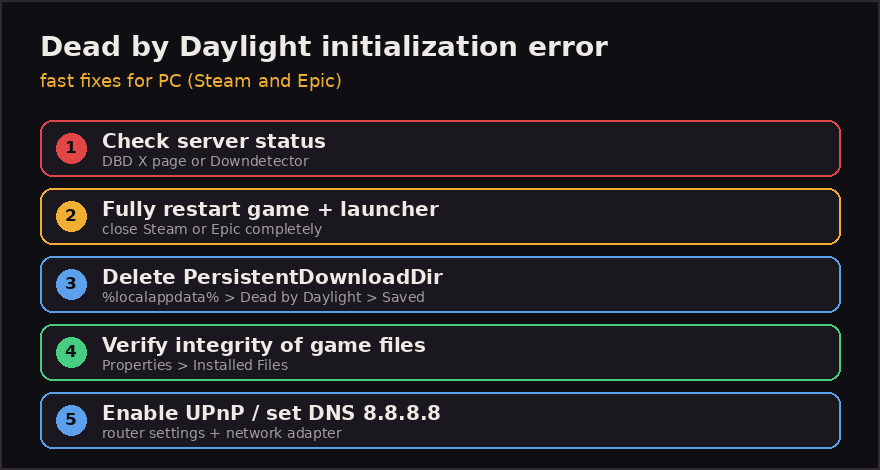
Step 1. Check the servers (30 seconds)
Open the official Dead by Daylight page on X or a tracker like Downdetector. If the servers are down, no local fix will help. Grab a coffee and try again later. If they are green, move on.
Step 2. Fully restart the game and launcher
Do not just close the error box. Quit Dead by Daylight, then quit Steam or the Epic launcher completely, including from the system tray. Relaunch and try once more. The error itself suggests a restart for a reason, and a clean boot clears a surprising number of cases.
Step 3. Delete the PersistentDownloadDir folder
This is the big one. Press Windows key + R, type %localappdata% and press enter. Open the Dead by Daylight folder, then Saved, then delete the PersistentDownloadDir folder. Do not worry, the game rebuilds it on the next launch. Restart Steam, verify your files (step four), then start DBD.
Step 4. Verify or repair game files
On Steam, right click Dead by Daylight, choose Properties, open Installed Files, then click Verify integrity of game files. On Epic, use the Repair option, though many players report a clean reinstall works better there. Steam will quietly redownload anything broken.
How to Fix “An Undefined Error Occurred” in Battlefield 6 (Fast)
Step 5. Open your NAT and tidy your network
If the error keeps returning, a strict NAT is a likely suspect. Log in to your router and enable UPnP under the port forwarding or NAT section, then reboot the router. Some players also fixed it by switching their DNS to manual, using 8.8.8.8 and 8.8.4.4, with IPv4 enabled. While you are here, close overlays from Discord, Steam or GeForce Experience, since these occasionally trip up the load.
Fix it on Xbox, PlayStation and Switch
Console fixes are short but platform specific. Pick your machine and follow that column.
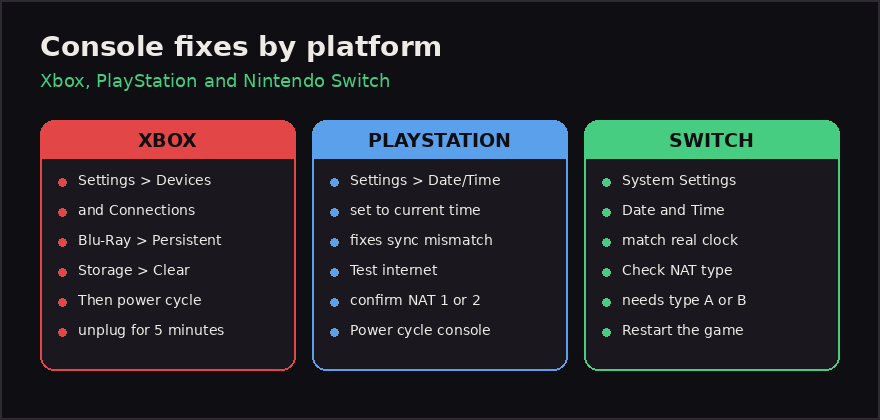
| Platform | Do this |
|---|---|
| Xbox | Settings, then Devices and Connections, then Blu-Ray, then Persistent Storage, then Clear. Power off, unplug for about 5 minutes, then restart. |
| PlayStation | Set the system date and time to your current local time to clear a sync mismatch. Test your internet and confirm NAT type 1 or 2, then power cycle. |
| Nintendo Switch | Open System Settings, fix the date and time to match the real clock, confirm a NAT type of A or B, then restart the game. |
The clock trick on PlayStation and Switch surprises people, but DBD checks your console time when it syncs, and a date that drifted while the console slept is enough to throw the error.
Still stuck? Last resort steps
If you have run the list and the error still shows, work through these heavier options. They take longer, so they are last for a reason.
- Update your graphics drivers. Grab the latest from NVIDIA or AMD, install, then reboot.
- Run a Windows update or repair. A current Windows rules out a system level conflict, especially after a long break from the game.
- Reinstall Dead by Daylight. A full reinstall, rather than a launcher repair, is the most reliable nuclear option on PC and Epic.
- Contact Behaviour support. If nothing lands and a friend can log into your account fine on another machine, it points to something local that support can dig into.
Frequently asked questions
Is the initialization error a ban?
No. It is a startup and connection issue, not an account action. Your progress and unlocks are safe.
Will deleting PersistentDownloadDir lose my save?
No. That folder only holds downloaded cache data. Your real progress lives on Behaviour’s servers tied to your account, and the folder rebuilds itself on the next launch.
Why does it keep coming back?
A recurring error usually points to a strict NAT or a flaky connection. Enabling UPnP and setting a manual DNS tends to make it stick rather than return each session.
Does this work on PS5 and Xbox Series X?
Yes. The platform steps above apply to the current and previous console generations, including PS5, PS4, Xbox Series X and S, and Xbox One.
TL;DR
- The DBD initialization error means the game could not finish connecting or reading its data. It is not a ban.
- Always check server status first. If servers are down, just wait.
- On PC, the winning move is deleting PersistentDownloadDir in %localappdata%, then verifying files.
- Enable UPnP and set DNS to 8.8.8.8 to stop it returning every session.
- On Xbox, clear persistent storage and power cycle. On PlayStation and Switch, fix the clock and check NAT type.
- Still stuck? Update drivers, repair Windows, reinstall, then ask Behaviour support.
Fixes here are community tested workarounds and may not solve every case. Dead by Daylight is a trademark of Behaviour Interactive.

Pingback: DBD Error Code 130: How to Fix the Bloodweb Error (2026 Guide) - Seminarsonly.com