
What is an HSTS Error? (Fast Summary)
An HSTS (HTTP Strict Transport Security) error occurs when a browser refuses to establish an insecure connection to a website that has explicitly mandated HTTPS encryption. Unlike standard SSL certificate alerts, browsers strictly forbid manual overrides (clicking “Proceed anyway”) to protect against man-in-the-middle (MitM) attacks, cookie hijacking, and protocol downgrade exploits.
- Trigger: Expired SSL certs, time/date desync, or stale browser cache conflicts.
- User Fix: Clear the local domain security policy in
chrome://net-internals/#hsts. - Admin Fix: Reissue valid SSL certificates and verify intermediate chain bundles.
Seeing “Your connection is not private” with no bypass button to click through can completely halt your browsing. When Google Chrome, Firefox, or Safari throws an alert stating that the site uses HTTP Strict Transport Security, standard safety overrides are deliberately disabled. Here is an actionable guide explaining why this happens and how to resolve it from both client and server perspectives.
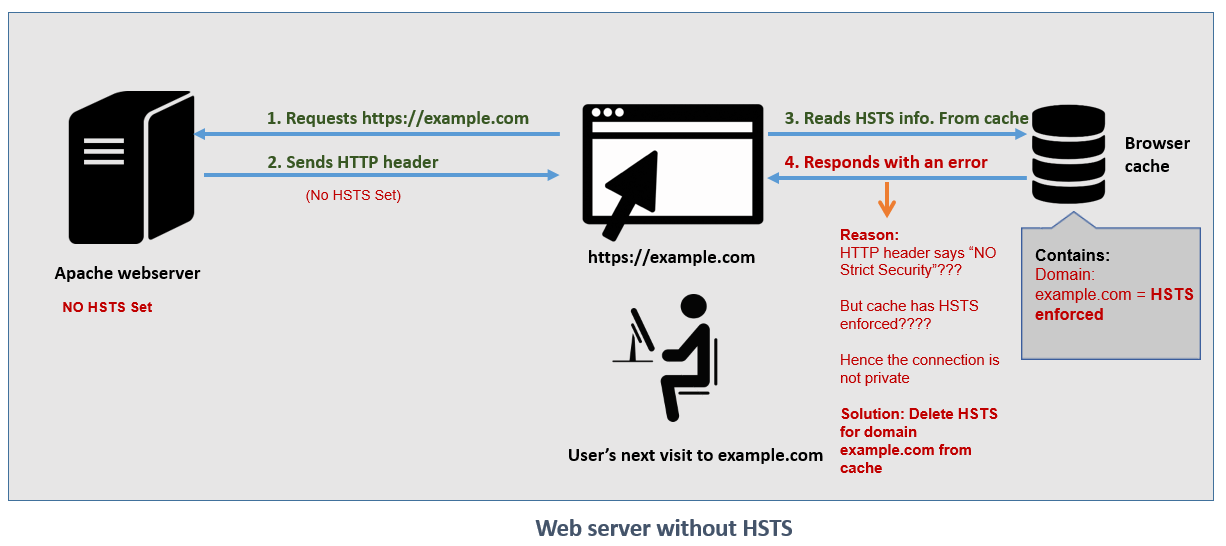
Common Browser Error Codes Associated with HSTS
HSTS itself is not a standalone protocol code; rather, it is an enforcement mechanism. When it blocks a page, you will usually see one of these underlying security flags:
NET::ERR_CERT_AUTHORITY_INVALID: The SSL certificate root isn’t trusted or is self-signed.NET::ERR_CERT_COMMON_NAME_INVALID: The domain name on the certificate doesn’t match the URL requested.NET::ERR_CERT_DATE_INVALID: The site’s security certificate is either expired or your local computer clock is incorrect.SSL_ERROR_BAD_CERT_DOMAIN(Firefox): Domain mismatch under enforced transport security.
DBD Error Code 8012: Can’t Get Into the Game? Here’s the Instant Fix
How to Fix HSTS Errors: Client-Side (Visitors & Users)
1. Delete the Domain’s HSTS Cache in Chrome
Chrome maintains an internal database of sites flagged with HSTS. If a site recently renewed its certificate, your browser may still hold invalid legacy headers:
- Navigate to
chrome://net-internals/#hstsin your Chrome address bar. - Scroll down to the “Delete domain security policies” section.
- Enter the root domain (e.g.,
example.com) withouthttps://or subdirectories. - Click Delete.
- Restart your browser and reload the webpage.
2. Clear Local SSL State and Browser Cache
- Windows: Open Control Panel > Internet Options > Content Tab, then click Clear SSL State.
- Browser Data: Press
Ctrl + Shift + Delete(orCmd + Shift + Deleteon macOS), check Cached images and files, and clear browsing history for “All time”. - Incognito Test: Open an Incognito/Private window. If the page loads normally, a corrupted extension or stale session cookie caused the block.
3. Correct System Date and Time Settings
SSL verification depends directly on your system clock. If your computer is off by even a few minutes, the browser checks the certificate against an invalid timestamp, flags it as expired or not-yet-valid, and triggers the non-bypassable HSTS screen. Synchronize your clock with time.windows.com or time.apple.com.
Client vs. Server Resolution Comparison
| Issue Context | Primary Cause | Resolution Method |
|---|---|---|
| Client-Side Conflict | Stale cached policies or system time mismatch. | Clear domain in chrome://net-internals/#hsts and sync clock. |
| Missing Intermediate Certificate | Web server fails to deliver full CA bundle. | Append intermediate certificates into fullchain.pem. |
| Preload List Misconfiguration | Site submitted to HSTS preload list without valid subdomains. | Provision wildcard certificates or submit removal at hstspreload.org. |
How Webmasters Can Fix Server-Side HSTS Misconfigurations
If visitors across multiple distinct networks report HSTS errors on your website, the root failure resides on your hosting server or DNS layer:
1. Reinstall the Full Certificate Chain
Modern browsers demand full validation chains. An incomplete certificate file missing the intermediate certificate from the Certificate Authority (CA) will immediately throw an unskippable HSTS error on mobile devices and clean browser installations. Ensure your web server configuration (Nginx or Apache) points to the bundled chain rather than just the leaf certificate:
# Nginx Configuration Example
ssl_certificate /etc/letsencrypt/live/example.com/fullchain.pem;
ssl_certificate_key /etc/letsencrypt/live/example.com/privkey.pem;
2. Validate the Strict-Transport-Security Header
When testing transitions or recovering from an outage, keep your max-age value low to avoid long-term browser lockouts:
# Safer test deployment header (5 minutes duration)
Strict-Transport-Security: max-age=300; includeSubDomains
Key Takeaways
- HSTS errors protect users by eliminating the ability to bypass SSL security warnings.
- Clearing
chrome://net-internals/#hstsimmediately cures client-side caching discrepancies. - Webmasters must maintain unbroken certificate chains (fullchain) to prevent sitewide visitor lockouts.
