
Few things are as frustrating as launching your favorite game only to get locked out at the title screen with Error code 8012: Cannot connect to online services. Whether you are on PC, PlayStation, Xbox, or Nintendo Switch, this error halts the authentication pipeline dead in its tracks. Below is the verified troubleshooting roadmap to pinpoint whether the problem is on the publisher’s end or your local rig—and how to get back into matchmaking fast.
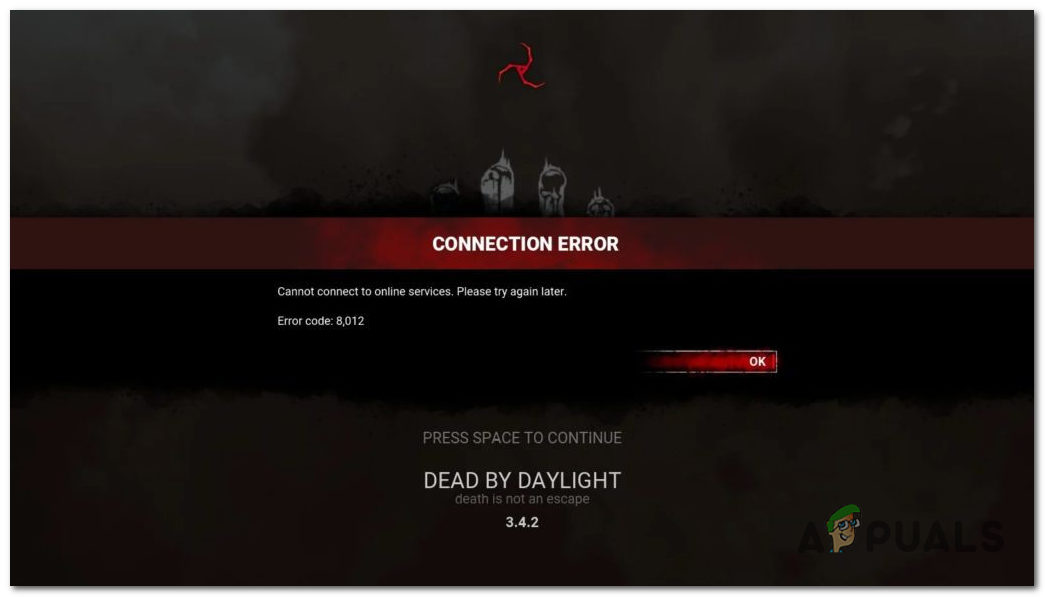
What Actually Causes Error Code 8012?
When your game boots, it executes a handshake between three entities: your local machine, the distribution platform authentication service (Steam/Epic Games/Xbox Live/PSN), and the dedicated game server infrastructure (e.g., Behaviour Interactive or Amazon AWS GameLift). An 8012 interrupt occurs due to:
- Dedicated Server Downtime: Weekly maintenance windows or unannounced server brownouts.
- Version Incompatibility: A client update is waiting to be downloaded, preventing outdated clients from querying live game instances.
- Anti-Cheat Stalls: Easy Anti-Cheat (EAC) failing to initialize service processes before the game tries to query online player profiles.
- DNS & NAT Translation Conflicts: Local ISP routing bottlenecks or stale DNS records that fail to resolve the game’s authentication hosts.
Troubleshooting Matrix: Client vs. Platform Fixes
| Root Factor | Detection Method | Immediate Solution |
|---|---|---|
| Server Outage / Maintenance | Spike on Downdetector or official social handles. | Wait for server maintenance window to conclude. |
| Stale Platform Auth Ticket | Game fails immediately on splash screen click. | Log out, fully kill client via Task Manager, restart. |
| Corrupt Local Game Files | Crash occurs alongside error 8012. | Run “Verify Integrity of Game Files” in Steam/Epic. |
| DNS Resolution Failure | Long delay at “Connecting” before 8012 triggers. | Flush DNS (ipconfig /flushdns) and switch to 1.1.1.1. |
Step-by-Step Fixes for Error 8012
Step 1: Check Live Server Status
Before modifying any local configuration, rule out cloud infrastructure outages:
- Inspect third-party status monitors like Downdetector to see if other players report identical spikes.
- Check official status feeds (such as the developer’s official X/Twitter feed or community Discord announcements).
- If maintenance is underway, client-side configuration changes will have zero effect.
Step 2: Restart Your Platform Client as Administrator
Auth tokens frequently desynchronize when a launcher runs continuously in sleep or standby mode:
- Quit the game and open Task Manager (
Ctrl + Shift + Esc). - End processes for Steam, EpicGamesLauncher, or the respective client.
- Right-click the launcher desktop icon and choose Run as administrator.
- Relaunch the game to generate a fresh session token.
Step 3: Flush Local DNS and Renew Leases
Stale network cache can prevent the game engine from finding the newly assigned matchmaking nodes:
# Run Command Prompt as Administrator, then execute:
ipconfig /flushdns
ipconfig /release
ipconfig /renew
netsh winsock reset
Restart your computer after running these commands to commit the network stack reset.
Step 4: Verify Integrity of Game Files & EAC
Missing or modified binaries trip the anti-cheat layer before connection approval is granted:
- On Steam: Right-click the game in your Library > Properties > Installed Files > Verify integrity of game files.
- On Epic Games: Click the three dots next to the title in your Library > Manage > Verify.
- On Consoles: Clear cache by fully powering down the console, unplugging the power cord for 60 seconds, and restarting.
