
TL;DR: Quick Fix for Error Code 83
Error Code 83 means Disney Plus thinks your device is incompatible or your internet connection is failing. The fastest fixes are:
- Power Cycle: Turn your device completely off and on again.
- Check Internet: Unplug your Wi-Fi router for 45 seconds, then reconnect.
- Update: Ensure the Disney+ app and your device’s operating system are fully up to date.
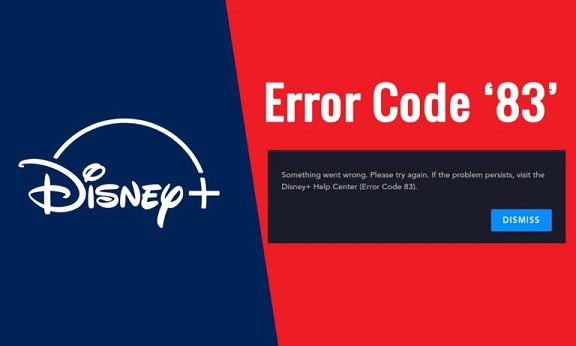
There’s nothing quite as frustrating as settling in to watch the latest Marvel or Star Wars release, only to be hit with Error Code 83. This notorious Disney Plus error simply says, “Something went wrong. Please try again.” But what does that actually mean?
Whether you’re streaming from a smart TV, smartphone, or gaming console, this guide will walk you through exactly why this happens and how to get your movie night back on track in just a few minutes.
What Causes Error Code 83 on Disney Plus?
Disney Plus uses Error Code 83 as a catch-all warning for two main problems:
- Device Compatibility Issues: The app believes you are using an unauthorized, outdated, or incompatible device. This is largely an anti-piracy measure that sometimes triggers by mistake.
- Connection Fluctuations: A weak, slow, or unstable internet connection can trick the app into thinking your device can’t run the software properly.
How to Fix Error Code 83 (Step-by-Step)
Don’t panic! Most of the time, this issue is resolved quickly with a few simple troubleshooting steps.
| Troubleshooting Solution | Why It Works | Time Needed |
|---|---|---|
| 1. Power Cycle Everything | Clears temporary cache and forces a fresh connection to Disney’s servers. | 2 mins |
| 2. Restart Your Router | Stabilizes IP fluctuations that trigger anti-piracy blocks. | 5 mins |
| 3. Update Firmware & App | Fixes bugs on older iOS, Android, or Smart TV operating systems. | 10 mins |
| 4. Ditch the Web Browser | Mobile browsers aren’t supported. You must use the official app on phones. | 1 min |
1. Restart Your Internet Connection
Since a spotty connection is a primary culprit, start here. Unplug your Wi-Fi router from the wall, wait a full 45 seconds to let the internal memory clear, and plug it back in. If you are on a computer or gaming console, switching to a wired Ethernet connection is highly recommended for stable 4K streaming.
2. The “Turn It Off and On Again” Method
It sounds like a cliché, but a complete power cycle works wonders. Don’t just exit the app—force close it completely. Swipe it away on your phone, or close the application from your TV’s dashboard. Then, turn your actual device completely off, wait 30 seconds, and turn it back on to refresh the connection.
3. Check for Outdated Software
Disney Plus regularly updates its security protocols. If your Smart TV, Roku, Firestick, or smartphone hasn’t been updated recently, the app might block it. Navigate to your device’s settings menu and check for system updates. Next, head to your respective app store and ensure the Disney+ app is on the latest version.
Still Not Working?
If you’ve tried everything above and the error persists, there may be a widespread server outage. Check outage-tracking sites or the official Disney+ Help accounts on social media to see if others are experiencing the same problem. If servers are up, trying to log in on a completely different device (like a laptop instead of your TV) can successfully bypass the block.
