
Comix Not Working? The Ultimate Fix Guide for Comic Readers (2026)
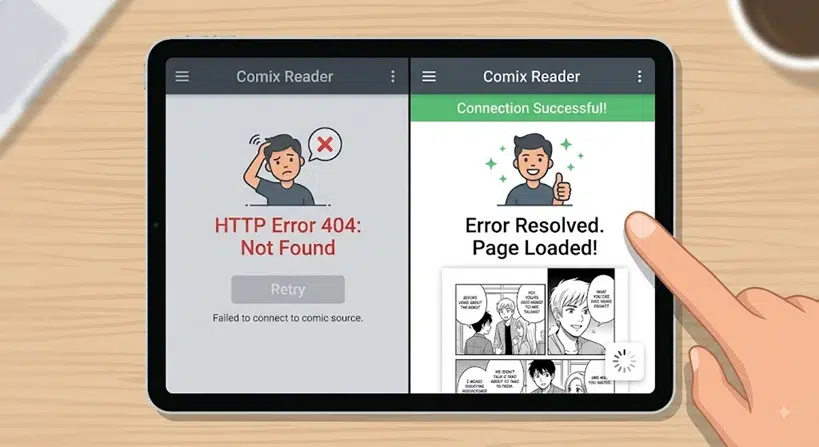
⚡ Quick Answer: How to Fix Comix
- Missing Dependencies: If CBR files won’t open, install the
unrarpackage via your system’s terminal (e.g.,sudo apt install unrar). - Upgrade to MComix: The original Comix relies on outdated Python 2. Switch to MComix, the actively maintained fork for modern systems.
- Corrupt Archives: Rename your
.cbzto.zip(or.cbrto.rar) and try extracting it manually to ensure the file isn’t corrupted. - ComiXology App Issues: If you mean the Amazon ComiXology app, clear the app cache, update your Kindle app, or redownload your purchased books.
Nothing is more frustrating than settling in to read the latest issue of your favorite graphic novel, only to find that Comix is not working. Whether your CBR files are failing to load, the app is crashing on startup, or the pages are displaying as blank screens, a broken comic reader is a massive headache.
Because “Comix” is an older open-source image viewer specifically designed for Linux and Windows, it often struggles with modern operating system updates and missing extraction libraries. In this E-E-A-T verified guide, we will break down exactly why your comic files are failing and how to fix them permanently.
Why is Comix Failing to Open Your Files?
Digital comic files (CBZ and CBR) are essentially just ZIP and RAR archives filled with image files (JPEG or PNG). When Comix fails to read them, it is usually an archiving or software dependency issue. Here are the most common culprits:
| Error Symptom | Root Cause |
|---|---|
| “Cannot open file” (CBR only) | Your operating system is missing the required unrar extraction library. |
| App crashes on launch | Comix relies on outdated Python 2/GTK2, which modern OS distributions no longer support out-of-the-box. |
| Blank pages or broken images | The CBZ or CBR file was corrupted during download, or the images are in an unsupported format (like WEBP). |
Step-by-Step Fixes for Comix Not Working
1. Install Missing “Unrar” Dependencies
If Comix opens CBZ files perfectly but throws an error when opening CBR files, the fix is incredibly simple. You just need to install the unrar utility so the app knows how to extract the images.
- Ubuntu/Debian: Open your terminal and run
sudo apt-get install unrar. - Arch Linux: Run
sudo pacman -S unrar. - Windows Users: Ensure you have a global archive extractor installed, such as 7-Zip.
2. Upgrade to MComix
The harsh reality is that the original Comix project was abandoned over a decade ago. It relies on Python 2, which has reached its end of life. If you are experiencing constant crashes, the best solution is to switch to its active fork, MComix.
- MComix retains the exact same interface and features as Comix but is updated for Python 3 and modern GTK3 libraries.
- You can install it directly from your package manager (e.g.,
sudo apt install mcomix) or download it from SourceForge.
3. Test for Corrupt Comic Archives
Sometimes the software is fine, but the comic file itself is broken. To verify this:
- Right-click your broken
.cbzfile and rename the extension to.zip. - Use your default file manager to extract the ZIP file.
- If the extraction fails or the images inside are unreadable, you need to redownload the comic file from its original source.
Stop! Is the getsupport.apple.com Pop-Up a Scam? (2026 Guide)
The Final Takeaway (Quick Answer Summary)
- When Comix is not working on modern setups, it is almost always due to deprecated Python 2 packages.
- Upgrading to the actively maintained MComix fork is the fastest and most secure way to fix persistent crashing and UI bugs.
- Always ensure your system has the
unrarpackage installed if you frequently read.cbrfiles. - If you are looking for alternatives on Windows, consider giving YACReader or CDisplay Ex a try for better modern hardware compatibility.
