
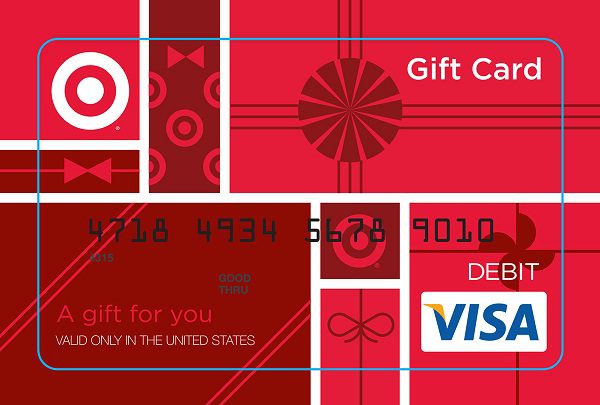
To activate your new Target Visa Gift Card, login into mybalancenow.com . Click on Activate Card button and enter your card information including the card number, expiration date, and CVV located on the back of the card.
There are two main ways to activate your new Target Visa Gift Card:
1. Automatic Activation:
- In most cases, your Target Visa Gift Card is activated automatically at the time of purchase, whether you bought it in-store or online. This means you can start using it right away for in-store purchases.
2. Online Activation (for Online and Gas Station Use):
- While your card might be active for in-store purchases, you’ll likely need to register a zip code to use it for online purchases or at gas stations.
- You can do this in two ways:
- Online:
- Go to https://www.mybalancenow.com/
- Enter your card number, expiration date, and the 3-digit security code (CVV) from the back of your card.
- Follow the prompts to register a zip code.
- Phone:
- Call the customer service number on the back of your card (usually 1-800-695-9522)
- Follow the automated prompts to register a zip code
- Online:
Target GiftCards can be redeemed, for all or part of their value, anywhere in a Target store or on Target.com
Where do I get the access number for my Target GiftCard?
- Access your Target account on Target.com.
- Note: Target GiftCard access numbers cannot currently be requested in the Target App.
- Go to Account/Name tab.
- Select Gift cards
- Find the Target GiftCard you wish to use, and then select Get access number
- The Target GiftCard access number will be emailed to the email tied to your Target.com account
Target GiftCards can be used:
- To purchase alcohol and other restricted items
- At Starbucks within Target stores.
- At Target Café
- At CVS Pharmacy within Target stores
- In-store at Target Optical (Target GiftCards cannot be used for online purchases with Target Optical.)
Target GiftCards cannot be used:
-
-
- To make RedCard payment(s)
- To purchase Visa®, Mastercard®, or American Express® gift cards
- To purchase iTunes gift cards.
- To purchase specialty gift cards (gaming, restaurants, etc.)
- To purchase Target GiftCards.
- At Minute Clinics within Target stores.
- Online at Target Optical (Target GiftCards can be used for in-store purchases with Target Optical.)
-
- Target.com is designed to accept up to 10 Target GiftCards per order as payment at checkout.
- Target GiftCards will always be used as first type of tender before charging a credit/debit card.
- Target GiftCards don’t expire, and don’t lose value over time, even if this is printed on gift card.
- A Target.com account is required to access and redeem email and mobile gift cards in store or online purchases.
- Target GiftCards require an access number to redeem the gift card funds in store or on Target.com.
- Gift cards must have barcodes that are scanable in order to redeem in a Target store.
Adding a Gift Card
- Target App:
- Access your Target account in the Target App.
- Select the Wallet tab.
- Select Add within the GiftCard section.
- Select Add Gift Card.
- Scan the Target barcode on the back of the Target GiftCard or input the gift card number and the access code to add it to your account. On your physical Target GiftCard, these numbers can be found by gently removing the silver strip on the back of your gift card.
- Target.com:
- Access your Target account on Target.com.
- Navigate to your Account/Name.
- Select Gift cards.
- Select Save a new gift card or the + sign.
- Input the Gift card # and Access code to add it to your account. On your physical Target GiftCard, these numbers can be found by gently removing the silver strip on the back of your gift card.
Deleting a Gift Card
- For gift card deletion options in the Target app and on Target.com, navigate to your Account and select Gift Cards.
Using a Gift Card Stored in Account
- In Target store:
- From within the Target App, select the Wallet tab.
- Select Payments.
- Select which gift cards you want to use.
- Select Save.
- The payment sheet will close, and your selected gift cards will be displayed on the Wallet screen below the barcode.
- Scan your barcode and your selected gift cards will apply.
- On Target.com:
- Access your Target account on Target.com.
- Navigate to Checkout.
- Select I’m ready to checkout.
- In the Payment section, select Edit and then select the Apply a Target GiftCard checkbox.
- Select which gift cards you want to use. You can apply up to 10 Target GiftCards to an order.
- After making your selections, complete your checkout. Your selected gift cards will be applied to your purchase.

