
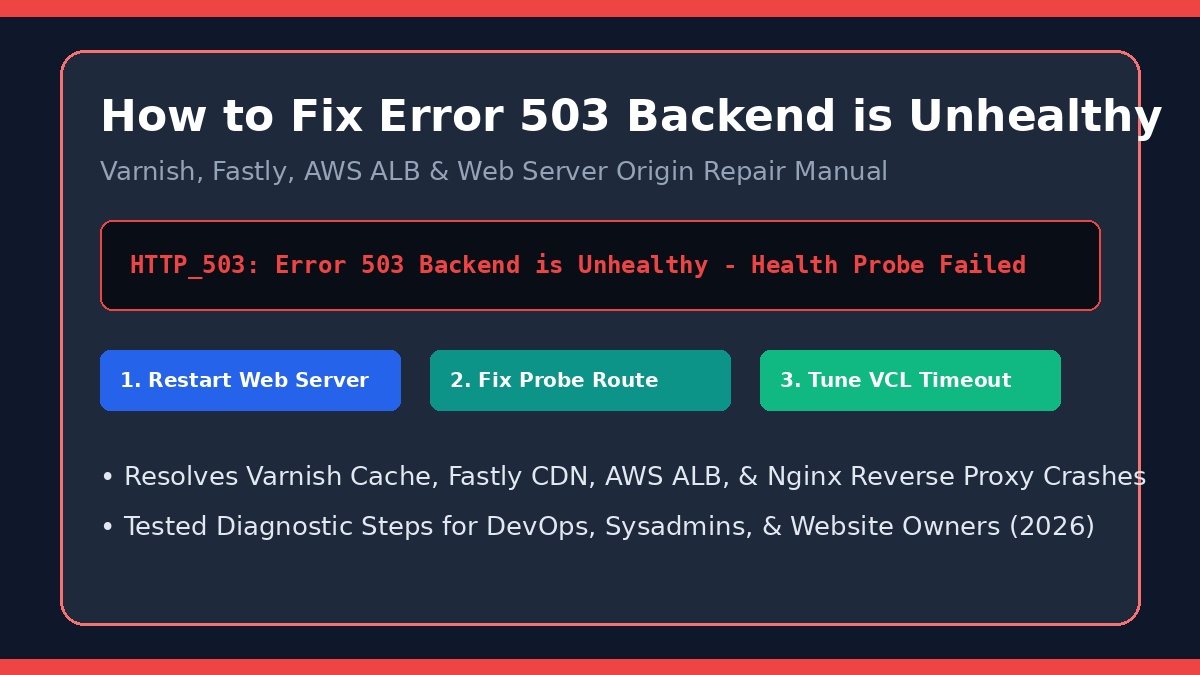
How to Fix “Error 503 Backend Is Unhealthy”: Complete Technical Resolution Guide
Updated August 2026 | By Senior DevOps & Site Reliability Engineer | 7 min read
Quick AnswerWhat Causes “Error 503 Backend Is Unhealthy” & How Do You Fix It?
Error 503 Backend is unhealthy is an HTTP status code generated by a reverse proxy, CDN, or load balancer (such as Varnish Cache, Fastly, AWS ALB, Nginx, or HAProxy). It indicates that the edge proxy cannot reach your origin application server, or that automated health check probes to your server are failing.
Fast Fix: Verify that your web application daemon (Apache, Nginx, PHP-FPM, Node.js) is actively running, check for CPU/RAM exhaustion, ensure firewall/security groups allow proxy health check IPs, and update load balancer health probe paths to a lightweight route (e.g., /health).
Understanding the “Backend Is Unhealthy” Architecture
Modern web architecture places caching proxies and load balancers in front of origin application servers to accelerate delivery and handle traffic bursts. According to MDN Web Docs HTTP 503 Service Unavailable standards, a 503 code indicates that the server is temporarily unable to handle the request.
When the message specifically specifies “Backend is unhealthy” (frequently seen in Varnish Cache, Fastly, or cloud load balancers), the edge proxy sent automated “health probe” requests to your origin server that either timed out, returned non-200 HTTP statuses, or were dropped by firewalls.
Top Technical Triggers of Unhealthy Backend Status
- Crashed Application Service: The underlying web daemon (such as PHP-FPM, Node.js, Python Gunicorn, or MySQL) stopped responding due to a fatal script error or out-of-memory (OOM) crash.
- Server Resource Exhaustion: High CPU usage, 100% RAM allocation, or disk I/O bottlenecks cause origin response delays that exceed proxy probe timeout windows (e.g., Varnish
first_byte_timeout). - Misconfigured Health Probe URL: The load balancer or Varnish configuration is configured to check a path that returns
404 Not Foundor500 Internal Errorinstead of a dedicated200 OKstatus endpoint. - Firewall & Security Group Blocks: IPTables, UFW, or AWS Security Groups blocking incoming health probe IP addresses from the CDN or reverse proxy.
Proxy Layer Diagnostic & Resolution Matrix
Different proxy layers output distinct variant messages for 503 backend errors. Use the table below to identify your specific stack:
| Proxy / CDN Layer | Error Message Signature | Primary Underlying Cause | Recommended Fix Action |
|---|---|---|---|
| Varnish Cache | “Error 503 Backend is unhealthy / Guru Meditation” | VCL probe threshold failed or origin HTTP timeout | Increase VCL first_byte_timeout & verify probe path |
| Fastly CDN | “503 Service Unavailable – Backend Unavailable” | Origin shield failover or TLS handshake drop | Verify SSL certificates & origin host header rules |
| AWS ALB / Kubernetes | “503 Service Temporarily Unavailable / Unhealthy Target” | Target group health check returning 5xx or timing out | Point target group health check to /healthz route |
Step-by-Step Instructions: How to Resolve Error 503 Backend Is Unhealthy
Follow these ordered troubleshooting steps to restore your backend to a healthy state:
- Step 1: Check Application Web Server Status:
SSH into your origin server and verify that services are running usingsystemctl status nginx,systemctl status php-fpm, ordocker ps. Restart any crashed daemons. - Step 2: Inspect Server Resources & System Logs:
Runtoporhtopto check for CPU exhaustion or RAM saturation. Review web server error logs (e.g.,/var/log/nginx/error.logorjournalctl -u php-fpm) for execution crashes. - Step 3: Validate Load Balancer & Varnish Health Probe Paths:
Ensure your health check configuration points to a lightweight, static endpoint (such as a/health.phpor/statusfile) that returns a fast200 OKstatus without querying complex database logic. - Step 4: Adjust Proxy Timeout Settings:
In Varnish VCL or Nginx reverse proxy configs, increase connection and response timeouts:.first_byte_timeout = 60s;.connect_timeout = 5s; - Step 5: Verify Firewall & Security Group Whitelisting:
Ensure that local IPTables/UFW firewalls or AWS Security Groups allow incoming HTTP/HTTPS traffic from your proxy/CDN health check IP subnets.
For additional guidance on scaling server infrastructure and eliminating downtime, consult our comprehensive server performance & outage troubleshooting guide.
