
Quick Answer
“Error prepping navigation data” is a generic message shown by mapping and GPS apps (including Google Maps, Waze, Android Auto, Apple CarPlay, and in-car navigation units) when the app can’t finish loading or building the map/route data it needs. It’s almost always caused by a weak GPS or internet signal, an outdated app or map version, a full storage cache, or a temporary glitch in the navigation software — not a permanent fault. Restarting the app, checking your signal, and clearing the cache resolve it in most cases.
TL;DR
- This message means the app couldn’t finish preparing map/route data — it’s a loading failure, not account or hardware damage.
- Weak GPS signal, poor internet connectivity, and outdated map data are the most common causes.
- Restart the app first — it clears the majority of one-off cases.
- Clear the app’s cache and update to the latest version if a restart doesn’t help.
- On in-car GPS/head units, a full system reset or map data reinstall is the last resort.
On This Page
What Does “Error Prepping Navigation Data” Mean?
This message shows up when a navigation app or in-car GPS system tries to load, calculate, or refresh map and route data and fails partway through. You’ll typically see it right when you open a maps app, start turn-by-turn directions, or connect your phone to Android Auto or Apple CarPlay.
It’s worth noting upfront: this isn’t a single, officially documented error code from one company. It’s a generic-style message that different navigation platforms show for the same underlying problem — the app couldn’t finish preparing the data it needs to draw your map or plot your route. The good news is that the causes and fixes are largely the same regardless of which app or device is showing it.
Common Causes
Here’s what’s usually behind this message, ranked from most to least common:
| Possible Cause | How Common | Fix Below |
|---|---|---|
| Weak GPS signal or no internet connection | Very common | Fix 1 |
| Temporary app glitch or stuck process | Very common | Fix 2 |
| Outdated app or map data version | Common | Fix 3 |
| Full or corrupted app cache / offline maps | Common | Fix 4 |
| Low device storage | Occasional | Fix 5 |
| Head unit / infotainment software fault (in-car systems) | Occasional | Fix 6 |
6 Ways to Fix “Error Prepping Navigation Data”
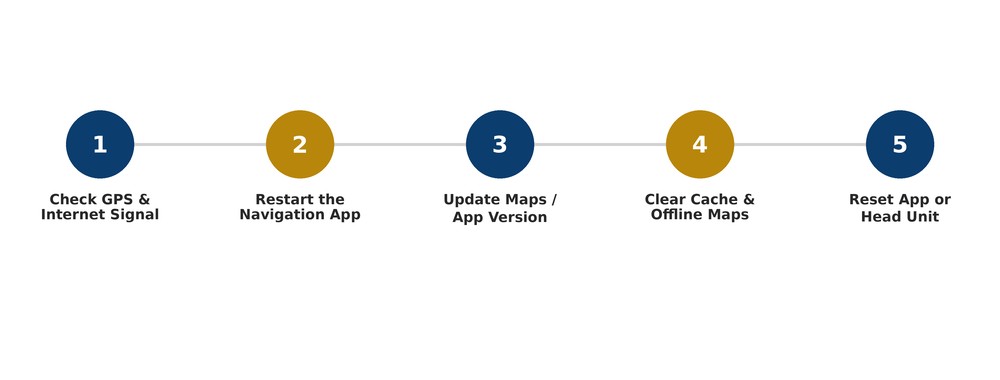
Fix 1: Check Your GPS and Internet Signal
Move to an area with a clearer sky view if you’re indoors, in a tunnel, or in a parking garage — GPS accuracy drops sharply in these spots. Also confirm mobile data or Wi-Fi is active, since most navigation apps need both a location fix and a live data connection to prepare map data.
Fix 2: Force-Close and Restart the App
- Fully close the navigation app (not just minimize it).
- If using Android Auto or CarPlay, disconnect and reconnect your phone.
- Reopen the app and try starting navigation again.
Fix 3: Update the App and Map Data
Open the Play Store or App Store and check for pending updates to your navigation app. Outdated versions sometimes can’t process current map data correctly. If you use offline or downloaded maps, re-download the region so the local data matches the app version.
Fix 4: Clear the App’s Cache
- Android: Settings > Apps > [Navigation App] > Storage > Clear Cache.
- iOS: Offload or delete and reinstall the app, since iOS doesn’t expose a separate cache-clear option.
- Avoid “Clear Data” unless necessary — that also removes saved places and preferences.
Fix 5: Free Up Device Storage
Low storage can interrupt an app’s ability to write temporary map/route files. Delete unused apps, photos, or downloaded offline map regions you no longer need, then retry navigation.
Fix 6: Reset the App or Head Unit
If you’re seeing this on a built-in car navigation system rather than a phone app, a soft reset (holding the infotainment power button, or using the system restart option in settings) often clears a stuck data-loading process. If it persists after a reset, check with your vehicle manufacturer for a map/software update — persistent failures on dedicated head units are sometimes tied to outdated firmware. For related app-based navigation issues, see our tech troubleshooting hub on SeminarsOnly News.
Frequently Asked Questions
Is this error specific to one navigation app?
No. It’s a generic-style message that can appear on Google Maps, Waze, Android Auto, Apple CarPlay, or built-in car GPS systems — the causes and fixes are largely the same across all of them.
Does this mean my map data is corrupted permanently?
Rarely. In most cases it’s a temporary loading failure caused by signal, connectivity, or cache issues rather than permanent data corruption.
What should I try first?
Check your GPS/internet signal and restart the app (Fixes 1 and 2) — together they resolve the majority of cases in under a minute.
Where can I check if it’s a known Google Maps issue?
Visit the official Google Maps Help Center to check for known service issues or app-specific troubleshooting steps.
