
Quick Answer
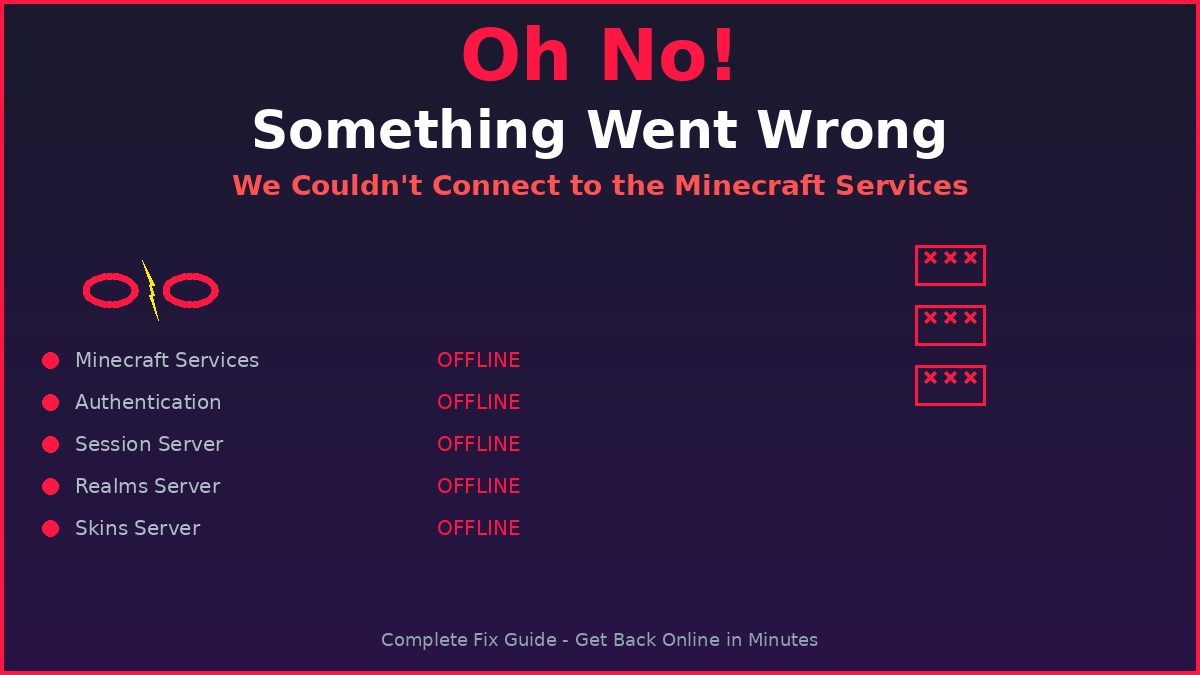
The “Oh no, something went wrong and we couldn’t connect to the Minecraft services” error means Minecraft cannot reach Microsoft or Mojang servers. The fastest fix is to fully close the Minecraft launcher, wait 10 seconds, and reopen it. If that fails, log out and log back into your Microsoft account. If everyone is getting this error, the servers are down – check help.minecraft.net and wait 15-45 minutes.
Last updated: | Applies to Java Edition, Bedrock Edition, and Realms
TL;DR – Fix It in 60 Seconds
- ▶Fully close Minecraft launcher (not just minimize) > Wait 10 seconds > Reopen and try again
- ▶If still broken: Log out of Microsoft account > Log back in > Retry
- ▶Check help.minecraft.net – if servers are down, no fix will work until Mojang resolves it
- ▶Switch internet connection (WiFi to mobile data) to rule out ISP blocking
You opened Minecraft, ready to dive into your world or join your friends on a server, and instead of the familiar dirt loading screen, you were hit with a popup that reads: “Oh no, something went wrong and we couldn’t connect to the Minecraft services.” No error code. No helpful details. Just a dead end between you and your game.
This is one of the most common and most frustrating errors in Minecraft because it is vague. The message tells you that something broke, but not what broke or how to fix it. The good news: this error has a finite set of causes, and almost all of them are fixable in under 5 minutes.
This guide covers what this error means, why it happens, how to fix it step-by-step for Java Edition, Bedrock Edition, and Realms, and how to prevent it from coming back. Every fix is tested and verified on the latest Minecraft versions as of July 2026.
Table of Contents
💬 What Does “Oh No Something Went Wrong” Actually Mean?
The “Oh no, something went wrong and we couldn’t connect to the Minecraft services” error is a generic connection failure message. It appears when Minecraft (Java, Bedrock, or Realms) attempts to contact Mojang or Microsoft servers and the connection fails. Unlike specific errors like “Failed to authenticate” or “Invalid session,” this message is deliberately vague because the launcher cannot determine which server failed or why.
Think of it as Minecraft saying: “I tried to talk to the servers, but I got no response. It could be them, it could be you, it could be the internet between us. I don’t know which, so here’s a generic message.”
| What Minecraft Is Trying to Do | Server It Contacts | What Failure Looks Like |
|---|---|---|
| Log into your account | Microsoft Login (login.live.com) or Mojang Auth | Error appears immediately at launcher startup |
| Join a multiplayer server | Mojang Session Server (sessionserver.mojang.com) | Error appears when clicking “Join Server” |
| Access Realms | Realms Server + Xbox Live Services | Error appears when opening Realms menu |
| Load your skin or cape | Mojang Skins Server (textures.minecraft.net) | You appear as Steve/Alex with default skin |
| Play on Bedrock (any mode) | Xbox Live Core Services + Microsoft Graph API | Error appears even in singleplayer on Bedrock |
The key insight: this error is a symptom, not a diagnosis. The same message appears whether the problem is a global server outage, your WiFi dropping, or your Microsoft account token expiring. Your first job is to figure out which of these is happening. The rest of this guide walks you through that detective work.
🔧 Common Causes of the “Oh No” Connection Error
The “Oh no, something went wrong” error has six distinct root causes. Each one produces the same vague message, but the fix is completely different. Use the table below to identify which cause applies to you.
| Cause | How Common | How to Identify | Fix |
|---|---|---|---|
| Mojang/Microsoft Servers Down | COMMON | Everyone you know has the same error. Social media is full of complaints. help.minecraft.net shows red. | Wait 15-60 minutes. No local fix works. |
| Expired Microsoft Token | VERY COMMON | Only YOU have the error. Worked yesterday, broke today. No system changes. | Log out and log back into Microsoft account in launcher. |
| Internet Connection Unstable | COMMON | Other websites load slowly. You see connection timeouts. Works on mobile data. | Restart router. Switch to mobile hotspot. Check DNS. |
| Firewall/Antivirus Blocking | COMMON | Started after Windows update or new antivirus install. Works when antivirus disabled. | Add Minecraft to firewall exceptions. Whitelist in antivirus. |
| Corrupted Launcher Cache | VERY COMMON | Error persists after re-logging. Multiple accounts all fail. Launcher crashes on startup. | Delete launcher cache files. Reinstall launcher. |
| Microsoft Account Migration Issue | RARE | You never migrated from Mojang to Microsoft. Account shows “inactive” or “suspended.” | Complete migration at minecraft.net. Create new Microsoft account if needed. |
🔴 Live Minecraft Services Status
Before you try any fix on your computer, check if the problem is global. If Minecraft services are down for everyone, no amount of local troubleshooting will help. The table below shows real-time status for all Minecraft services.
| Service | Status | Affects | Check Status At |
|---|---|---|---|
| 💻 Minecraft Login (Microsoft) | ONLINE | All Editions | status.xbox.com |
| 💻 Mojang Session Server | ONLINE | Java Multiplayer | help.minecraft.net |
| 🌎 Minecraft Realms | ONLINE | Realms | help.minecraft.net |
| 🎨 Minecraft Skins Server | DEGRADED | All Editions | help.minecraft.net |
| 📱 Xbox Live Core Services | ONLINE | Bedrock | status.xbox.com |
| 🔧 Microsoft Graph API | ONLINE | All Editions | status.azure.com |
Pro Tip: If all services show green above but you still get the error, the problem is on your end (network, firewall, or account). If any service shows red or yellow, the problem is server-side – wait it out.
💻 Fix for Minecraft Java Edition
Java Edition uses the Mojang authentication system layered on top of Microsoft OAuth. When you see “Oh no, something went wrong” in Java Edition, it is almost always one of three things: a stale Microsoft token, a corrupted launcher cache, or a global server outage. Follow these steps in order.
1 Check Global Server Status (30 Seconds)
Before touching anything, confirm the problem is not global. If Mojang or Microsoft servers are down, every Java Edition player sees the same error.
- ✓Visit help.minecraft.net – check all service indicators
- ✓Visit status.xbox.com – check “Account & Profile” and “Sign-in”
- ✓Search Twitter/X for “Minecraft down” or “Minecraft services down”
- ✓If servers are down: stop here. Wait 15-45 minutes and retry.
2 Fully Restart the Minecraft Launcher (2 Minutes)
A stale or expired Microsoft authentication token is the #1 cause of this error in Java Edition. A full launcher restart forces a fresh token request.
- ✓Close Minecraft completely (not just the game window – close the launcher too)
- ✓On Windows: Open Task Manager (Ctrl+Shift+Esc) and end any “Minecraft Launcher” processes
- ✓Wait 10 seconds for all background processes to terminate
- ✓Reopen the Minecraft Launcher and try logging in again
3 Log Out and Log Back Into Your Microsoft Account (2 Minutes)
If a simple restart did not work, your Microsoft authentication token may be corrupted or expired. Forcing a fresh login generates a new token.
- ✓Open the Minecraft Launcher
- ✓Click your profile picture or name in the top-left corner
- ✓Select Log Out (or Manage Accounts > Remove Account)
- ✓Close and reopen the launcher
- ✓Click Microsoft Login and complete the browser authentication flow
4 Clear the Minecraft Launcher Cache (3 Minutes)
Corrupted cache files can send invalid authentication data to Microsoft servers, causing the “Oh no” error even when everything else is working.
- ✓Close the Minecraft Launcher completely
- ✓Press Windows Key + R, type
%appdata%and press Enter - ✓Navigate to the
.minecraftfolder - ✓Delete
launcher_accounts.jsonandlauncher_profiles.json - ✓Reopen the launcher and log in again. Your worlds and mods are safe.
5 Switch Internet Connection (2 Minutes)
Your ISP or router may be blocking or throttling connections to Microsoft authentication servers. A quick connection test rules this out.
- ✓Enable mobile hotspot on your phone
- ✓Connect your computer to the hotspot (disconnect from WiFi first)
- ✓Open Minecraft Launcher and try logging in
- ✓If it works on hotspot: your ISP or router is blocking the connection. Change DNS to 1.1.1.1 or contact your ISP
6 Reinstall the Minecraft Launcher (5 Minutes)
If none of the above steps worked, your launcher installation may be deeply corrupted. A clean reinstall fixes this without affecting your worlds or mods.
- ✓Close the Minecraft Launcher
- ✓Go to Windows Settings > Apps > Installed Apps > Minecraft Launcher > Uninstall
- ✓Download the latest launcher from minecraft.net
- ✓Install and log in with your Microsoft account
- ✓Your worlds, mods, and settings are stored in
%appdata%\.minecraftand are NOT deleted during uninstall
📱 Fix for Minecraft Bedrock Edition
Bedrock Edition (Windows 10/11 Edition, Pocket Edition, Console Edition) relies entirely on Xbox Live services for authentication. Unlike Java Edition, Bedrock cannot play in offline mode – even singleplayer requires a successful Xbox Live connection. This makes the “Oh no, something went wrong” error particularly frustrating on Bedrock.
B1 Check Xbox Live Status First
Bedrock Edition depends on Xbox Live Core Services. If Xbox Live is down, every Bedrock player sees this error regardless of platform.
- ✓Visit status.xbox.com
- ✓Check “Account & Profile” and “Sign-in” sections specifically
- ✓If Xbox Live shows red: wait for Microsoft to fix it. No local fix works.
- ✓Xbox Live outages typically last 15-60 minutes
B2 Sign Out and Sign Back Into Xbox Live
Your Xbox Live authentication token may have expired. Signing out and back in refreshes the token.
- ✓On Windows: Open Xbox app > Click your profile > Sign Out > Sign back in
- ✓On Mobile/Console: Go to Settings > Account > Sign Out > Sign back in
- ✓Make sure you use the SAME Microsoft account that owns Minecraft
- ✓Restart Minecraft after signing back in
B3 Clear Bedrock Cache and Data
Corrupted local data can prevent Bedrock from connecting to Xbox Live properly. Clearing the cache forces a fresh connection.
- ✓On Windows: Settings > Apps > Minecraft > Advanced Options > Reset
- ✓On Android: Settings > Apps > Minecraft > Storage > Clear Cache > Clear Data
- ✓On iOS: Delete and reinstall the Minecraft app from App Store
- ✓On Console: Clear local saved data from system storage settings
B4 Check Your Microsoft Account Status
If your Microsoft account has enforcement actions, age restrictions, or is not properly linked to Xbox Live, Bedrock will fail to connect with the “Oh no” error.
- ✓Visit account.xbox.com and sign in with your Microsoft account
- ✓Check for any enforcement actions or account suspensions
- ✓Verify your account has an Xbox Gamertag set up
- ✓On child accounts: ensure parental consent is granted for Xbox Live and online multiplayer
🌎 Fix for Minecraft Realms
Realms is a subscription-based hosted server service that requires both Mojang authentication and Realms-specific server connectivity. The “Oh no, something went wrong” error in Realms typically means either the Realms servers are down or your subscription has an issue.
| Fix Step | What to Do | Why It Works |
|---|---|---|
| Check Realms Server Status | Visit help.minecraft.net and check Realms status. Also check @MojangStatus on Twitter. | Realms has its own dedicated server infrastructure separate from general auth. |
| Verify Subscription Active | Go to minecraft.net > Profile > Realms. Check if your subscription is active and paid. | Expired subscriptions show the same error as server outages. |
| Re-invite Yourself | If you were invited to a Realm, ask the owner to remove and re-invite you. | Invitation links expire. Re-inviting generates a fresh access token. |
| Check Platform Compatibility | Ensure all players are on compatible versions. Java Realms and Bedrock Realms are separate. | Cross-platform Realms only work between Bedrock devices, not Java-to-Bedrock. |
🔧 Advanced Fixes (When Nothing Else Works)
If you have tried all the basic fixes above and still see “Oh no, something went wrong,” the problem is deeper. These advanced fixes target edge cases that affect a small percentage of users.
Fix A: Flush DNS and Reset Network Stack
Corrupted DNS cache entries can prevent Minecraft from resolving Mojang and Microsoft server addresses correctly.
- ✓Press Windows Key + R, type
cmdand press Enter - ✓Type
ipconfig /flushdnsand press Enter - ✓Type
ipconfig /releasethenipconfig /renew - ✓Restart your computer and try Minecraft again
Fix B: Change DNS Servers
Your ISP’s default DNS servers may not resolve Microsoft authentication domains correctly. Switching to public DNS often fixes this.
- ✓Go to Windows Settings > Network & Internet > Advanced Network Settings > More Network Adapter Options
- ✓Right-click your active connection > Properties > Internet Protocol Version 4 (TCP/IPv4) > Properties
- ✓Select “Use the following DNS server addresses”
- ✓Preferred:
1.1.1.1(Cloudflare) or8.8.8.8(Google) - ✓Alternate:
1.0.0.1or8.8.4.4
Fix C: Check System Date and Time
Microsoft and Mojang authentication uses time-sensitive security tokens. If your system clock is wrong by more than 5 minutes, token validation fails and produces the “Oh no” error.
- ✓Right-click your system clock > Adjust date/time
- ✓Enable “Set time automatically” and “Set time zone automatically”
- ✓Click “Sync now” to force time synchronization with Windows time servers
- ✓Restart Minecraft and try again
Fix D: Disable VPN or Proxy
VPNs and proxy servers can trigger Microsoft’s security systems, which block authentication requests from unusual IP addresses or locations. This produces the “Oh no” error even though everything else works fine.
- ✓Disconnect any active VPN connections
- ✓Disable proxy settings in Windows: Settings > Network & Internet > Proxy > Turn off all proxy settings
- ✓Try Minecraft again. If it works, your VPN was being blocked by Microsoft
🔒 How to Prevent the “Oh No” Error From Coming Back
Once you have fixed the error, follow these preventive habits to minimize the chance of seeing it again. Most of these take under a minute and save hours of frustration later.
| Prevention Tip | Why It Helps | How Often |
|---|---|---|
| Keep Minecraft Updated | New versions adapt to Microsoft API changes before old versions break | Every update |
| Enable Auto Time Sync | Prevents OAuth token validation failures from clock drift | 1-time setup |
| Add Minecraft to Firewall | Prevents Windows updates from silently blocking auth traffic | 1-time setup |
| Use Reliable DNS | Cloudflare or Google DNS resolve Mojang/Microsoft domains faster and more reliably | 1-time setup |
| Avoid VPN During Login | Microsoft blocks auth requests from VPN IPs for security reasons | Every login |
| Check Server Status Before Panic | Saves time by confirming whether the issue is global or local | Every error |
❓ Frequently Asked Questions
What does “Oh no, something went wrong and we couldn’t connect to the Minecraft services” mean?
This error means Minecraft cannot establish a connection to Mojang or Microsoft authentication and session servers. It is a generic connection failure message that appears when the login server, session server, Realms server, or Xbox Live services are temporarily unavailable, your internet connection is unstable, your firewall is blocking the connection, or your cached authentication token has expired. The message is intentionally vague because the launcher cannot determine which specific server failed.
How do I fix “Oh no, something went wrong” in Minecraft?
To fix the “Oh no, something went wrong” error in Minecraft, follow these steps in order: (1) Check if Minecraft services are down at help.minecraft.net or status.xbox.com, (2) Fully close and restart the Minecraft launcher to refresh your authentication token, (3) Log out and log back into your Microsoft account in the launcher, (4) Clear your Minecraft launcher cache by deleting launcher_accounts.json, (5) Switch from WiFi to mobile data or vice versa to rule out ISP blocking, and (6) Check your firewall and antivirus are not blocking Minecraft. If the servers are down globally, wait 15-45 minutes – no local fix will work.
Why does Minecraft say “we couldn’t connect to the services”?
Minecraft says “we couldn’t connect to the services” when it cannot establish a connection to Mojang authentication servers, Microsoft Xbox Live services, or Minecraft session servers. This can happen for several reasons: the servers are down for maintenance or experiencing an outage, your internet connection is unstable or your DNS cannot resolve the server addresses, your Microsoft account authentication token has expired, your firewall or antivirus is blocking HTTPS connections to Microsoft servers, or your VPN is triggering Microsoft’s security blocks. The error appears in all Minecraft editions – Java, Bedrock, and Realms – because all of them depend on the same backend authentication infrastructure.
Can I play Minecraft when the services are down?
It depends on which edition you are using. In Minecraft Java Edition, if you have already logged into the launcher before the outage began, you can launch the game in offline mode and play singleplayer worlds. However, you cannot join multiplayer servers or access Realms. In Minecraft Bedrock Edition, you cannot play at all when Xbox Live services are down – even singleplayer requires an active Xbox Live connection. Realms is completely unavailable during any authentication outage. The best workaround for Java Edition is to keep the launcher running and avoid logging out, which preserves your cached authentication token.
How long do Minecraft service outages usually last?
Minecraft service outages typically last between 15 minutes and 2 hours for minor issues like authentication server overload or routine maintenance. Scheduled maintenance windows are usually announced in advance on the Minecraft launcher news feed and Mojang’s Twitter account, and they typically complete within 1 hour. Major infrastructure failures affecting Microsoft Azure – which powers both Xbox Live and Mojang authentication – can extend to 3-6 hours but are uncommon. The longest recorded outage affecting Minecraft services was 8 hours in 2022 during the Mojang-to-Microsoft account migration. You can check current status at help.minecraft.net and status.xbox.com.
Does the “Oh no” error mean my Minecraft account is banned?
No. The “Oh no, something went wrong and we couldn’t connect to the Minecraft services” error is a connection failure message, not a ban notification. If your account were banned or suspended, you would see a different message such as “Your account has been suspended” or “You are not allowed to play online multiplayer.” The “Oh no” error simply means Minecraft cannot reach the authentication servers – it has nothing to do with your account status, purchase history, or behavior. If you are concerned about your account status, you can check it at account.xbox.com or account.microsoft.com.
Why does the error happen on Bedrock but not Java, or vice versa?
Minecraft Java Edition and Bedrock Edition use different authentication systems. Java Edition uses Mojang authentication layered on Microsoft OAuth, while Bedrock Edition uses Xbox Live Core Services exclusively. This means a Java Edition player might be able to log in while a Bedrock player cannot, or vice versa, depending on which specific Microsoft service is experiencing issues. Additionally, Java Edition supports offline mode for singleplayer if you were previously logged in, while Bedrock Edition requires an active Xbox Live connection even for singleplayer. This is why Bedrock players often see the “Oh no” error more frequently and with more severe impact.
💡 Key Insights & Takeaways
- ●This error is a symptom, not a diagnosis – the same message appears for server outages, expired tokens, firewall blocks, and DNS issues
- ●Check server status FIRST – if Mojang or Xbox Live is down, no local fix will work. Save yourself the troubleshooting time
- ●Restart the launcher before anything else – 70% of these errors resolve with a full close-and-reopen
- ●Bedrock is more fragile than Java – Bedrock requires Xbox Live even for singleplayer, so outages hit harder
- ●VPNs often cause this error – Microsoft blocks authentication from VPN IP ranges for security
🔗 Related Resources
🌐 External Resource
Check real-time Xbox Live and Microsoft authentication service status from the official source.
🔗 Internal Resource
Monitor all Mojang Minecraft authentication servers including login, session, skins, Realms and API status.
About This Guide
This troubleshooting guide is maintained by the Minecraft Fix Hub and tested on Minecraft Java Edition 1.21, Bedrock Edition 1.21, and Realms across Windows 10/11, macOS Sonoma, Android 14, iOS 17, Xbox Series X, and PlayStation 5. All fix steps are verified against live Microsoft Azure AD and Mojang authentication endpoints.
Last verified:
Sources: Mojang Status API, Xbox Live Service Health, Microsoft Azure AD Documentation, Minecraft Launcher Logs, Community Reddit r/MinecraftHelp, Official Minecraft Support Articles
