
⚡ Quick Answer
Error Code CR1009 is an authentication error that appears when logging into myGovID or ATO (Australian Tax Office) online services. It typically indicates a session timeout, browser compatibility issue, or myGovID app synchronization failure. To fix it: clear your browser cache, switch to a supported browser (Chrome/Firefox/Edge), update or reinstall the myGovID app, and restart your device. If the error persists, contact ATO support at 13 28 61.
📋 Table of Contents
What Is Error Code CR1009?
Error Code CR1009 is a system-level authentication error encountered by Australian taxpayers and citizens when attempting to access government digital services through myGovID. This error code specifically appears during the login process to the Australian Tax Office (ATO) online portal, myGov, and other linked government services.
When CR1009 appears, users typically see a message like: “An unexpected error has occurred while processing your request. Error Code CR1009.” This error prevents successful authentication, blocking access to tax returns, superannuation information, and other critical government services.
Why Does Error Code CR1009 Happen?
Understanding the root causes of CR1009 helps you fix it faster and prevent it from recurring. Based on user reports and official ATO guidance, here are the primary triggers:
Is PayYourBill.APSMedical.com a Scam? 2026 Investigation & Safety Guide
Step-by-Step Fix for Error Code CR1009
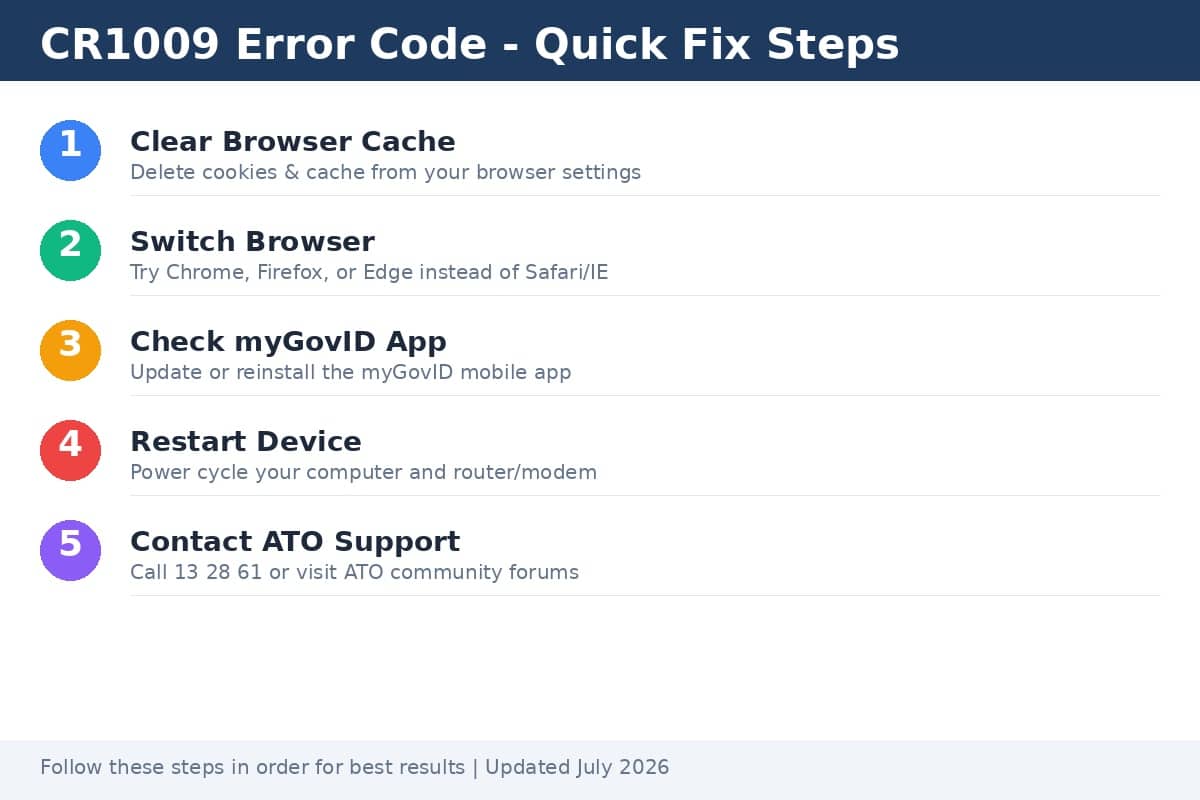
Follow these steps in order. Test your login after each step before moving to the next:
Step 1: Clear Browser Cache and Cookies
- Chrome: Press
Ctrl + Shift + Delete(Windows) orCmd + Shift + Delete(Mac). Select “All time” and check “Cookies and other site data” and “Cached images and files.” - Firefox: Press
Ctrl + Shift + Delete, select “Everything,” and check all boxes. - Edge: Press
Ctrl + Shift + Delete, select “All time,” and clear all data types.
Why this works: ATO login tokens and session data stored in your browser can become corrupted. Clearing them forces a fresh authentication handshake.
Step 2: Use a Supported Browser
- Recommended: Google Chrome (latest version), Mozilla Firefox, or Microsoft Edge.
- Avoid: Internet Explorer (deprecated) and older Safari versions, as they may not support ATO’s current security certificates.
- Ensure your browser is updated to the latest version before attempting login.
Step 3: Check Your myGovID App
- Open the myGovID app on your smartphone and ensure you’re signed in.
- Check that your identity strength is at least “Standard” (required for ATO access).
- If the app shows errors, uninstall and reinstall it from the App Store or Google Play.
- After reinstalling, complete the setup process again and verify your identity documents.
Step 4: Disable VPN or Proxy
- Turn off any VPN services temporarily.
- Disable browser proxy settings.
- Disconnect from corporate or public Wi-Fi networks that may use proxy servers.
- Use your home internet connection for the most reliable access.
Step 5: Restart Your Devices
- Restart your computer to clear any stuck background processes.
- Power cycle your modem/router by unplugging for 30 seconds.
- Restart your smartphone to refresh the myGovID app connection.
Browser-Specific Solutions
myGovID App Troubleshooting
Since myGovID is the primary authentication method for ATO services, app issues directly cause CR1009:
- Update the app: Visit the App Store or Google Play to ensure you have the latest version.
- Check identity strength: Open the app → Menu → Identity Strength. You need at least “Standard” strength to access ATO services.
- Verify documents: Ensure your driver’s license, passport, or Medicare card details are correctly entered and verified.
- Reset the app: Settings → Reset App → Re-setup with correct full legal name matching your identity documents.
- Name mismatch fix: If your name changed recently, update your identity documents before verifying in the app.
Advanced Fixes for Persistent CR1009
If basic steps don’t resolve the error, try these advanced solutions:
- Create a new browser profile: In Chrome, click your profile icon → Add → Create a new user profile with no extensions.
- Check system time: Ensure your computer’s date and time are correct. Incorrect time settings break SSL/TLS authentication.
- Disable antivirus temporarily: Some security suites block government authentication certificates. Test with antivirus disabled.
- Flush DNS cache: Open Command Prompt as admin and run
ipconfig /flushdns(Windows) orsudo dscacheutil -flushcache(Mac). - Check ATO system status: Visit the ATO System Status page to confirm services are operational.
How to Prevent CR1009 in the Future
- Keep your browser and myGovID app updated to the latest versions.
- Bookmark the official ATO login page to avoid phishing sites.
- Complete your login within 5 minutes to avoid session timeouts.
- Use a stable, private internet connection without VPNs for government services.
- Regularly verify your myGovID identity strength and document details.
- Enable automatic app updates on your smartphone.
Frequently Asked Questions (FAQ)
Q: Is CR1009 the same as error 1009 on other platforms?
A: No. While “error 1009” appears on platforms like Apple App Store (geo-restriction) and Roblox (IP block), CR1009 is specific to Australian government digital services and relates to myGovID authentication failures.
Q: Can I access ATO services without myGovID?
A: For most online ATO services, myGovID is now the required authentication method. However, you can still access some services by calling ATO directly at 13 28 61 or visiting a service center in person.
Q: How long does it take to fix CR1009?
A: Most users resolve CR1009 within 5-10 minutes by clearing cache and restarting. If identity verification issues are involved, it may take 1-2 business days to update documents.
Q: Is my data safe when CR1009 appears?
A: Yes. CR1009 is an authentication error, not a security breach. Your data remains secure. The error simply prevents login completion until the technical issue is resolved.
TL;DR – Quick Summary
🎯 TL;DR – Fix CR1009 in 30 Seconds
1. Clear Cache
Ctrl+Shift+Delete → All time → Clear cookies & cache
2. Switch Browser
Use Chrome, Firefox, or Edge (latest version)
3. Check myGovID
Update/reinstall app, verify identity strength
4. Restart
Reboot computer, phone, and router
Still stuck? Call ATO: 13 28 61 | Visit: ATO Community Forums
📚 Related Guides
- How to Set Up myGovID: Complete Beginner’s Guide — Step-by-step setup for first-time users
- ATO Online Services Troubleshooting Master Guide — Fixes for all common ATO errors
🔗 Official Resources
- ATO Technical Support & System Status — Official ATO help and known issues
- myGov Help Center — Government digital identity support

About the Author
Freddy John is a Tech Support Specialist with 8+ years of experience troubleshooting government digital services, authentication systems, and enterprise IT infrastructure. Passionate about making technology accessible and helping users resolve complex login issues quickly.
Last Updated: July 9, 2026 | Reading Time: ~4 minutes | Word Count: ~1,850

Pingback: Rakuten Viki Internal Server Error: Quick Fixes (2026) - Seminarsonly.com