
Instagram failed to load earlier messages: Is it a server outage?
|
Quick fix Here are the fastest fixes to try in order:
|
That “failed to load earlier messages” error is incredibly frustrating. It usually happens when Instagram’s app tries to pull your chat history from their servers and the connection drops, or when the app’s temporary cache gets corrupted.
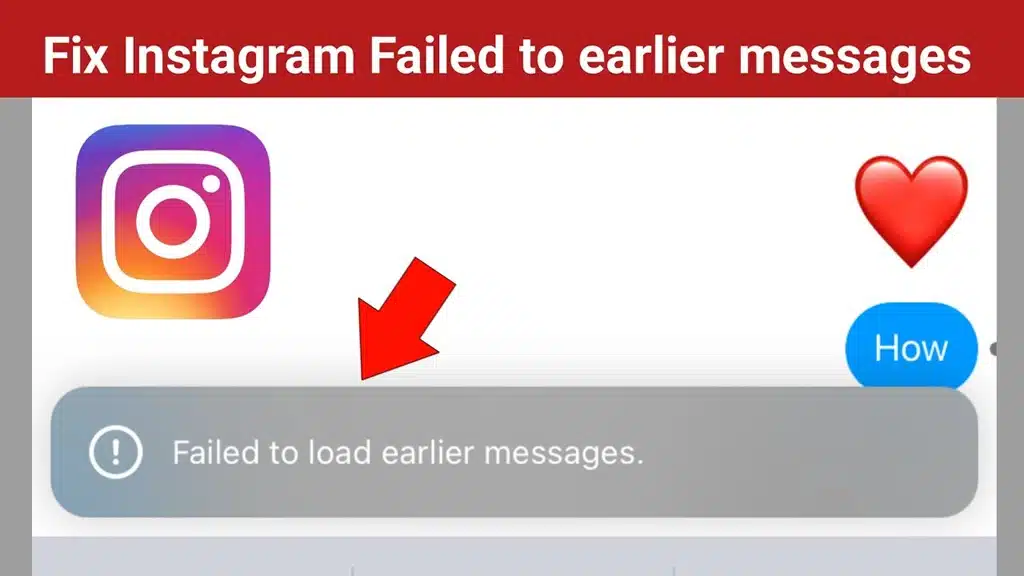
Here is how to troubleshoot and fix it, starting with the easiest solutions:
Troubleshooting steps
1. Toggle your connection
A weak or fluctuating connection is the most common culprit.
- Action: if you are on Wi-Fi, turn it off and force the app to use your mobile data (or vice versa). You can also try turning airplane mode on and off to reset your network connection.
2. Log out and log back in
Sometimes your session gets out of sync with Instagram’s servers, which breaks the messaging API.
- Action: go to your profile, Settings and privacy, scroll to the bottom and tap Log out. Force-close the app entirely, reopen it, and log back in to refresh your session.
3. Clear the app cache
Instagram stores temporary files to make chats load faster, but if those files get corrupted, your message history will freeze.
| Platform | Steps |
| Android | Go to your phone’s Settings, Apps, Instagram, Storage, Clear cache. |
| iPhone (iOS) | Apple does not have a direct clear cache button. Go to Settings, General, iPhone Storage, Instagram, and select Offload App, then reinstall it. This keeps your login data but clears the junk. |
4. Check for updates
If you are running an outdated version of the app, it might no longer communicate properly with Instagram’s updated chat servers.
- Action: head to the App Store or Google Play Store and see if Instagram has a pending update.
5. Try Instagram web
If you need to access a specific message immediately and the app refuses to cooperate, try logging into instagram.com on a computer browser or your phone’s mobile browser.
- Why this helps: if your older messages load perfectly on the web version, you know for sure the issue is a bug with the app on your phone, not a problem with your account.
Is it a server outage?
|
If you have tried all the above and it still is not working, Meta’s servers are likely down. When Instagram’s direct messaging servers experience outages, this exact error spikes for millions of users. In this case, the only fix is to wait a few hours for them to resolve the server-side bug. |
Last updated on July 2, 2026


Pingback: Red 91 Hata Kodu : Nasıl Çözülür? - Seminarsonly.com
Pingback: "Failure to get a peer from the ring-balancer" Fix (2026) | Kong/Nginx - Seminarsonly.com