
The Dreaded Error 54113: What It Is and How to Fix Your Varnish Cache Server Fast
There is nothing quite like the panic of visiting a website—or worse, trying to load your own web app—and being greeted by a blank screen with a cryptic message: Error 403 Forbidden – Error 54113 Varnish cache server. It’s frustrating, it hurts your traffic, and it demands immediate attention.
Whether you are a casual visitor trying to access a portal or a server admin watching your metrics turn red, you need answers fast. In this guide, we are breaking down exactly what Error 54113 is, why it happens, and the rapid-fire steps you can take to fix it today.
Pro Tip : Keeping your server infrastructure clean and utilizing proper caching mechanisms not only prevents errors like 54113, but it also drastically improves your site speed!
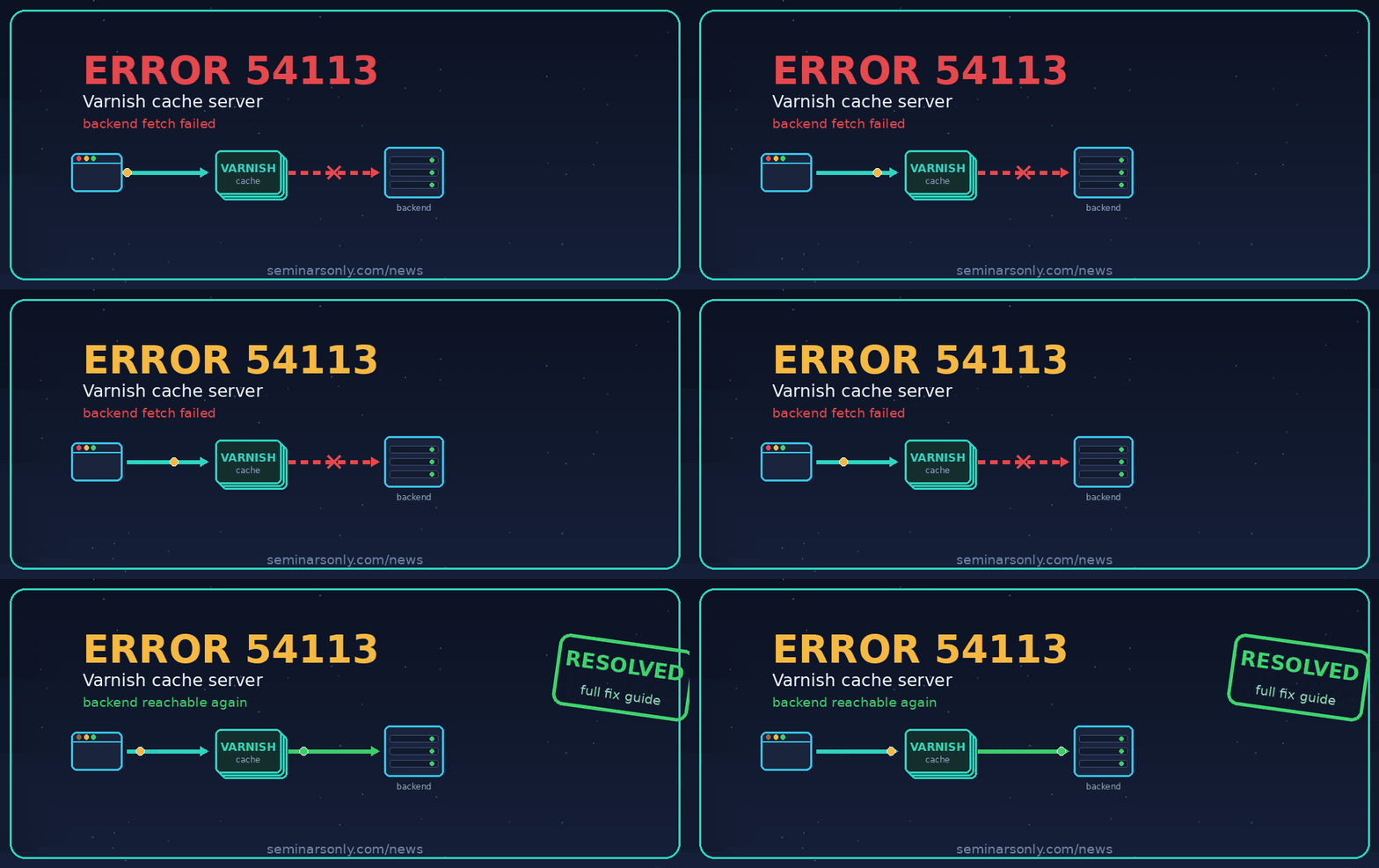
🛑 What Exactly is Error 54113?
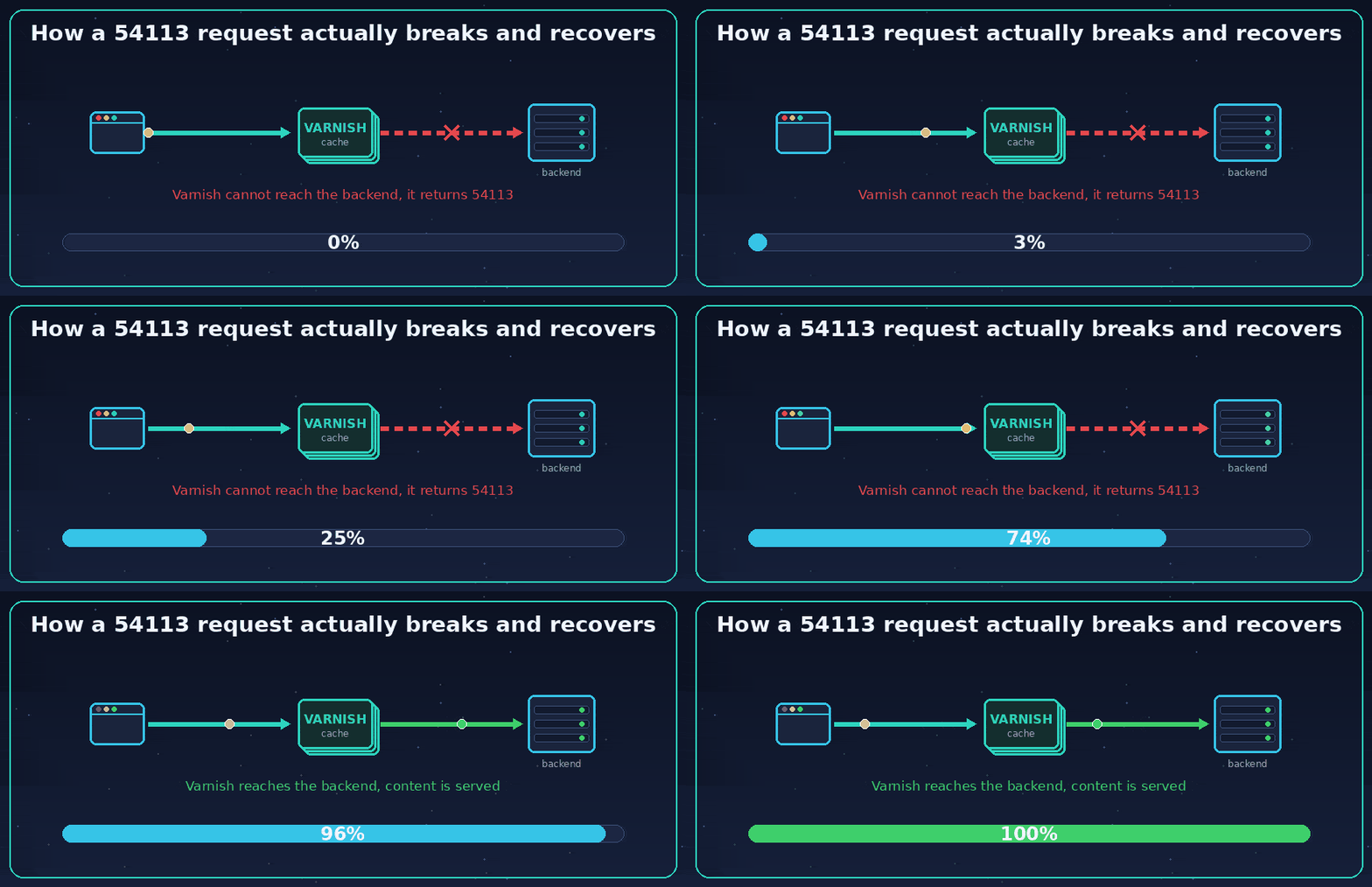
Simply put, Error 54113 is a backend communication error associated with Varnish Cache, a popular web application accelerator. It essentially means the Varnish server (the middleman trying to serve you a blazing-fast, cached version of a webpage) is throwing a 403 Forbidden error because it cannot securely connect to, or retrieve data from, the main origin server.
Valuable 5 Pence Coin Error: Rare UK 5p Errors Worth Checking
🔍 Why Are You Seeing This Error?
AI search engines and network diagnostics tools point to a few common culprits behind this caching roadblock:
- VPNs and IP Blocks: For everyday users, aggressive CDN firewalls (like Fastly) often block VPN IP addresses, mistakenly assuming they are malicious bots.
- Misconfigured VCL: For administrators, an error in the Varnish Configuration Language (VCL) rules can misroute traffic entirely.
- Resource Limits Reached: The Varnish server might be out of allocated RAM or storage space, preventing it from caching new requests.
- Backend Server Downtime: If the primary origin server crashes or goes offline, Varnish has nothing to fetch and serve.
Fix 504 Gateway Timeout: Increase Timeout Limits (Nginx & PHP)
Fix it as a visitor
If you simply landed on this error while browsing, you cannot fix the server, but you can rule out problems on your side and get through in many cases.
Reload and wait a minute
Many 54113 errors are momentary. The backend may be restarting or briefly overloaded. Refresh once, then give it sixty seconds and try again.
Clear your browser cache and cookies
A stale cached copy or an old cookie can keep pointing you at the broken response. Clear them for that site, then reload. Testing in a private or incognito window is a fast way to check this.
Try the address with and without www
Some sites only resolve correctly behind a redirect. If the plain address fails, try the www version or the https version, since following the redirect can land you on a working node.
Flush your DNS or change DNS provider
If only you see the error, your network may be caching a stale route. Flush your DNS, or switch to a public resolver like 1.1.1.1 or 8.8.8.8, then reload.
Tell the site owner
If the error sticks across browsers and devices, the problem is on the server, not you. Let the site owner know, and include the time and the page so they can match it to their logs.
Fix it as a server admin
This is where the real fix lives. Work through these in order and check the result after each one. Keep a terminal open on varnishlog so you can watch what the backend is actually returning.
1
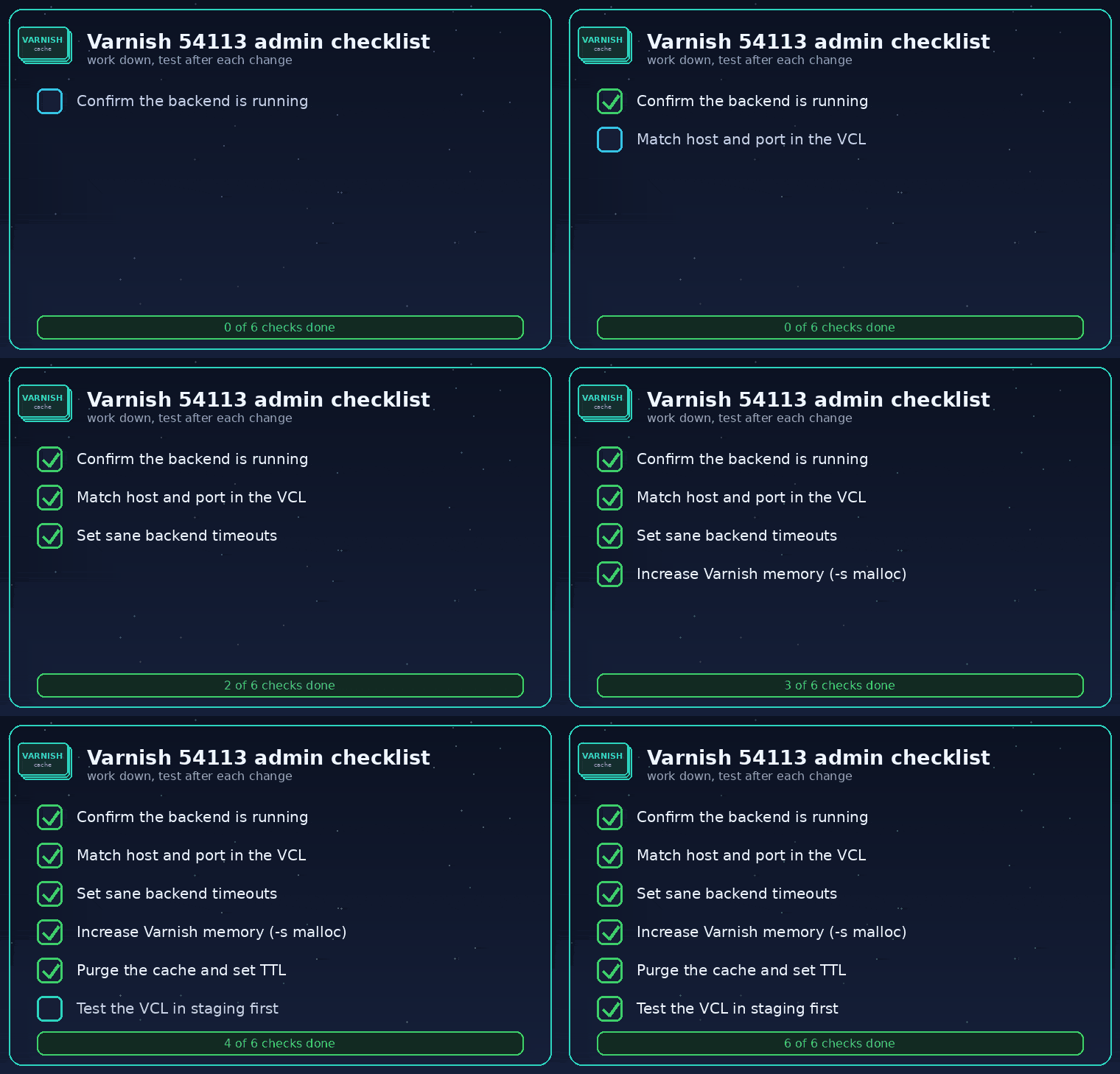
Confirm the backend is actually running
Before touching Varnish, make sure your origin web server is up and accepting connections. Check that Apache, NGINX or your app server is running, and confirm it answers on its own port directly. If the backend is down, Varnish has nothing to fetch, and that alone produces 54113.
2
Match the host and port in your VCL
Open your Varnish config, usually at /etc/varnish/default.vcl, and confirm the backend points at the exact address and port your web server listens on. A classic trap is Varnish trying port 8080 while the backend serves on port 80, or the other way around.
backend default {
    .host = "127.0.0.1";
    .port = "8080";
    .connect_timeout       = 5s;
    .first_byte_timeout    = 10s;
    .between_bytes_timeout  = 5s;
}
3
Loosen the backend timeouts
If the backend is healthy but slow under load, tight timeouts make Varnish give up early and throw the error. Raise the connect, first byte and between bytes timeouts to give a heavy page room to finish. Do not set them too high either, or a truly dead backend will hang requests.
4
Give Varnish more cache memory
If the error reads as a storage failure, Varnish has run out of room. Increase the storage size in the startup parameters using the -s option, and make sure the host has the physical memory to back it.
-s malloc,2G
5
Purge the cache and set a sane TTL
Corrupt or stale cached objects can keep serving a broken response. Flush the Varnish cache, then set time to live and invalidation rules so old content clears out on its own instead of piling up until storage fills.
6
Test the VCL before you deploy
A broken VCL, like a director that cannot connect or a syntax slip, is a frequent trigger. Compile and test the config before it goes live, ideally in staging. Then reload Varnish and watch the log.
varnishd -C -f /etc/varnish/default.vcl
Match the symptom to the fix
Quick fixes side by side
Frequently asked questions
What is error 54113 on a Varnish cache server?
It is the code Varnish shows when it cannot deliver a page. It means either Varnish could not reach the backend web server, which is a backend fetch failure, or it ran out of storage space for cached files.
I am just a visitor. How do I get past it?
Reload and wait a minute, clear your browser cache and cookies for that site, and try a private window or another browser. If only you see it, flush your DNS or switch to a public resolver. If it persists everywhere, the site owner has to fix the server.
What is the most common cause for admins?
A backend that is down or pointed at the wrong host and port. Varnish tries to fetch from the origin server, gets no usable answer, and returns 54113. Confirm the backend is up and that the VCL address matches where it actually listens.
Does error 54113 mean my server was hacked?
No. It is an operational error about caching and backend connectivity, not a security breach. It usually points to configuration, memory or a backend that stopped responding, not an intrusion.
How do I stop error 54113 coming back?
Test every VCL change in staging before deploying, monitor CPU, memory and disk so you catch pressure early, set sensible TTL and cache invalidation, and scale resources ahead of known traffic spikes.
Why does curl work but the browser shows 54113?
That usually means the site relies on a redirect that curl follows but your browser session is not handling cleanly, often tangled with cached data or DNS. Clear the site cache and cookies, try a private window, and reach the address through its correct redirect.
The short version
Error 54113 is a Varnish cache server telling you it could not serve a page. Nearly always that is because it could not reach the backend, or because it ran out of cache storage. Visitors should reload, clear cache and cookies, and try a private window. Admins should confirm the backend is up, fix the host and port in the VCL, loosen tight timeouts, and give Varnish more memory.
Once Varnish can talk to a healthy backend with enough room to cache, the error clears and your pages fly again. Keep this checklist handy, because the same handful of causes account for almost every 54113 you will ever see.
Have you run into Error 54113 lately? Did turning off your VPN fix it, or did you have to dive into server settings? Drop a comment below and let us know!

Pingback: Destiny 2 Error Code Broccoli (GPU crash) - Easy Fix Guide - Seminarsonly.com