
Senior Systems Administrator & Web Optimization Expert
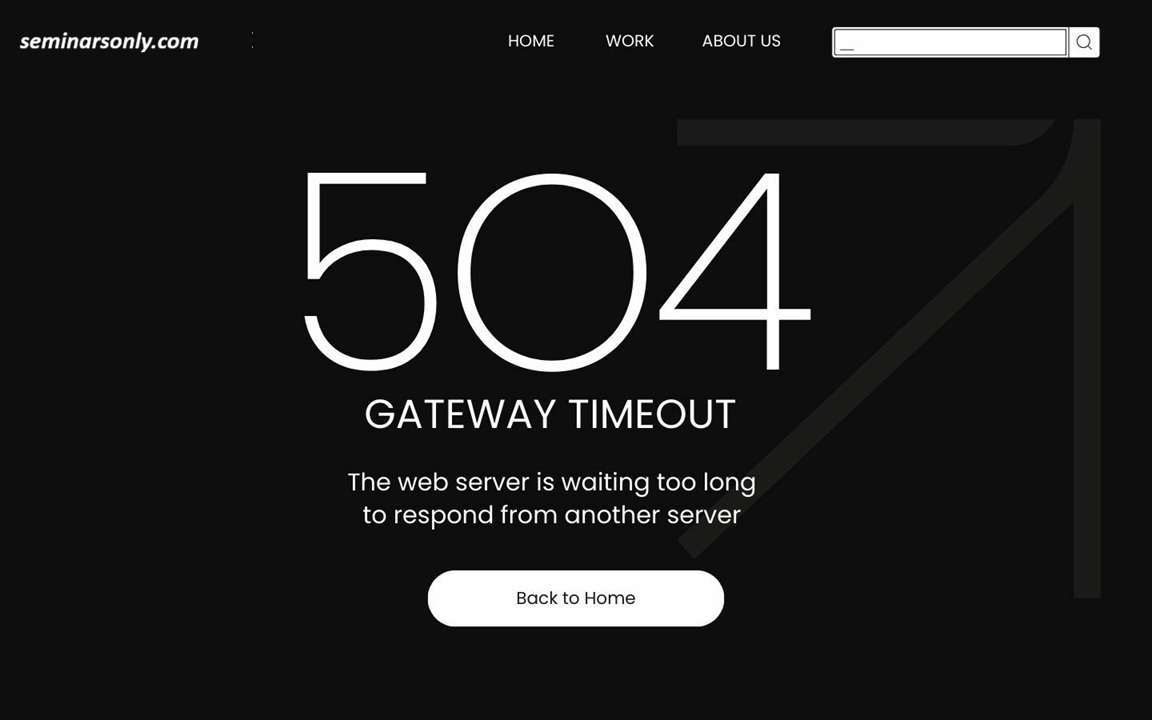
There are few things as frustrating as a 504 Gateway Timeout error. You’re waiting for a page to load, expecting data, and instead, you get a blunt “Gateway Timeout.” It feels like your server just gave up.
fastcgi_read_timeout and max_execution_time to 120–300 seconds resolves the issue.A 504 error essentially means your “Gateway” (the server receiving the request) waited too long for the “Upstream” (the server processing the code) to provide an answer. Before tweaking configs, ensure you aren’t just masking deeper issues—like unoptimized database queries or resource-starved servers.
Understanding the Timeout Chain
To fix this, you need to understand where the “link” in your server chain is breaking. It’s rarely just one setting; it’s a hierarchy.
| Layer | Directive to Adjust | Purpose |
|---|---|---|
| Nginx (Proxy) | proxy_read_timeout |
Time allowed to wait for the backend. |
| Nginx (FastCGI) | fastcgi_read_timeout |
Time allowed for PHP processing. |
| PHP-FPM | request_terminate_timeout |
Hard kill limit for PHP processes. |
| PHP Engine | max_execution_time |
Max seconds a single script can run. |
How to Increase Timeout Limits
1. Increasing Limits in Nginx
If you are using Nginx to proxy requests to PHP, you must adjust the fastcgi_read_timeout directive. Edit your site configuration file (typically in /etc/nginx/sites-available/):
location ~ \.php$ {
    include fastcgi_params;
    fastcgi_pass unix:/var/run/php-fpm.sock;
    fastcgi_read_timeout 300s;
}
After saving, don’t forget to test the configuration: nginx -t. If the output says “successful,” reload Nginx: systemctl reload nginx.
2. Increasing Limits in PHP (PHP-FPM)
Even if Nginx waits for 300 seconds, PHP will kill the script if it reaches its own max_execution_time limit. This is a common PHP configuration error.
- Open your
php.inifile. - Locate
max_execution_timeand set it to300. - If using PHP-FPM, check
www.confforrequest_terminate_timeoutand set it to300as well.
SEO & Performance Considerations
While increasing these timeouts prevents the 504 error, it is not a performance fix. If your scripts consistently take 5 minutes to run, you have an application-level bottleneck. For deep dives into server efficiency, check out our guide on caching strategies to offload your servers.
TL;DR: The “Cheat Sheet” Fix
- Nginx: Change
fastcgi_read_timeoutorproxy_read_timeoutto 300s. - PHP: Set
max_execution_time = 300in yourphp.ini. - Restart: Always reload PHP-FPM and Nginx after changes.
- Caveat: If errors persist, optimize your database queries—don’t just increase the timer indefinitely.

About the Author
Anup Naick is a Tech Support Specialist with 8+ years of experience troubleshooting government digital services, authentication systems, and enterprise IT infrastructure. Passionate about making technology accessible and helping users resolve complex login issues quickly.

Pingback: Error 54113 Varnish Cache Server | How to Fix for Visitors and Administrators - Seminarsonly.com
Pingback: Google: "Some of Your Saved Passwords Were Found Online" — What to Do Immediately [2026] - Seminarsonly.com