
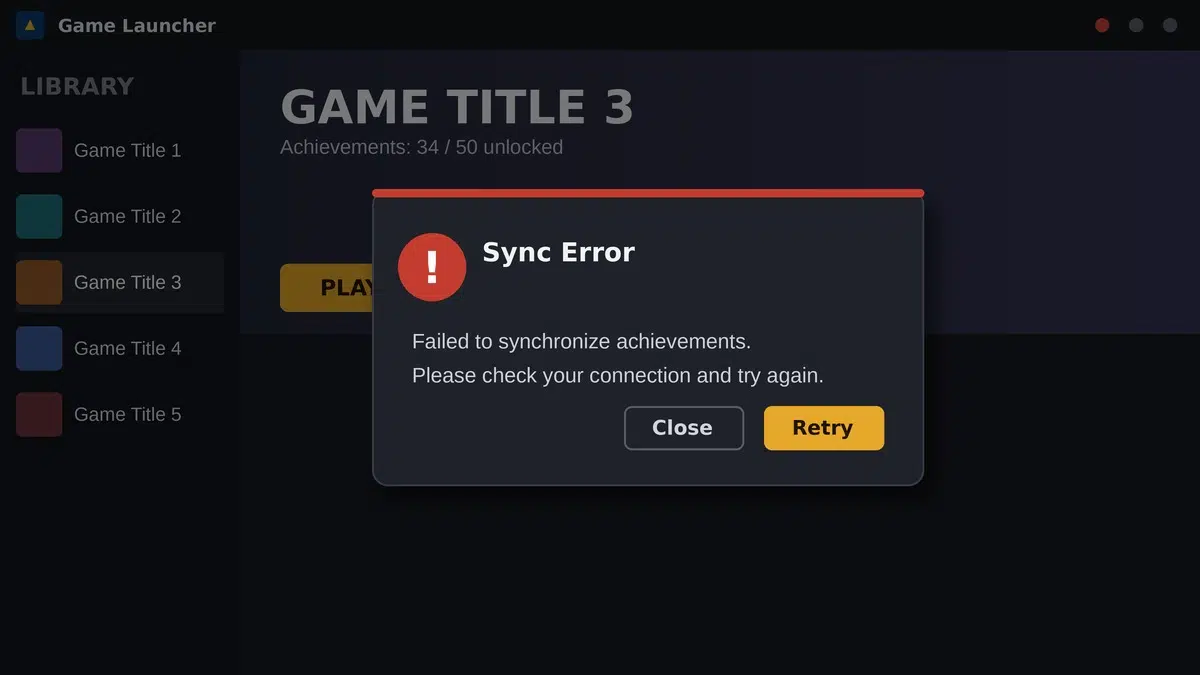
Quick Answer: The ubisoft failed to synchronize achievements error occurs when your Ubisoft Connect desktop client cannot communicate with the cloud servers to verify your progression. To fix it instantly: Force close the client via Task Manager, navigate to C:\Program Files (x86)\Ubisoft\Ubisoft Game Launcher\cache, delete the “cache” folder, and relaunch the application as an Administrator. This forces the system to pull a fresh cloud sync.
You have just spent hours grinding through a difficult boss fight in Assassin’s Creed or extracting flawlessly in Rainbow Six Siege. You close the game, expecting that satisfying pop of an achievement unlocking—but instead, you are greeted with a yellow warning triangle stating: “Failed to synchronize achievements.”
This error is incredibly common on the PC platform. It not only prevents your achievements from displaying on your profile but can sometimes halt cloud save uploads, risking your game progress. Let’s break down why this happens and how to resolve it for good.
What Gamers Are Searching For: Identifying the Issue
If you are facing this issue, you are not alone. Thousands of players search for specific variations of this problem every month. The most common related Google searches include:
- “Ubisoft Connect achievements not popping PC” – Often tied directly to this sync error; the achievement triggers in-game but fails to register on the overlay.
- “Failed to synchronize cloud saves Ubisoft” – A secondary symptom. If achievements can’t sync, your save files are likely failing to upload to the cloud as well.
- “Is Ubisoft down today?” – Many players correctly suspect that the problem isn’t their PC, but a server outage on Ubisoft’s end.
Aadhaar OTP Not Received? Instant Fixes & Troubleshooting Guide
Diagnosing the Synchronization Failure
| Root Cause | How to Identify It | Immediate Action |
|---|---|---|
| Corrupted Local Cache | The error happens every time you close any game. | Delete the Ubisoft Connect cache folder. |
| Global Server Outage | Your friends are also experiencing the issue simultaneously. | Check Ubisoft Help on X (Twitter). Wait it out. |
| Network / Firewall Block | Client says “Connection Lost” prior to the sync failure. | Whitelist Ubisoft Connect in Windows Defender. |
Step-by-Step Fixes for the Sync Error
Before modifying your system files, check the Ubisoft Official Help page to ensure their servers aren’t currently down for maintenance. If the servers are green, proceed with these proven local fixes:
Fix 1: Clear the Ubisoft Connect Cache
The client stores temporary data to load faster. When this data corrupts, it blocks the cloud handshake.
- Press Ctrl + Shift + Esc to open Task Manager. Find “Ubisoft Connect” and click End Task.
- Press the Windows Key + R, type
C:\Program Files (x86)\Ubisoft\Ubisoft Game Launcherand hit Enter. - Locate the folder named cache. Right-click and Delete it.
- Restart the Ubisoft client. It will take a moment longer to boot as it rebuilds the cache and pulls fresh data from the cloud.
Fix 2: Run as Administrator & Check Network
If the client lacks the Windows permissions to write to your hard drive, it will fail to update your local achievement file before syncing it.
- Right-click your Ubisoft Connect desktop shortcut and select Run as Administrator.
- If you use a VPN, turn it off. VPNs frequently flag the IP addresses used by gaming cloud servers, causing silent disconnections.
If you play a variety of multiplayer PC games and frequently encounter strange launcher crash codes, we highly recommend checking out our comprehensive PC gaming troubleshooting guide to keep your system optimized for all storefronts.
TL;DR: The Sync Error Checklist
- What it is: A breakdown in communication between your PC and Ubisoft’s achievement/save cloud servers.
- First Step: Always check official Ubisoft social channels to rule out a massive global server outage.
- The Golden Fix: Fully close the app, go to the installation folder, and delete the
cachefolder to force a clean server handshake. - Permissions: Launch Ubisoft Connect as an Administrator to ensure the app has the rights to rewrite your local progression files.
