
The Google TV “Unable to load home” error is almost always fixed by going to Settings → Apps → See all apps → Google TV Home and choosing Clear cache, then Clear data.
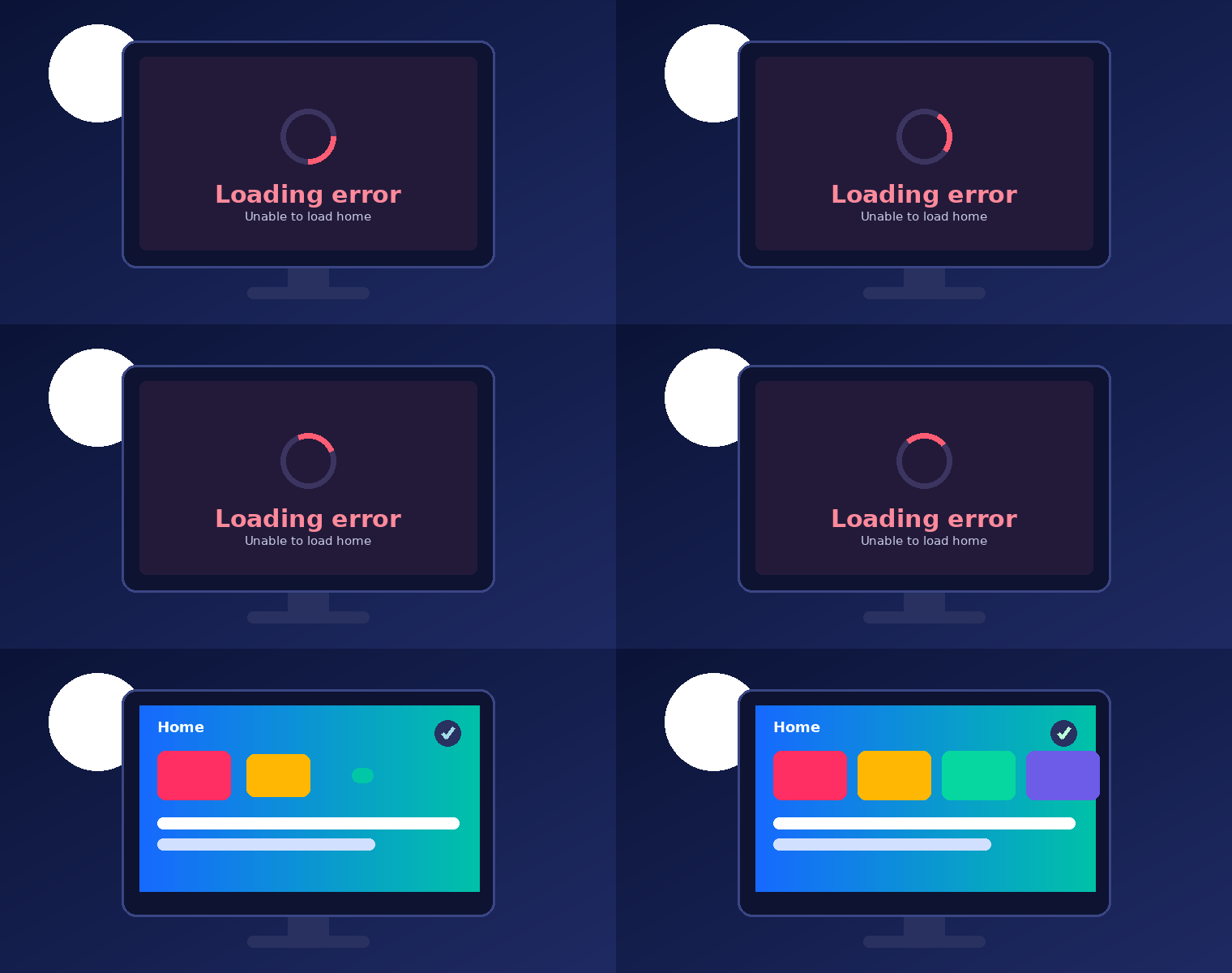
Google TV Unable to Load Home | Google TV Loading Error (Fixed)
You sit down, grab the remote, press the Home button… and instead of your apps you get a sad little spinner and the words “Unable to load home.” Annoying, right? The good news: this is one of the most fixable problems on Google TV. In nine out of ten cases it’s a stale cache or a hiccup between your TV and Google’s servers – not a dead device. Let’s walk through exactly what causes it and how to get your home screen back, fastest fix first.
Quick Answer
The Google TV “Unable to load home” error is almost always fixed by going to Settings → Apps → See all apps → Google TV Home and choosing Clear cache, then Clear data. Reboot, and the home screen rebuilds itself. If that fails, sign out and back into your Google account, confirm your Wi-Fi, and check for a system update before considering a factory reset.
What does “Unable to Load Home” actually mean?
Your Google TV home screen isn’t one single thing – it’s a wall of rows (For You, Live, Apps, your watchlist) that the Google TV Home app assembles on the fly by pulling recommendations from Google’s servers. When that app can’t reach the server, can’t read your profile, or chokes on a corrupted cache, it gives up and shows “Loading error: unable to load home.” Tellingly, you can usually still open the Play Store and launch installed apps – proof the device is alive and only the home layer is stuck.
Also Read
Valuable 5 Pence Coin Error: Rare UK 5p Errors Worth Checking
Why is my Google TV home screen not loading?
Fast fixes at a glance

Clearing the Home app’s cache & data wipes the broken layout so Google TV can fetch a fresh one.
How to fix the Google TV “Unable to Load Home” error step by step
Step 1 — Clear the Google TV Home app cache and data Best fix
This is the fix that works most often. You’re telling Google TV to throw away its broken home-screen data and build a clean one.
- Open Settings (the gear icon, top-right of the home screen).
- Go to Apps → See all apps.
- Scroll down and pick Google TV Home (it may be listed as Android TV Home).
- Select Clear cache first, then Clear data / Clear storage.
- Go back, restart the device, and let the home screen rebuild.
Step 2 — Power-cycle the device (not just restart)
A true cold reboot clears the temporary memory state that a soft restart sometimes preserves.
- Unplug the Google TV / Chromecast (or TV) from the wall – not just the remote.
- Wait a full 60 seconds (this lets the power fully drain).
- Plug it back in and let it boot completely.
- Press Home and check if the screen loads.
Step 3 — Sign out of your Google account, then sign back in
A stale sign-in token is a classic trigger. Refreshing it often clears the error instantly.
- Go to Settings → Accounts & Sign In.
- Select your account and choose Remove account.
- Restart, then add the same account back.
- While you’re there, confirm the correct profile is active – the wrong profile can show a blank/erroring home.
Step 4 — Check your internet connection
No connection, no home content. The home screen needs a steady link to Google’s servers.
- Go to Settings → Network & Internet and confirm you’re on the right Wi-Fi network (and band).
- Reboot your router, or move it closer to the TV.
- If possible, use an Ethernet cable for a rock-solid link.
- Prefer a 5 GHz band over 2.4 GHz when available.
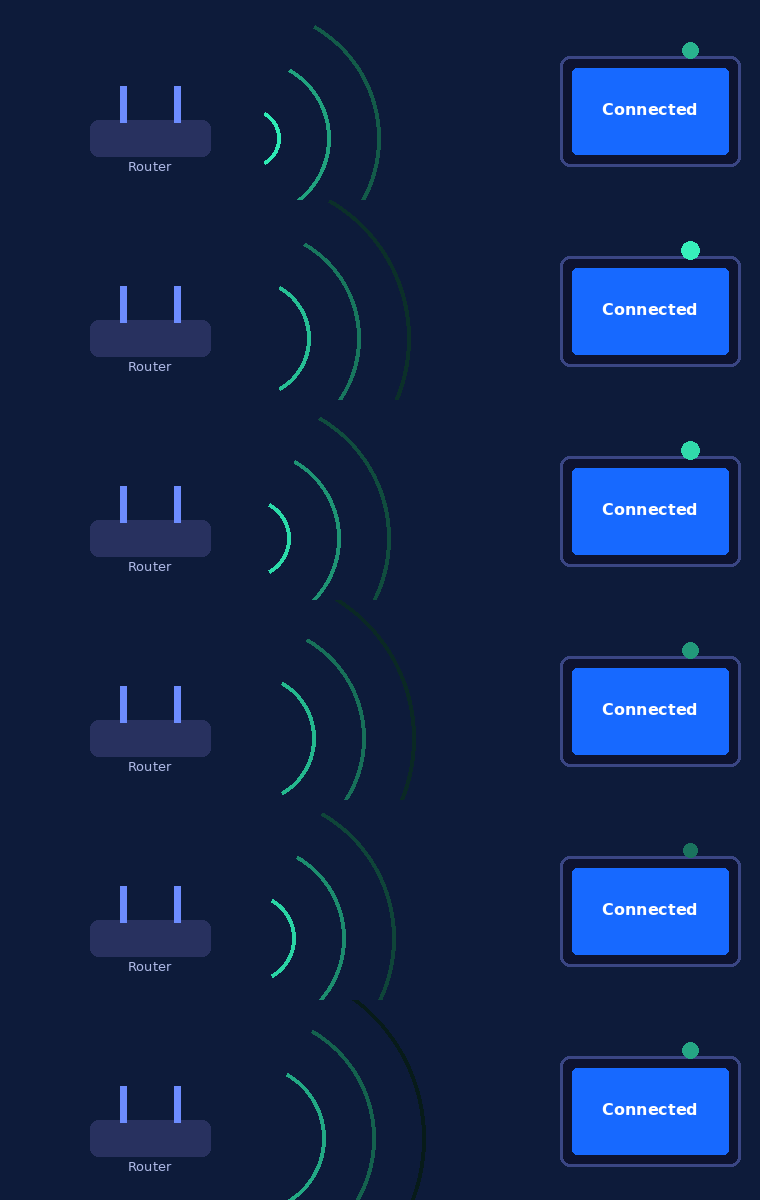
A stable, fast link – ideally 5 GHz Wi-Fi or Ethernet – keeps the home feed loading.
Step 5 — Install any pending system update
- Go to Settings → System → About.
- Select System update → Check for update.
- Install anything available and reboot. Google has shipped server- and OS-side fixes for this exact error before, so staying current matters.
Step 6 — Factory reset (only if nothing else works)
- Go to Settings → System → About.
- Select Factory reset and confirm.
- Set the device up fresh and sign in again.
Is it just me, or is it Google’s servers?
Sometimes the problem is not on your end at all. There have been waves where the error hit thousands of devices at once – Chromecast with Google TV, Walmart Onn boxes, and built-in Android TVs – because of a temporary server outage affecting the “For You” recommendations. Google has rolled out fixes for these episodes over the air. A quick gut-check: if a factory reset doesn’t help and friends with Google TV report the same thing the same day, it’s almost certainly server-side. In that case the best move is the simplest one – wait a few hours, keep your device updated, and the home screen returns on its own.
Device-specific notes
How to stop it from coming back
- Keep auto-updates on so OS and app fixes arrive automatically.
- Reboot weekly – a quick restart clears cache before it gets corrupted.
- Give it a strong signal – 5 GHz Wi-Fi or Ethernet beats a weak 2.4 GHz link.
- Skip exotic DNS/VPN setups on the TV unless you really need them.
- Don’t cram storage – a near-full device misbehaves; uninstall apps you don’t use.
Frequently Asked Questions
The bottom line
The Google TV “Unable to load home” error looks scary but is rarely serious. Start with the one move that fixes it most of the time – clear the Google TV Home app’s cache and data, then reboot. If that doesn’t do it, refresh your Google sign-in, double-check your connection, and install any pending update. And if the whole internet seems to be complaining at once, sit tight: that’s Google’s servers, and the fix is on its way to you automatically.
Found this useful? Bookmark Seminarsonly News for more straight-talking fixes to everyday tech headaches.

Pingback: Robinhood App Not Working? Fix Crashing & Frozen App (2026) - Seminarsonly.com