How to Fix Wardogs Launcher Crash Error WD-L014 on PC
Error WD-L014 is triggered by an integrity handshake failure within the Elytra anti-cheat service or missing administrator privileges. To resolve it immediately: 1) Run both WardogsLauncher.exe and Wardogs_Shipping.exe as Administrator, 2) Run Elytra_Setup.exe and click Repair Service, and 3) Verify file integrity via your launcher. If the crash causes low-level runtime stops, verify your system does not also suffer from runtime error 0xc000007b.
Few bugs are as frustrating as having a highly anticipated match interrupted before it even begins. The Wardogs Launcher Crash Error WD-L014 manifests during the pre-boot runtime phase, forcing the splash sequence to hang indefinitely before terminating abruptly back to the Windows desktop. In this verified technical guide, we break down why this handshake bug happens and provide clear, step-by-step methods to get you back into the server.
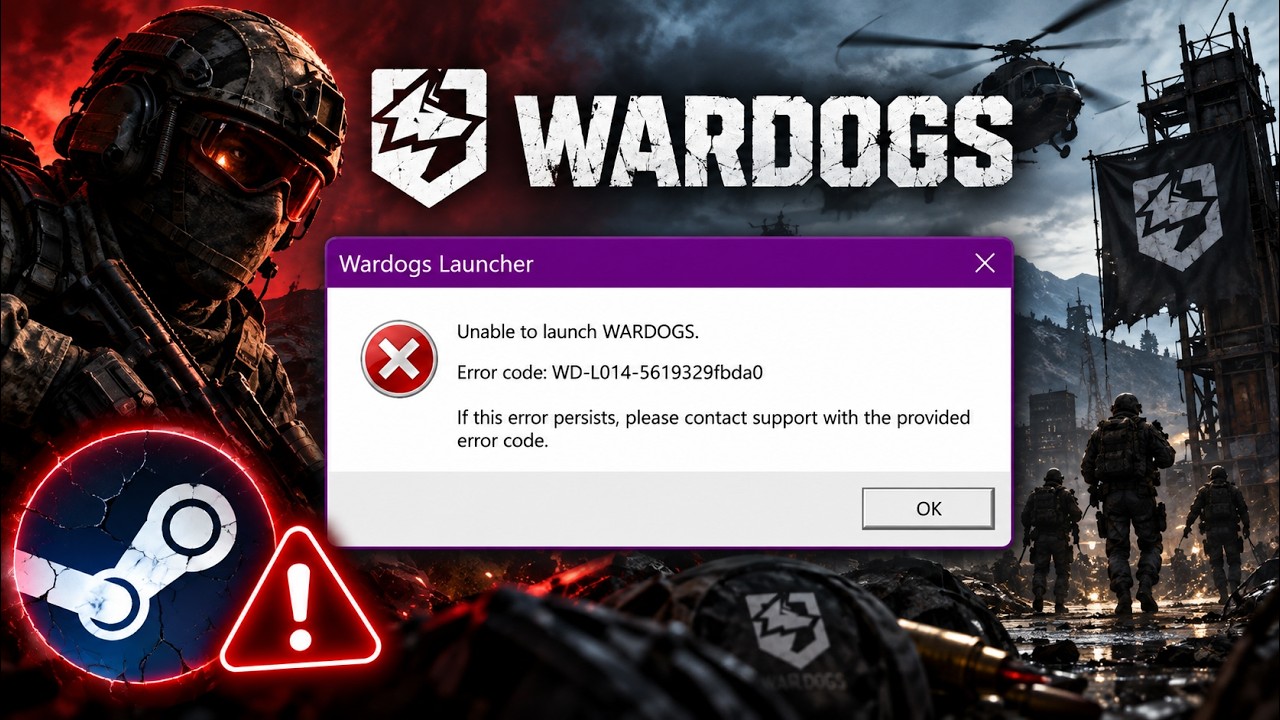
Technical Breakdown of Error WD-L014
When the Wardogs client starts, it initiates a kernel-level communication bridge to verify system memory security and ensure no foreign injected code is running. If this verification handshake is blocked—whether by restricted user privileges, aggressive security heuristics, or altered redistributable packages—the client aborts execution under code WD-L014.
Step-by-Step Fixes for Wardogs Crash WD-L014
Step 1: Elevate Windows Administrative Permissions
Modern anti-cheat drivers require elevated execution levels to mount their verification monitors properly. Follow these key steps:
- Open File Explorer and browse to your primary Wardogs installation directory (e.g.,
C:\Program Files (x86)\Steam\steamapps\common\Wardogs). - Right-click on WardogsLauncher.exe and choose Properties.
- Under the Compatibility tab, verify the checkbox for Run this program as an administrator.
- Repeat the exact same operation for Wardogs_Shipping.exe located in the sub-binaries folder.
- Apply settings, reboot your PC, and attempt launching the game.
Also Read : GunZ The Duel Server Connection Error: Fix & Status
Step 2: Repair the Bundled Elytra Anti-Cheat Service
If the anti-cheat driver registry values become desynchronized or corrupt, the launcher will continuously fail its security audit. Consult the official Steam Support Knowledgebase if your game client fails to validate anti-cheat installation paths.
- Open the
Wardogs\ElytraAntiCheatsubfolder in your game files. - Right-click
Elytra_Setup.exeand run it with administrator permissions. - When prompted, select Repair Service from the setup menu.
- Wait for the confirmation message to state that the service has been restored, then close the installer.
Step 3: Verify Integrity of Game Files
Interrupted delta updates can leave corrupted assets in your game folder. If you also encounter network stalls during validation, see our guide on troubleshooting Steam connection errors -118 and -105.
- Open your PC game client and head to your primary Library.
- Right-click Wardogs and click Properties.
- Under the Installed Files tab, click Verify integrity of game files.
- Allow the scan to verify all disk blocks; missing or corrupt files will automatically re-download.
Step 4: Configure Antivirus Exclusions
Real-time endpoint security suites often flag kernel verification routines as suspicious behavior. For complete guidelines on adding file rules, visit Microsoft’s Windows Security Exclusions Guide.
- Open Windows Security from the Start menu.
- Navigate to Virus & threat protection > Manage settings.
- Under Exclusions, click Add or remove exclusions.
- Click Add an exclusion > Folder, and select the entire Wardogs installation root folder.
Summary Checklist
By executing these four steps—elevating permissions, repairing Elytra Anti-Cheat, verifying file integrity, and whitelisting the game folder—you eliminate the underlying causes behind Error WD-L014. If you play on PC Game Pass or cross-platform services and encounter identity handshake errors, check out our guide on fixing Xbox sign-in error 0x80a40020.
One thought on “How to Fix Wardogs Launcher Crash Error WD-L014 on PC”