Fix Steam Error Code -118 and -105: Unable to Connect to Server
Steam error Codes -118 and -105 indicate TCP connection timeouts and DNS resolution failures inside the embedded Chromium browser. To fix them fast:
1) Flush your DNS cache using ipconfig /flushdns and reset your socket with netsh winsock reset,
2) Switch your network DNS to Cloudflare (1.1.1.1) or Google (8.8.8.8), and
3) Clear Steam’s web storage under Steam Settings > In Game > Delete Web Browser Data.
Opening Steam only to be stopped by a blank screen stating “Error Code -118: Unable to connect to server” or “Error Code -105: Unable to resolve server address” completely disrupts your gaming schedule. While your friends list might still appear active, your ability to access the store, download updates, or sync cloud files stops entirely. Follow this guide to resolve the underlying networking blockages.
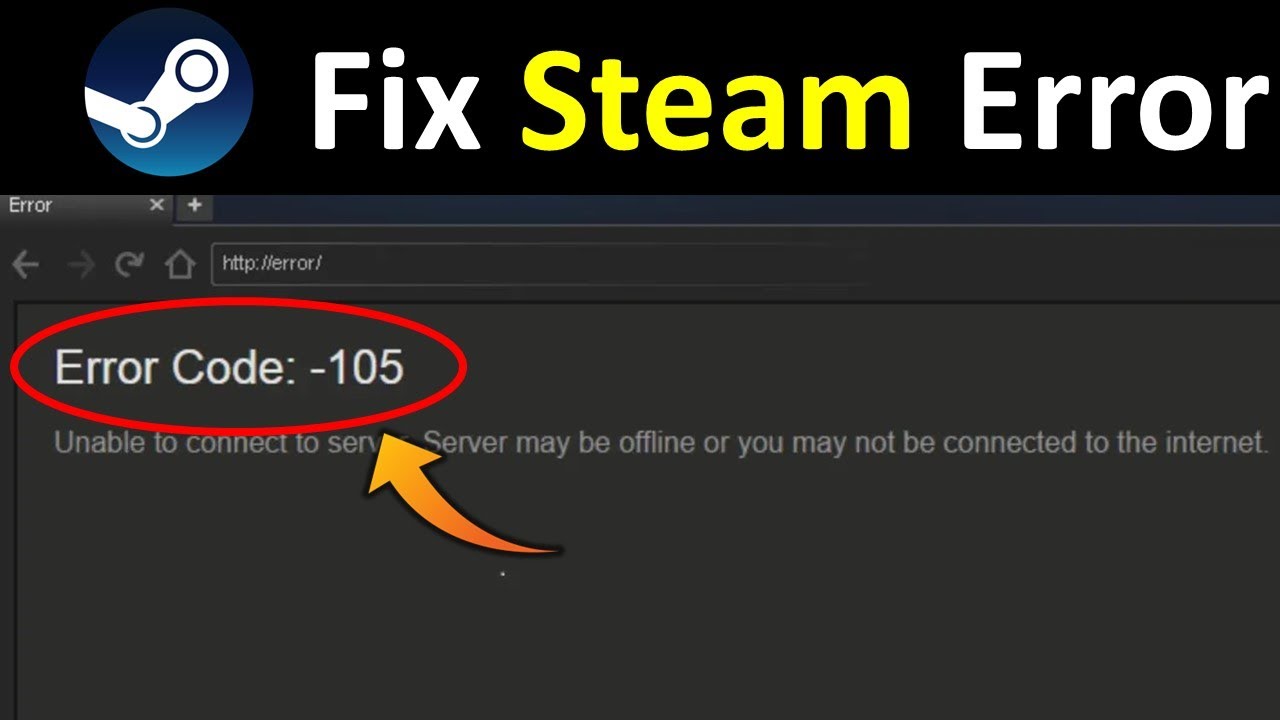
Understanding Steam Errors -118 and -105
The Steam desktop client utilizes an integrated Chromium Embedded Framework (CEF) process to handle all dynamic store pages, community forums, and profile screens. When this sub-process encounters network interruption, it displays raw network error codes rather than styled store views.
Step-by-Step Solutions
Method 1: Flush DNS Cache and Reset Winsock Catalog
Outdated route records stored by your operating system often cause routing requests to fail. Performing a network flush forces Windows to establish clean socket connections.
- Open the Start menu, search for cmd, right-click Command Prompt, and select Run as administrator.
- Execute each of the following commands in sequence, pressing Enter after each line:
ipconfig /flushdns ipconfig /registerdns ipconfig /release ipconfig /renew netsh winsock reset - Once the Winsock catalog has been reset, restart your system to reload network drivers.
Method 2: Change to Public DNS (Cloudflare or Google)
Local ISP DNS relays can experience connectivity drops or throttle Valve Content Delivery Networks. For more on how DNS resolution works, review the Cloudflare 1.1.1.1 Public DNS Documentation.
- Press Windows Key + R, type
ncpa.cpl, and press Enter to view Network Connections. - Right-click your active connection adapter and choose Properties.
- Double-click Internet Protocol Version 4 (TCP/IPv4).
- Check Use the following DNS server addresses and input:
- Cloudflare DNS: Primary:
1.1.1.1| Secondary:1.0.0.1 - Google DNS: Primary:
8.8.8.8| Secondary:8.8.4.4
- Cloudflare DNS: Primary:
- Select Validate settings upon exit and click OK.
Method 3: Clear Steam Web Browser Data and Cookies
Corrupted cookies and invalid local storage tokens inside Steam’s embedded browser create infinite redirect loops, resulting in Error -118.
- Launch Steam, click Steam in the upper-left menu, and select Settings.
- Choose the In Game tab from the navigation sidebar.
- Locate the Delete Web Browser Data section and click Delete.
- Confirm deletion of all cached files, cookies, and browsing history, then restart Steam.
Troubleshooting Related Game Launch Errors
After resolving Steam connection issues, ensure your downloaded game binaries are not experiencing startup crashes. If games freeze on boot, refer to our troubleshooting guides for the Wardogs launcher crash error WD-L014 or check for missing Visual C++ dependencies in our guide to resolving Windows application error 0xc000007b.
One thought on “Fix Steam Error Code -118 and -105: Unable to Connect to Server”