Fix Error 0xc000007b: Application Was Unable to Start Correctly in PC Games
Error 0xc000007b (STATUS_INVALID_IMAGE_FORMAT) happens when a 64-bit game executable loads a 32-bit DLL or vice versa. The most effective fix is: 1) Reinstall the complete Microsoft Visual C++ Redistributable package (both x86 and x64), 2) Run the DirectX End-User Runtime installer, and 3) Run DISM /Online /Cleanup-Image /RestoreHealth followed by sfc /scannow in an elevated Command Prompt.
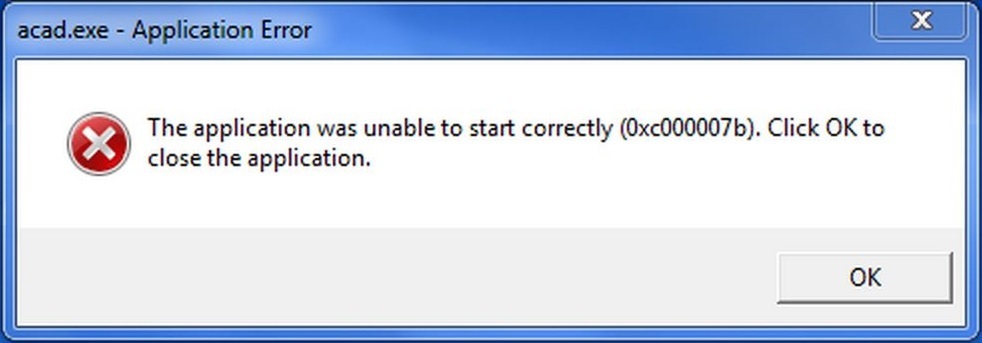
Few Windows launch errors are as pervasive across PC gaming communities as Error 0xc000007b. Showing the generic error dialog: “The application was unable to start correctly (0xc000007b). Click OK to close the application,” this crash halts your game before its primary window or graphics engine can initialize. Here is how to fix this 32-bit vs. 64-bit architectural mismatch cleanly.
The Root Mechanism of Error 0xc000007b
Under the Windows NT architecture, code 0xc000007b directly denotes an invalid image format. In almost every gaming case, this occurs when an operating system process running in 64-bit address space calls a dynamic link library (.dll) compiled strictly for 32-bit x86 environments. When the loader encounters this architectural conflict, memory protection rules immediately shut down the process.
Step-by-Step Fixes for Error 0xc000007b
Step 1: Reinstall Microsoft Visual C++ Redistributables
The most common cause of this crash is downloading replacement DLLs directly into system folders from unverified websites. You should always obtain runtime packages directly from the official Microsoft Visual C++ Support Portal.
- Press Windows Key + R, type
appwiz.cpl, and press Enter to view Installed Programs. - Locate all installed versions of Microsoft Visual C++ (from 2008 up to 2015-2022) and uninstall them.
- Download the combined Visual C++ Redistributable bundle from Microsoft.
- Install both the x86 (32-bit) and x64 (64-bit) packages, as 64-bit games frequently rely on 32-bit helper runtimes for audio and input middleware.
- Restart your computer once installation finishes.
Step 2: Run the DirectX End-User Runtime Installer
Titles using DirectX 9, 10, or 11 rely on specific helper binaries like d3dx9_43.dll. If these become damaged, 0xc000007b errors will occur during startup.
- Download the DirectX End-User Runtimes (June 2010) package from Microsoft’s download center.
- Extract the setup archive to a temporary directory on your PC.
- Right-click
DXSETUP.exeinside that folder and select Run as administrator. - Accept the license terms, let the installer replace damaged DirectX dynamic libraries, and restart your PC.
Step 3: Run DISM and System File Checker (SFC)
If system-level files within System32 or SysWOW64 are damaged, built-in Windows repair tools can restore their original hash signatures from the local component store.
- Search for cmd in the Windows search bar, right-click Command Prompt, and select Run as administrator.
- Enter the following command to check and repair the Windows component store:
DISM /Online /Cleanup-Image /RestoreHealth - Once DISM completes, run the System File Checker:
sfc /scannow - Wait for the scan to finish. If Windows reports damaged files were repaired, reboot your PC.
Related Gaming Fix Guides
Once your Windows system dependencies are verified, check out our dedicated fix for the Wardogs launcher crash error WD-L014. If you encounter network handshake stalls or game launcher login errors, follow our guides on fixing Steam errors -118 & -105 and resolving Xbox sign-in error 0x80a40020.