
Quick Answers: 60-Second Priority Fixes
- Clear Cache & Data: Go to Settings > Apps > YouTube > Storage > Clear Cache (and Clear Data).
- Synchronize Date & Time: Ensure Settings > System > Date & Time is set to “Set time automatically”.
- Refresh Account Session: Remove and re-add your Google account under device Accounts settings.
- Bypass Ad/DNS Blockers: Disable custom Private DNS providers or VPN configurations running in the background.
Why Does YouTube Throw Server Error 400 on Android?
An HTTP status code 400 translates technically to a Bad Request. While standard HTTP 5xx codes point to an internal failure on YouTube’s infrastructure, an HTTP 400 means the server rejected the instruction because the data payload sent from your mobile device was corrupted, expired, or malformed.
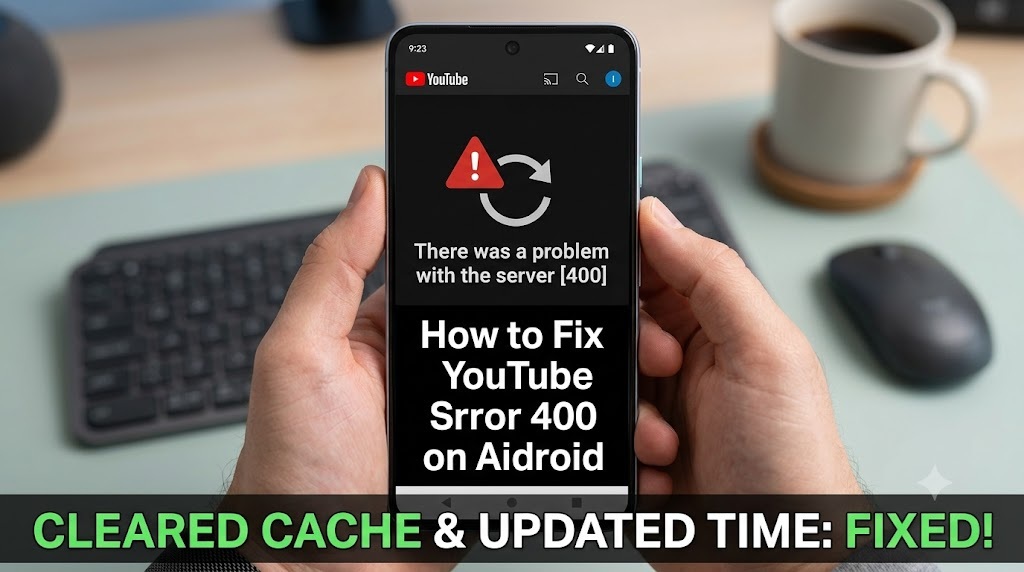
Across mobile diagnostics, four primary culprits trigger this failure:
- Corrupted Local Application Cache: Temporary cached video fragments and profile tokens conflict with incoming YouTube API streams.
- SSL/TLS Certificate Mismatch: If your Android device’s internal clock drifts even by a few minutes from standard UTC time, HTTPS handshakes to Google’s video servers fail validation.
- DNS Query Filtering: Custom ad-blocking profiles or aggressive router DNS tables block tracking or thumbnail telemetry endpoints, prompting the app to crash into a 400 state.
- Stale Application Version: Deprecated API endpoints retired by Google will instantly bounce connection attempts from outdated versions.
Also Read : Maryland EBT Card Activation 2026
Diagnostic Matrix: Symptoms and Fixes
| Trigger State | Likely Culprit | Recommended Action | Success Rate |
|---|---|---|---|
| App opens, but fails to load feed | Corrupt local temporary cache | Clear Storage & Cache | High (80%) |
| Error occurs across all Google Apps | NTP System Clock Desynchronization | Toggle Automatic Time in Settings | Very High (95%) |
| Occurs only on Wi-Fi, not Cellular | Malformed Router DNS or MTU size | Switch to 8.8.8.8 / 1.1.1.1 DNS | Moderate (65%) |
| App crashes immediately upon tap | Deprecated client build / APK issue | Uninstall Updates & Reinstall | High (85%) |
Proven Step-by-Step Fixes for Android
Method 1: Perform an Android Cache & App Data Reset
Clearing accumulated cache strips bad cookies, header overhead, and damaged token files without removing your saved account subscriptions:
- Open device Settings and navigate to Apps (or Apps & Notifications).
- Scroll down and select YouTube.
- Tap Force Stop to terminate active background sync processes.
- Tap Storage & Cache.
- Tap Clear Cache. Relaunch the app. If the error persists, return to this screen and tap Clear Storage (Clear Data).
Method 2: Force Automatic Date & Time Synchronization
Google servers actively invalidate tokens from devices whose clock time deviates from official time servers.
- Go to Settings > System > Date & Time (or search “Date” in Settings).
- Toggle off Set time automatically and Set time zone automatically.
- Restart your device.
- Return to the same menu and toggle both Set time automatically and Use network-provided time back on.
Method 3: Reset Network Stack and Custom DNS
If you use an ad-blocking Private DNS (such as NextDNS or AdGuard), the requests to YouTube’s content distribution nodes may be intermittently dropped.
- Navigate to Settings > Network & internet > Private DNS.
- Set Private DNS from custom to Automatic or Off to see if connectivity restores.
- Toggle Airplane Mode on for 10 seconds, then off to obtain a clean IP lease from your cellular carrier or router.
Advanced Troubleshooting: Account Tokens and Google Play Services
If app-level resets fail, the fault typically lies inside your Google Authentication layer managed by Google Play Services.
- Go to Settings > Passwords & Accounts (or Accounts & Backup).
- Tap the Google Account linked to your YouTube profile and select Remove account.
- Reboot your Android phone.
- Re-add your account under the same menu and allow background synchronization to finalize before launching YouTube.
Platform Verification & Server Health Checks
Before assuming device corruption, verify whether the fault lies on Google’s infrastructure side:
- Check the real-time health status via DownDetector YouTube Monitor to ensure outages aren’t active in your geographic region.
- Review official incident logs and updates on the official Google YouTube Help Community.
- Verify overall network performance with standard connection tests via our internal Android Network Diagnostics Guide.
Summary Checklist: Restoring YouTube Playback
- Always begin with Clear Cache, which preserves saved preferences while discarding bad request tokens.
- Keep the device’s Automatic Time enabled to satisfy strict HTTPS/TLS handshakes.
- Update both YouTube and Google Play Services to their latest stable builds on the Google Play Store.
