
💡 Quick Answer & TL;DR
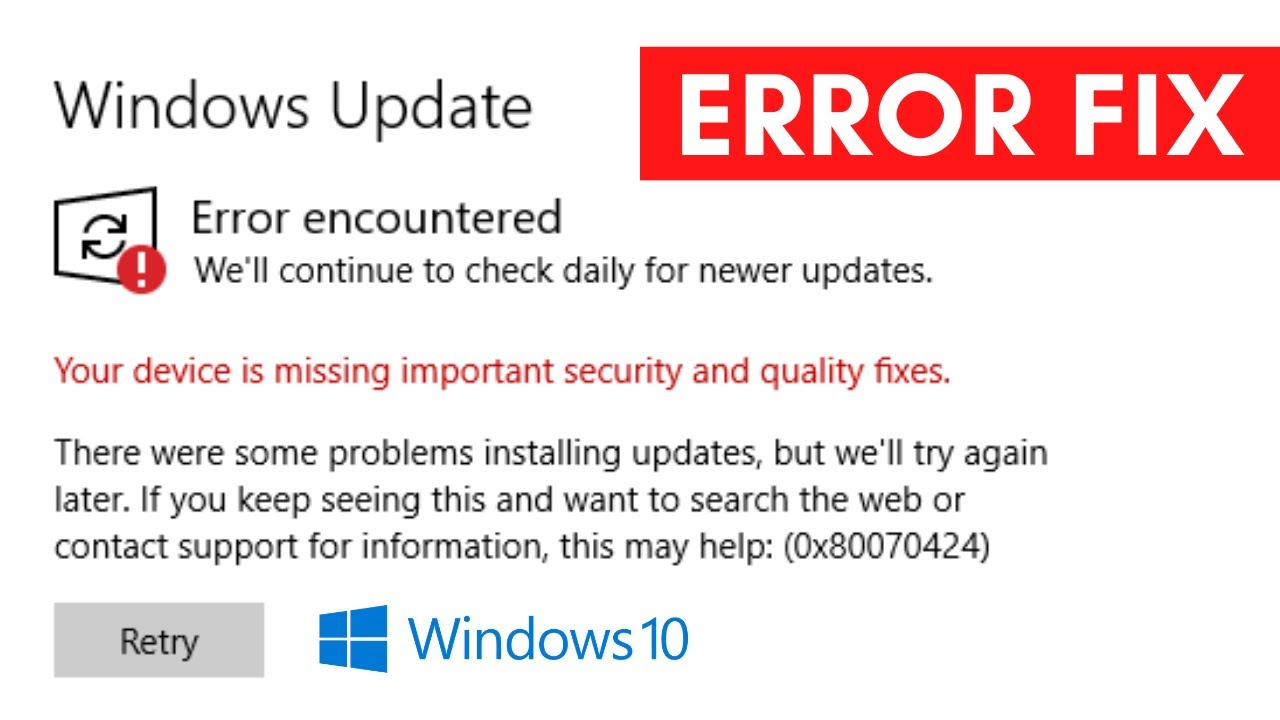
If you just had the “windows update error 0x801901f7 encountered” message pop up while trying to install updates or download an app from the Microsoft Store, your PC is failing to connect to Microsoft’s servers.
- What it means: Technically, this code translates to HTTP Status 503 (Service Unavailable).
- Primary Causes: A temporary Microsoft server outage, corrupted local update cache, or a strict third-party antivirus/VPN blocking the connection.
- Quickest Fix: Try running the built-in Windows Update Troubleshooter, disable your VPN, and clear the
SoftwareDistributionfolder.
Keeping your Windows operating system updated is crucial for security and performance. However, there is nothing more frustrating than dedicating time to patch your system, only to be stopped in your tracks by a cryptic alphanumeric code.
When the windows update error 0x801901f7 encountered notification appears, it usually blocks both OS feature updates and Microsoft Store app installations. Fortunately, because this is primarily a communication error between your computer’s Background Intelligent Transfer Service (BITS) and Microsoft’s backend, it is relatively easy to diagnose and fix at home.
🔍 Why Does Error 0x801901F7 Happen?
Before jumping into the command prompt, it helps to understand what is failing. Here are the most common culprits triggering this specific error code:
- •Microsoft Server Overload: Sometimes, the fault isn’t on your end at all. On major “Patch Tuesdays,” Microsoft’s servers can become overloaded, throwing a temporary 503 Service Unavailable status.
- •Corrupted Update Cache: If a previous update was interrupted by a power loss or forced restart, the residual files left in the SoftwareDistribution folder can become corrupted and block new downloads.
- •VPN or Proxy Interference: Security software, custom firewalls (like OPNsense), or VPNs can incorrectly flag and drop packets destined for Windows Update servers.
| Symptom | Likely Cause | Immediate Action |
|---|---|---|
| Error only in Microsoft Store | Stale Account Sync Tokens | Sign out and sign back into the Store |
| Error happens immediately on “Check for Updates” | Network/VPN Blockade | Disable VPN and third-party firewalls |
| Update hangs at 20%, then throws error | Corrupt SoftwareDistribution Folder | Clear the Windows Update cache |
How to Fix Load Error 4 in Killing Floor 3 (Easy Anti-Cheat Solution)
🛠️ Step-by-Step Fixes for Error 0x801901F7
Ready to get your PC back on track? Follow these steps in order, moving to the next one only if the error persists.
1. Check Your Network and Disable VPNs
Because this error indicates a server refusal, your network routing is the first suspect. Turn off any active VPNs (like NordVPN or ExpressVPN). If you are using a proxy server for work, temporarily bypass it. Once disabled, restart your PC and try checking for updates again.
2. Run the Native Windows Update Troubleshooter
Microsoft built an automated tool specifically to reset tangled update services.
- Press Windows Key + I to open Settings.
- Navigate to Update & Security > Troubleshoot > Additional troubleshooters.
- Select Windows Update and click “Run the troubleshooter.”
3. Manually Clear the SoftwareDistribution Cache
If the troubleshooter fails, you will need to manually delete the downloaded update files that are confusing the system.
- Type cmd into the Windows search bar, right-click Command Prompt, and select Run as administrator.
- Type
net stop wuauservand press Enter. Then typenet stop bitsand press Enter. (This stops the update services). - Open File Explorer and navigate to:
C:\Windows\SoftwareDistribution\Download. - Delete every file and folder inside this directory (press Ctrl + A, then Delete).
- Go back to the Command Prompt, type
net start wuauservandnet start bits, pressing Enter after each.
If you are still experiencing severe OS glitches after trying these methods, you may have deeper system corruption. For a more comprehensive look at repairing system files, check out our Ultimate Windows Update Troubleshooter Guide.
For a full directory of Windows error codes and official mitigation strategies, you can always reference the Microsoft Support Official Documentation.
