
Why Should You Repeat Table Row Headings? Repeat table header on subsequent pages
When you work with a very long table, it will run across multiple pages. You can set up the table so that the table header row or rows appear on each page automatically.
You can choose from two ways to set up your table so that its header row or rows repeat.
You can do the following:
- Select the header row or rows that you want to repeat on each page. The selection must include the first row of the table.
- Under Table Tools, on the Layout tab, in the Data group, click Repeat Header Rows.
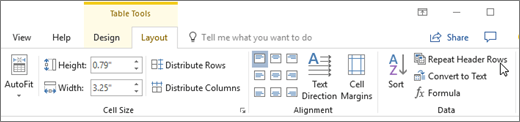
Or, you can use this approach:
- In the table, right-click in the row that you want to repeat, and then click Table Properties.
- In the Table Properties dialog box, on the Row tab, select the Repeat as header row at the top of each page check box.
- Select OK.
Notes:
- Repeated table headers are visible only in Print Layout view or when you print the document.
- If you change a table header on the first page, the header changes on all other pages also. You can only modify the table header on the first page—the header rows on subsequent pages are locked.
- Although Word automatically repeats table headers on new pages that result from automatic page breaks, it does not repeat a header if you insert a manual page break within a table.

Comments are closed