
Accidentally hitting the repost button on an Instagram Reel or post while scrolling is an easy mistake. But finding yourself unable to undo a repost on Instagram—either because the “Remove Repost” option is completely missing, the button is greyed out, or the post refuses to disappear from your profile grid—is deeply frustrating.
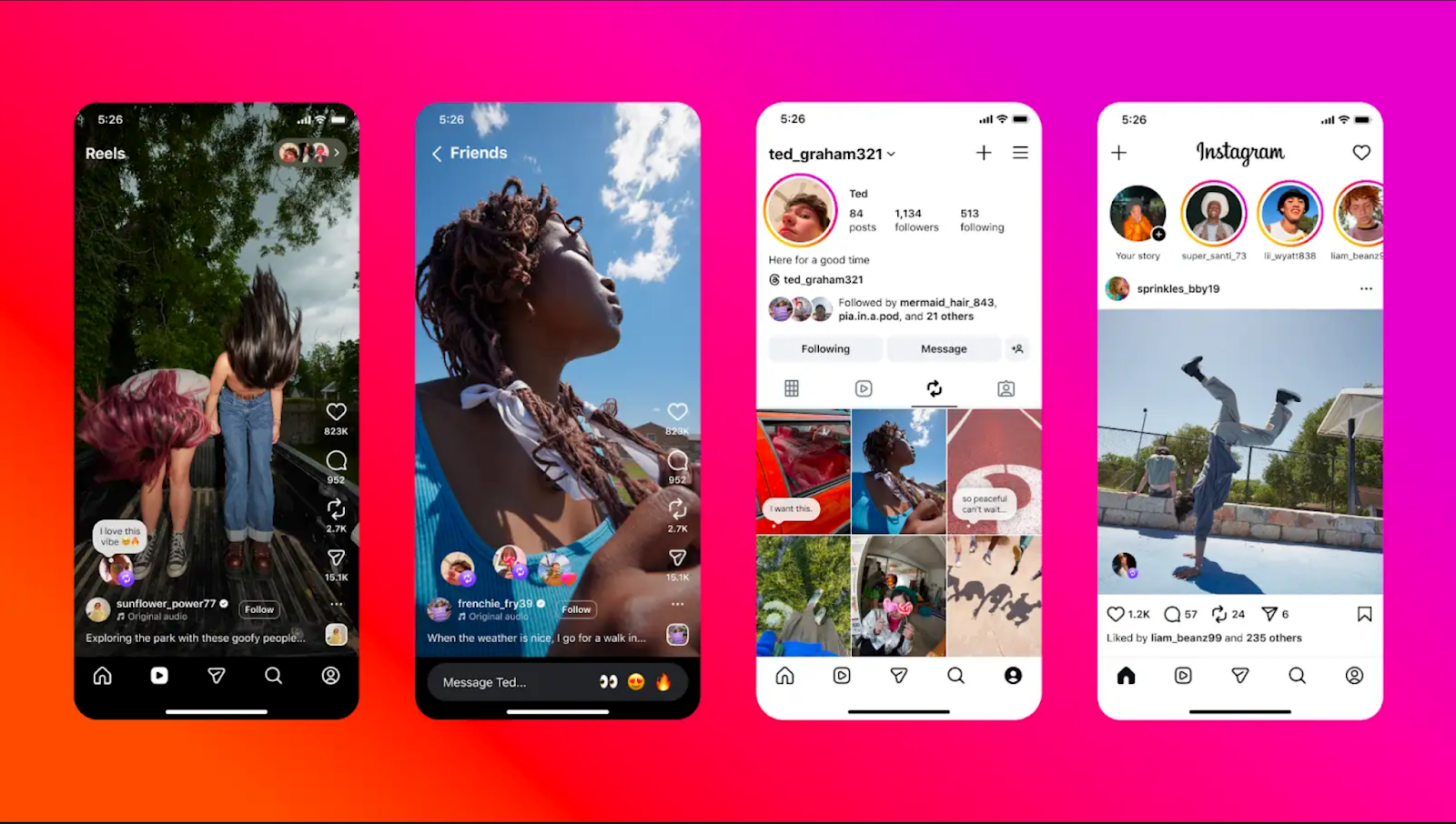
Instagram rolled out the native Repost feature to mimic Twitter/X retweets and TikTok reposts. However, because reposts are cloud-linked pointers back to the creator’s original media asset (rather than independent posts uploaded to your feed), removing them relies on real-time API handshakes that frequently desynchronize. Here is why the undo feature fails and 5 verified ways to delete stuck reposts immediately.
DirecTV Error Code 771: How to Fix “Connecting to Satellite” Fast
1. Diagnostic Matrix: Why Instagram Won’t Let You Undo a Repost
Identify which scenario matches your app screen before attempting complex account resets:
| Error Scenario | Technical Root Cause | Immediate Solution |
|---|---|---|
| “Remove Repost” button does not appear | Viewing original post from Discover/Home feed instead of profile tab | Open profile > Navigate to Reposts Tab directly |
| Tapped “Undo Repost” but video remains | Local app UI cache holding ghost pointer to CDN media | Force close app, clear cache, and pull-to-refresh profile |
| Original creator deleted or privatized post | Orphaned repost pointer cannot query master post permissions | Delete via “Your Activity” > Interactions menu |
| Network timeout when tapping “Undo” | Stalled socket connection or temporary Meta API rate-limit | Toggle Airplane Mode or access via web browser |
2. Step-by-Step Methods to Delete Stuck Instagram Reposts
Method 1: The Profile Repost Tab Method (The Proper Workflow)
Attempting to unrepost directly from your home feed or from the original creator’s profile page often fails because the client views you as a passive viewer rather than the sharing account.
- Open Instagram and tap your Profile picture in the bottom-right corner.
- Look at the navigation icons directly above your post grid.
- Tap the Reposts icon (represented by two rectangular looping arrows, located between the Reels and Tagged tabs).
- Tap the specific reposted Reel or post you want to get rid of.
- Tap the glowing Repost button or the three dots (⋯ / ⋮) in the top-right corner.
- Select Remove Repost (or Undo Repost) and confirm when prompted.
Method 2: Remove Via “Your Activity” (Bypass Missing Buttons)
When interface updates or bugs hide the undo button on the video itself, the root activity log provides a direct administrative route to delete the database entry:
- Go to your Instagram profile.
- Tap the hamburger menu (≡) in the top-right corner.
- Select Your Activity.
- Under the Interactions or Content you shared heading, tap on Reposts.
- Find the stuck post, tap Select in the top-right corner, check the box next to the offending media, and tap Delete / Remove at the bottom of the screen.
Method 3: Clear Stale Client Cache & Temporary App Storage
If you already tapped “Remove Repost” but the item still appears when friends view your profile, your local phone client is failing to refresh its local JSON cache:
- Android Users: Open Settings > Apps > Instagram > Storage & Cache and tap Clear Cache. Do not tap Clear Data unless you want to log in again. Then force-stop the app and re-open it.
- iPhone (iOS) Users: Apple does not provide a manual cache button. Navigate to Settings > General > iPhone Storage > Instagram, tap Offload App, and then tap Reinstall App. This purges corrupted UI cache files while preserving your credentials.
Method 4: Delete via Instagram Web Browser
Mobile application builds frequently carry minor interface bugs that do not exist on Instagram’s direct web gateway:
- Open a web browser (Chrome, Safari, or Edge) on your mobile device or desktop computer.
- Navigate to
https://www.instagram.comand sign in to your account. - Click on your Profile icon and open your Reposts tab.
- Open the problematic video and click the three-dot icon to remove the repost. Browser requests bypass native mobile app cache glitches completely.
3. Feed Repost vs. Story Repost: Know the Difference
Users often confuse different repost formats on Instagram, which require entirely separate removal workflows:
- Feed / Reels Repost: Appears in your dedicated Reposts profile tab and inserts the creator’s post into your followers’ feeds with a “[Your Name] reposted” badge. This must be undone through the Reposts tab or Your Activity.
- Add to Story Repost: Appears in your 24-hour Story tray. Tapping “undo repost” does nothing for Stories. You must open Your Story, tap the bottom-right More (⋯) menu on that specific slide, and tap Delete.
- Direct Message Reshare: Sharing a post into a group chat cannot be “unreposted.” You must tap and hold the message bubble inside the DM thread and select Unsend.
If an accidental repost refuses to disappear after trying all four methods, check whether the original creator just deleted their post or set their account to private right as you shared it. In that edge case, the pointer breaks in Meta’s database; it usually auto-clears during daily server maintenance within 24 hours.
