
PBIS Rewards Student Login : Login to PBISR with Code
To log in to the PBIS Rewards Student App with the Auth Code, students will download the PBIS Rewards Student App, and log in using a code or a QR given to them by a staff member.
The main home page for PBIS Rewards allows you to award points to any individual student in the school. This page can be accessed from the “Home” tab located at the top of the left-side Main Menu, you can also select the PBIS Rewards logo to reach this page.
- Use the search box to type the name of a student and then select the student from the dropdown list.
- Once the student is selected you can choose an expectation(s) or point number
- Add a comment in the text field (not required)
- Press the “REWARD” button to give the points
PBIS Rewards Student Login :
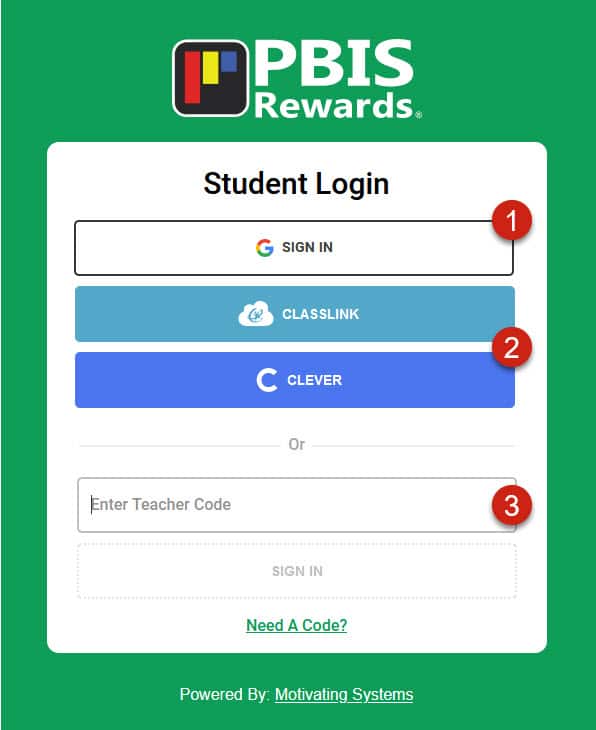
1. To use Google SSO, the student will go to student.pbisrewards.com and select “G Sign In.” If the student is not signed in to Google yet, they will be prompted to sign in. This feature is used on a Chrome browser or Chromebook. On the Student App, the student will select “Google” (student google emails must be added to the system for this option).
2. The students will use the Clever or ClassLink button if one of those Single Sign-On options has been set up by your tech services.
3. To log in with an Auth Code using the web portal, students will go to student.pbisrewards.com on their computers. They will get a code from their teacher.
They will enter it in the field labeled “Enter Teacher Code.” If it is a group code, they will search, and select. If students have the option to stay signed in and want to, they will check the “Remember Me” check box. Download this PDF to show students how to log in to the Student Portal with an auth code.
How to Login to the PBIS Rewards Student App with an Authorization Code
STEP ONE
Students will search for and then select their school
STEP TWO
Click Keep me logged in
STEP THREE
Select the I Have an Authorization Code button
STEP FOUR
Enter the code and submit STEP FOUR Need further assistance? Visit our support page at support.pbisrewards.com Do NOT sign out once you have logged in or you’ll have to get another Authorization Code from your teacher.
Student Access Settings
An Admin can select how students will sign in with the setting. In the Web Portal, select “Settings” and then “Options.”
Note: If your school will be using Clever or Classlink, contact your tech services to have Clever SSO or Classlink SSO turned on.
On the Options screen, scroll down to the section named “Student Portal.” Use these options to control how student access will work.
- Select which students will have the “Remember Me” option on the Student App and Student Portal.
- For Google SSO, turn on the feature by selecting “Allow students to log in using their Google Accounts.” Gmail addresses will need to be included in the student information on the student screen.
- To upload Gmail accounts, select “Settings” and then “Email Importer.” Instructions on how to create the CSV file are on that page.
- Determine if the students will search for their name, ID, or email address when they are given a Group Auth Code or QR.
- Determine if the students can make their own purchases in the Store, Raffles, and Events.
- Select “Save” after making selections.
Reward
It’s easy to use PBIS Rewards to award points with the PBIS Rewards Staff App. Simply scan the code with a smartphone to award points. Your staff can award points this way no matter where they are – at recess, in the cafeteria, on a field trip, or even just walking down the hallway.
The desktop component of the system allows you to award points as well as access data in reports, manage student accounts, and track school store inventory. We’ve designed our suite of PBIS apps to work together across multiple devices. PBIS Rewards makes the process affordable by utilizing equipment you already have, with technology that’s easy to use, and a system designed to simplify the process of managing your PBIS program.
To Award Points in a Group
- Inside a group, select students to award by choosing the “Select All Students” button or you can select cards individually. (You can unselect anyone by clicking the card again.)
- Choose the points or expectations.
- Select the “Reward” button.
- Comments can be included when awarding points by checking the “Include comment” box before you select the “Reward” button.
Redeem
With PBIS Rewards you will never have to manually track store inventories or student purchases again!
PBIS Rewards has an integrated school store functionality, event management platform, and raffles. These tools make maintaining your token economy a breeze. Staff members can personalize the experience for their students. Individual teacher stores can be set up so the teachers can provide rewards in their classrooms.

Comments are closed