
How to Update Roku : How to update the software on your Roku TV or Roku streaming player
All Roku TV models and Roku streaming players are designed to ensure they are always running the latest version of software. Your Roku device will check to see whether new software is available for download during initial setup and whenever the Roku device is powered on, and then randomly every 24-36 hours.
The download and installation are done automatically without ever interrupting your use of the Roku device. Any Roku peripherals, such as Roku wireless speakers or a Roku Wireless Subwoofer, will automatically be updated alongside your Roku TV or streaming player.
Why would you want to check manually?
You may want to manually check for an update if:
- Your Roku device has been disconnected for an extended period of time.
- You recently installed a channel from channelstore.roku.com.
- You recently installed a non-certified channel.
Updating software if you have NOT activated your Roku TV
The following instructions assume that you have not activated your Roku TV and that you selected Connect to the internet later during the initial setup and activation process. To update the software manually, you need a standard USB 2.0 flash drive that is 256MB or larger. You also need to move between your computer (not your smartphone) and Roku TV as detailed below.
On your computer
- Open a web browser and visit tvupdate.roku.com.
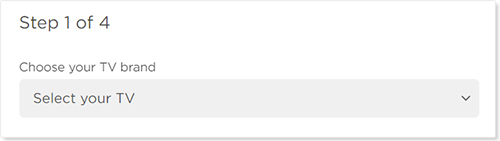
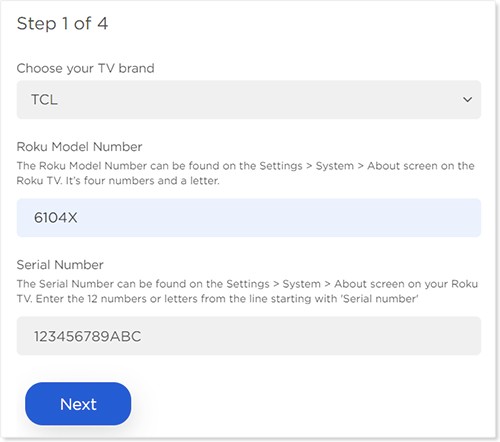
- Choose the brand of your Roku TV (e.g., TCL).

- Enter your Roku Model Number and Serial Number. The model appears as 4 numbers followed by a letter (e.g., 6104X), and the serial number is a combination of 12 numbers and/or letters. To find this information, go to Settings > System > About on your Roku TV.
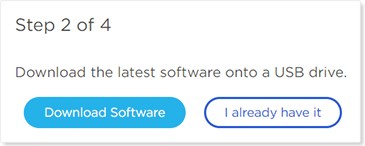
- Select Download Software to get the update.roku installer file downloaded to your computer.
- Locate the update.roku file on your computer. By default, it is often in a Downloads folder.
- Insert the USB flash drive and copy the update.roku file to the flash drive. Do not put it in a subfolder.
Once the transfer is complete, remove the USB flash drive from your computer and move it to your Roku TV.
How to activate or Link your Roku Streaming Device : Roku activation link does not work
On your Roku TV
- Connect the USB flash drive to the USB port on your Roku TV.
- Note: If you see the message “Update file could not be opened. Please try again”, the format of the USB flash drive is likely not recognized. Visit the Formatting your USB flash drive section below for help.
- Press the Home button on your Roku TV remote.
- Select Settings.
- Select System.
- Select System update.
- Select I can’t connect.
 on your Roku TV remote.
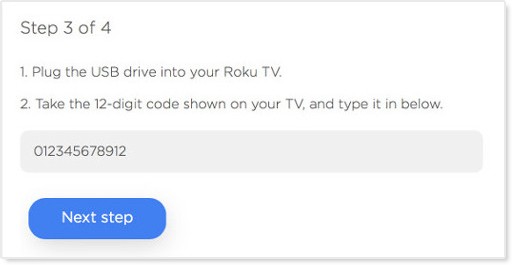
Your Roku TV validates the file on the USB flash drive and displays a 12-digit code on the TV screen. If you see the message “Contents of the update file are invalid”, your Roku TV is already running the latest software version.
On your computer
- Return to your computer and enter the 12-digit code.
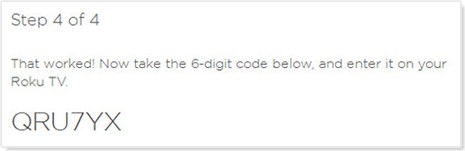
- After you enter the code correctly, a new 6-digit code appears on your computer screen.
On your Roku TV
- Return to your Roku TV and enter the 6-digit code using your Roku TV remote.
The software update begins immediately, and your Roku TV restarts once complete. After your Roku TV restarts, you can remove the USB flash drive.
Roku.Com Login : How do I sign in Roku to watch movies and TV shows?
Manually checking for updates
Follow the instructions below to manually check for software and channel updates.
- Press Home on your Roku remote.
- Scroll and select Settings.
- Select System
- Select System update
- Note: The System update screen displays the current software and build version, along with the date and time of the latest update.
- Select Check Now to manually check for updates
If there is new software available or there are updates for your channels, then your Roku device will download and install them automatically and once completed, your Roku device will reboot.
If you are installing channels and need help, review the steps for adding channels to your Roku streaming device.
How to use USB to update your unconnected Roku TV
Activating your Roku TV ensures that it is running the latest version of Roku® OS software. Any time your Roku TV is connected to the internet, it checks for software updates every 24 to 36 hours. When a new version is available, it is automatically downloaded and installed without interrupting use of your Roku TV. Should you wish, you can also manually check for new software updates.
If your Roku TV is not connected to the internet, software updates must be done manually by first downloading a file to your computer, copying it to a USB flash drive, and then connecting that flash drive to your Roku TV.

Comments are closed