
Google Play Payment Error: What It Means & How to Fix It
Quick Answer
- “Google Play payment error” is not one single official error code.
- Google documents several different payment-failure messages, such as “Your transaction cannot be completed”, “Unable to complete transaction”, expired-card errors, low-balance errors and account-payment problems.
- The correct fix depends on the exact message you see.
- Google’s official fixes include checking your payment profile, card expiry, billing address, available funds, bank restrictions and any verification request shown in Google Payments.
- If a payment method itself is the problem, Google recommends trying another supported payment method.
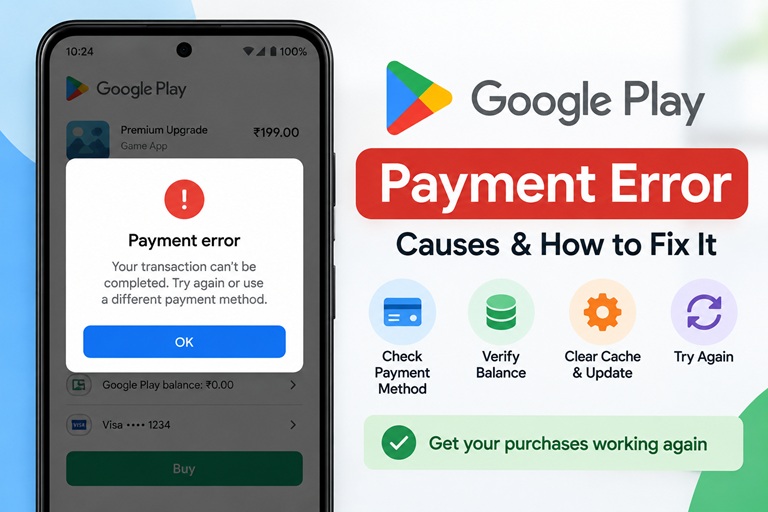
If you searched for Google Play payment error, first look at the exact wording on your screen. Google does not document one universal error with that name. Instead, Google Play can show different payment messages depending on whether the problem involves your card, billing address, payment profile, available funds, bank restrictions, identity verification or the payment method you selected. The most useful fix is therefore to match the message you see with the relevant official troubleshooting step.
Important Accuracy Note
This guide does not assume that every Google Play payment failure has the same cause. The fixes below are based on Google’s own payment-support documentation and are grouped by the exact type of error.
Which Google Play Payment Error Are You Seeing?
| Message | What Google Says to Check |
|---|---|
| Unable to process payment: low card balance | Check that you have enough funds available for the purchase. |
| Unable to complete transaction. Please use another form of payment | Check the card/payment details and try another payment method if needed. |
| Your transaction cannot be completed | Check for requested verification and make sure your billing address matches Google Payments. |
| Unable to complete transaction: expired card | Update or replace the expired payment method. |
| Correct this card info or try another card | Review the card details and billing information, or use another supported card. |
| Your payment was declined due to an issue with your account | Open Google Payments and complete any security, fraud-prevention or identity-verification request. |
Fix 1: Check Google Payments for Alerts
Google says a payments profile can be deactivated or restricted. If that happens, the most important step is to check Google Payments for an alert or request for additional information.
- Sign in to Google Payments.
- Look for alerts or requests for information.
- If Google asks you to verify payment or identity details, submit the requested information.
- Wait for Google’s review result if the account is under review.
If Google specifically asks for extra information, Google states that other troubleshooting steps may not resolve the transaction until that request is completed.
Fix 2: Check Whether Your Card Has Expired
Google explicitly lists expired cards as a common reason payments fail.
- Open Google Payments.
- Find the card you are trying to use.
- Check its expiry date.
- Update or remove the expired card.
- Try the purchase again.
Fix 3: Make Sure the Billing Address Matches
Google says a mismatch between your card’s registered billing address and the address in Google Payments can cause a transaction to be declined.
Check:
- Billing address
- Postal code / ZIP code
- Name associated with the payment method
If the Google Payments information is outdated, update it before retrying the purchase.
Fix 4: Check Available Funds
If the message refers to a low balance or the transaction is declined, Google recommends verifying that the account has enough available funds to complete the purchase.
Keep in mind that the relevant figure may be your available balance or available card limit, not simply the balance shown elsewhere on the account.
Fix 5: Contact Your Bank or Card Issuer
Google explicitly recommends contacting the institution that issued the card if the payment continues to be declined.
The bank or card issuer may be able to tell you whether:
- The transaction was declined.
- The card has a restriction.
- Online or digital transactions are restricted.
- The bank requires additional approval.
Avoid assuming Google Play is at fault if your bank is the party declining the transaction.
Fix 6: Try Another Payment Method
Google’s official troubleshooting guide recommends trying another payment method if one payment method is not working.
On Android:
- Open the Google Play Store.
- Return to the item you want to buy.
- Tap the price.
- Tap the current payment method.
- Select another available payment method or add a new one.
- Follow the on-screen checkout steps.
Available payment methods vary by country.
If You See “Your Transaction Cannot Be Completed”
Google documents several specific checks for this message.
- If the error contains instructions asking you to submit information, follow those instructions first.
- Check that the billing address for the payment method matches the address in Google Payments.
- On mobile, retry through the product’s mobile app when appropriate.
- On a computer, retry through the relevant Google product website.
- If you were using guest checkout, sign in to a Google Account and try again.
Do not skip a Google verification request.
If Google asks you to provide information or verify your account, repeatedly changing cards is unlikely to fix the problem until the requested verification is completed.
If Your Card Says “Verification Needed”
Google documents a specific case where a card is greyed out and shows “Verification needed.”
In that case, Google instructs users to verify the card through Google Payments. Google may place a temporary verification charge containing a code that is then used to confirm the payment method.
Follow the exact instructions displayed in Google Payments rather than guessing the code or retrying repeatedly.
Important for Google Play Users in India
Google’s India payment-method documentation currently contains two important changes:
- Netbanking: Google states that from October 2025, netbanking is discontinued as an accepted Google Play payment method in India until further notice.
- Vodafone/Idea mobile billing: Google states that this mobile-billing method has been suspended since 31 July 2024.
If you are trying to use one of those methods in India, switching to a currently supported payment method may be necessary.
If Money Was Deducted But You Are Unsure Whether the Purchase Completed
Do not immediately make the same purchase again.
Google says you can review Google Play purchases from:
- Google Play Store → profile icon → Payments & subscriptions → Budget & history
- play.google.com → Payments & subscriptions → Budget & order history
- Google Payments → Activity
Google also states that card/bank charges may not always appear immediately and can sometimes take several days depending on the payment provider.
Best diagnostic step:
Check the purchase status in your Google Play order history before trying the same transaction again.
What I Would Not Recommend
- Do not clear Play Store cache as the first fix unless the payment screen itself is malfunctioning. Google’s official payment-error guidance focuses first on payment information, billing address, available funds, bank restrictions and account verification.
- Do not repeatedly retry a declined payment.
- Do not change your Google Play country just to bypass a payment problem.
- Do not enter payment information into unofficial websites.
- Do not assume every declined payment is a Google server outage.
Official Sources
- Google Play Help – Fix payment issues on your account
- Google Play Help – Accepted payment methods
- Google Play Help – Review your order history
Editorial verification:
This article was checked against current Google Play Help documentation. Because “Google Play payment error” is a broad search phrase rather than one officially documented error code, this page does not assign a single cause to every payment failure.
TL;DR
- There is no single official error called “Google Play payment error.”
- Read the exact message shown on the payment screen.
- Check Google Payments for verification requests or account alerts.
- Verify your card expiry date and billing address.
- Check available funds.
- Contact your bank if the card is being declined.
- Try another supported payment method if Google recommends it.
- If money appears to have been deducted, check Google Play order history before paying again.
