
Error Code GERR-01: Quick Fix for “An Unexpected Error Has Occurred” on EPFO Portal
Practical troubleshooting for EPFO Member & Employer portal users facing GERR-01 during Form 5A, Aadhaar OTP, e-sign, DSC, KYC or claim actions.
Quick Answer
Error Code GERR-01 on the EPFO portal usually means the system could not complete your request due to a session timeout, browser cache/cookie conflict, Aadhaar OTP or e-sign hiccup, DSC issue, form validation mismatch, or a temporary EPFO server load.
The fastest fix: log out, clear cache and cookies, switch to Chrome or Edge (latest), disable VPN and ad blockers, re-verify Aadhaar/KYC/DSC details, and try again outside peak hours (10 AM–1 PM, 6 PM–9 PM). If it still appears, raise a grievance on EPFiGMS with screenshots.
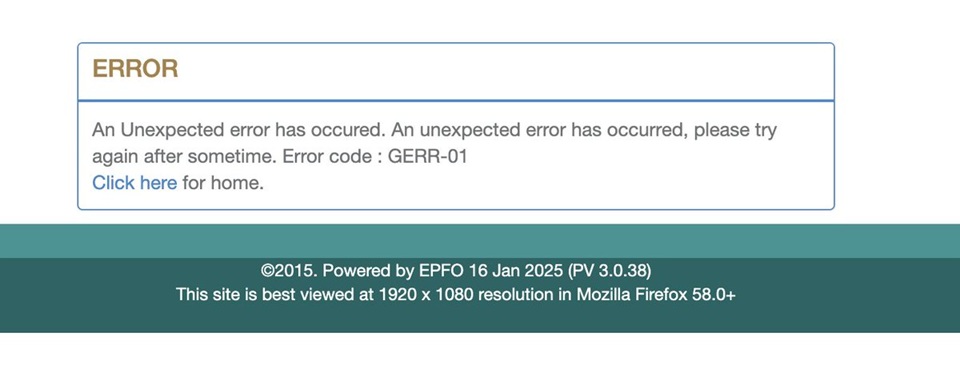

What Error Code GERR-01 Means
Error Code GERR-01 is a generic error identifier shown on the EPFO Unified Portal (both the Member Interface at unifiedportal-mem and the Employer Interface at unifiedportal-emp). The message displayed alongside the code is almost always: “An unexpected error has occurred. Please try again later.” Unlike a specific validation error (for example, “UAN not linked” or “Aadhaar mismatch”), GERR-01 is a fallback error — the backend caught an exception but could not classify it for the front-end. That is why the same code may appear in completely different places: while filing Form 5A, updating establishment details, submitting a claim, doing e-sign, validating Aadhaar OTP, or signing with DSC.Note: Public reports commonly associate GERR-01 with EPFO portal workflows and an “unexpected error” message. Because EPFO may change backend behaviour without notice, treat the steps below as practical troubleshooting rather than an official diagnostic definition.
Why GERR-01 Happens on EPFO
From observed patterns across EPFO member portal and employer portal users, GERR-01 is triggered by one or more of the following:- Session expiry — the EPFO portal session lapses after a short period of inactivity.
- Stale browser cache or cookies from earlier EPFO sessions.
- Browser incompatibility — older browsers, Internet Explorer, or unsupported mobile browsers.
- VPN, proxy, ad-blocker or aggressive privacy extensions blocking EPFO scripts.
- Aadhaar OTP timeout during e-KYC or e-sign.
- DSC token / emSigner / Java applet issues for employer logins.
- Form validation mismatch — for example PAN, IFSC, date of joining, or establishment ID format.
- Backend load at month-end, salary cycles, or claim-rush periods.
- Partial maintenance windows on EPFO services (UAN, Aadhaar seeding, EPS withdrawal, Form 5A).
Quick Diagnostic Table
| Where GERR-01 appears | Likely cause | Best fix |
|---|---|---|
| During Aadhaar OTP / e-sign | OTP timeout, UIDAI link issue | Re-request OTP; verify mobile linked to Aadhaar |
| During DSC / employer login | Token driver / emSigner offline | Restart emSigner, reinstall token driver, use Chrome |
| Filing Form 5A | Establishment detail mismatch | Cross-check PAN, address, owner details before saving |
| Submitting claim (Form 19/10C/31) | KYC pending or bank IFSC error | Update KYC, re-verify bank, retry next day |
| Updating establishment details | Session timeout mid-edit | Log out, clear cache, log back in, edit in one go |
| Any random page | EPFO server load | Retry after 30–60 minutes or outside peak hours |
Quick Fix Checklist
- Log out fully from the EPFO portal.
- Clear browser cache, cookies, and site data for epfindia.gov.in and unifiedportal-*.epfindia.gov.in.
- Use the latest Google Chrome or Microsoft Edge on a desktop/laptop.
- Disable VPN, proxy, and ad blockers (uBlock, AdGuard, etc.).
- Close other EPFO tabs — one session at a time.
- Make sure Aadhaar is linked to an active mobile number for OTPs.
- For employer login, ensure DSC token, drivers, and emSigner are running.
- Retry outside peak hours (10 AM–1 PM and 6 PM–9 PM IST).
- If it persists for 24–48 hours, raise a grievance on EPFiGMS.
Fix Priority Table
| Fast fix | When to use | Expected result |
|---|---|---|
| Hard refresh (Ctrl + F5) | Error appears once after login | Page reloads cleanly, session refreshed |
| Clear cache + cookies | Recurring GERR-01 on same browser | Stale session data removed |
| Switch browser (Chrome ↔ Edge) | Issue is browser-specific | Pages load without script errors |
| Disable VPN / extensions | Login or OTP step fails | Portal scripts and APIs reach EPFO servers |
| Re-run emSigner / DSC drivers | Employer portal DSC actions | Signature popup opens, action completes |
| Retry off-peak | Server-side GERR-01 | Action completes after EPFO load drops |
| Raise EPFiGMS grievance | Persists > 48 hours | Ticket reaches concerned EPFO office |
Step-by-Step Fixes
Step 1 — Refresh the session correctly
Click Logout from the EPFO portal — do not just close the tab. Then close the browser window entirely and reopen it. This forces EPFO to issue a new session token, which resolves a large share of GERR-01 occurrences.In Chrome: Settings → Privacy and security → Clear browsing data. Pick Cookies & other site data and Cached images & files, set the range to Last 7 days, and clear. In Edge the path is similar.
Step 3 — Use a supported browser
Use the latest Chrome or Edge on Windows or macOS. EPFO does not officially support Internet Explorer and many in-app mobile browsers. If you must use mobile, use Chrome on Android or Safari on iOS with desktop site mode for advanced actions.Step 4 — Disable VPN, proxy and extensions
VPNs and aggressive privacy/ad-blocking extensions can break EPFO’s OTP and signing APIs. Turn off the VPN, open an Incognito/InPrivate window (extensions are disabled by default) and retry.Step 5 — Re-check the data you are submitting
GERR-01 sometimes hides a validation failure. Re-check PAN format, IFSC code, date formats, mobile number length, and that no field has trailing spaces or special characters. Copy-pasting from PDFs often introduces invisible characters.Fix for Aadhaar OTP / e-Sign / KYC Related GERR-01
When GERR-01 appears during Aadhaar OTP, e-sign, or KYC seeding, the issue often lies between EPFO and the UIDAI service:- Confirm your mobile number is linked to your Aadhaar. Use the “Verify Mobile/Email in Aadhaar” service on the UIDAI site.
- Request the OTP only once and wait at least 30 seconds before re-requesting.
- Make sure your name, DOB, and gender in EPFO exactly match Aadhaar — even a single initial mismatch can produce GERR-01 during e-KYC.
- If e-sign keeps failing, log out, wait 10 minutes (UIDAI rate-limits OTPs), and retry on a fresh browser session.
- Never share the OTP, your UAN password, or your e-sign PIN with anyone — EPFO does not call to ask for them.
Fix for DSC or Employer Portal GERR-01
Employers using a Digital Signature Certificate on the EPFO Employer Interface should:- Plug in the DSC token and confirm Windows recognises it (check Device Manager).
- Install/reinstall the latest token drivers (ePass, ProxKey, Watchdata, etc.).
- Run emSigner as Administrator if EPFO uses it for signing.
- Make sure your DSC is Class 3 and not expired.
- Use Chrome with token-related extensions allowed (if the token vendor provides one).
- Never share your DSC token, PIN, or USB device with unverified consultants.
Fix for Form 5A / Establishment Details GERR-01
Form 5A requires accurate owner, branch and establishment information. GERR-01 here usually means EPFO could not save your form because of a validation mismatch or a session timeout mid-edit:- Prepare all owner and branch details in a document before opening Form 5A.
- Save in small steps; do not leave the form idle for more than 10 minutes.
- Check PAN, address, and pincode formats carefully.
- Ensure establishment ID and LIN, if applicable, match official records.
- If GERR-01 persists, retry the next morning — EPFO often resolves backend establishment issues overnight.
When It Is a Server-Side EPFO Issue
If multiple users on different devices and networks see GERR-01 at the same time, it is almost certainly a server-side EPFO issue — not your browser. Signs include:- EPFO portal home page loads slowly or partially.
- UAN login screen times out.
- Claim status, passbook, or KYC pages return GERR-01 randomly.
- Reports on social media from other members/employers at the same time.
What to Do If GERR-01 Keeps Coming Back
If GERR-01 keeps appearing for more than 24–48 hours even after trying all the steps above, escalate it formally. Collect the following before contacting EPFO:| Detail to collect | Why it matters | Where to find it |
|---|---|---|
| UAN / Establishment ID | Identifies your record | EPFO passbook / Form 5A |
| Exact action attempted | Helps EPFO trace the workflow | Note from your screen |
| Date & time (IST) | Matches with EPFO server logs | System clock |
| Browser & OS version | Rules out compatibility | Browser “About” page |
| Screenshot of GERR-01 | Confirms the exact error | PrtScn / Snipping Tool |
| Steps already tried | Avoids repeat suggestions | Your own notes |
Final Expert Tips
- Bookmark only the official EPFO URLs — phishing pages also throw vague errors.
- Keep your UAN, Aadhaar number, and registered mobile handy but never share OTPs.
- For employers, keep an updated DSC backup and renewal calendar.
- Do not retry claim submissions back-to-back; wait at least 15 minutes.
- If a consultant or agent asks for your UAN password or DSC PIN to “fix GERR-01”, refuse — it is never required.
- Save screenshots of every GERR-01; they are gold during a grievance.
Copy This Support Message (For Grievance)
Disclaimer: This article is an independent troubleshooting guide. EPFO may update portal behaviour without notice. Always rely on official EPFO communication and the EPFiGMS grievance portal for authoritative resolution.

Pingback: Are Destiny 2 Servers Down Right Now? Live Status & Fixes - Seminarsonly.com