
Error CE-107857-8 PS5: What It Means & How to Fix It
Quick Answer
- PS5 error CE-107857-8 means an error occurred while loading or updating an application.
- Restart your PS5 first.
- Update both the PS5 system software and the affected game or app.
- If the error continues, delete and reinstall that game or app.
- Finally, start the PS5 in Safe Mode and use Clear Cache and Rebuild Database > Rebuild Database.
If your PS5 displays CE-107857-8 while opening, installing or updating a game or application, don’t assume that the console itself has failed. PlayStation officially describes this code as an error occurring while the system is loading or updating an application.
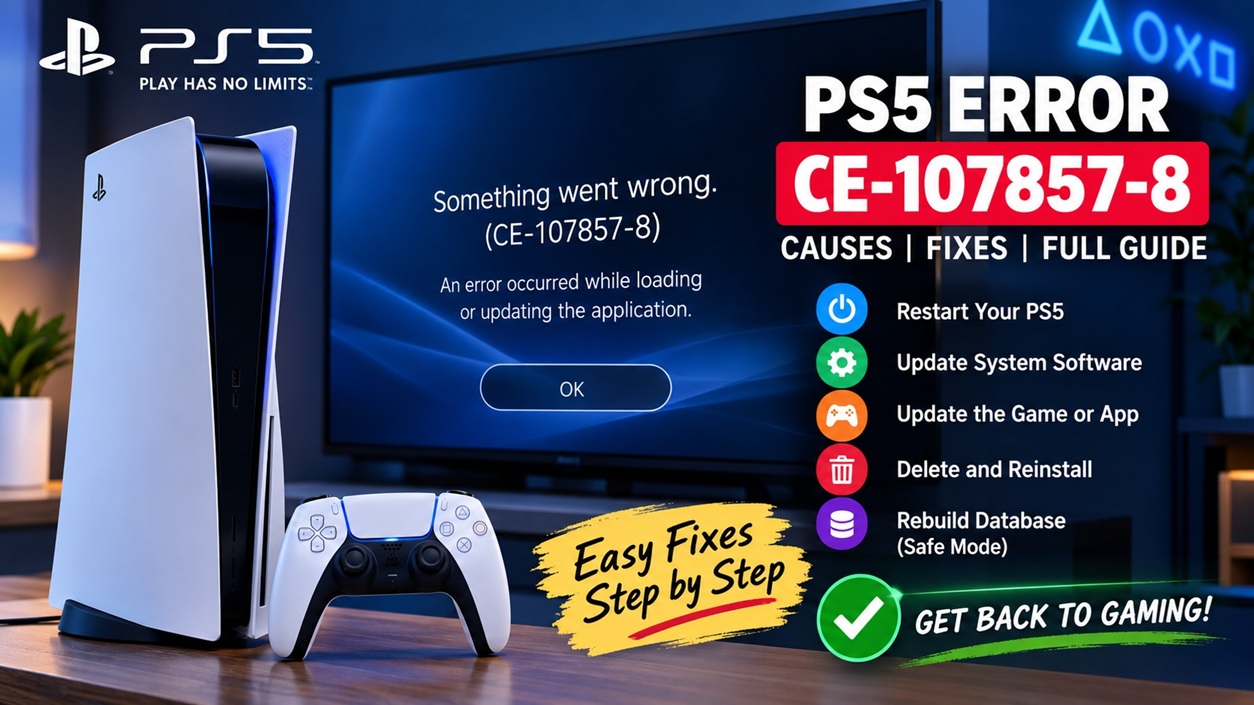
This guide follows the troubleshooting sequence currently recommended by PlayStation Support and separates those documented steps from additional troubleshooting that may apply only to related download problems.
What Does Error CE-107857-8 Mean?
| Question | Answer |
|---|---|
| Error code | CE-107857-8 |
| Console | PlayStation 5 |
| Official meaning | An error occurred while loading or updating the application. |
| First action | Restart the PS5. |
| If it continues | Update, reinstall and then rebuild the PS5 database. |
Important: Sony’s description identifies the operation that failed, but it does not document one universal underlying cause for every CE-107857-8 occurrence. Therefore, claims that the code always means a damaged SSD, bad internet connection, corrupted save file or PlayStation Network outage should not be treated as the official meaning.
How Do You Fix PS5 Error CE-107857-8?
Use these fixes in order. There is little benefit in jumping directly to drastic troubleshooting such as resetting the entire console when PlayStation provides several less disruptive steps first.
1. Restart Your PS5
PlayStation lists restarting the console as the first troubleshooting step.
- Press the PS button on your controller.
- Open the Power menu.
- Select Restart PS5.
- After the console restarts, launch the affected game or app again.
2. Update the PS5 System Software
Next, make sure the console is running the latest available PS5 system software.
- Open Settings.
- Select System.
- Choose System Software.
- Open System Software Update and Settings.
- Install an available system update.
After the update finishes, allow the console to restart if requested and test the game again.
Official PS5 System Software Help
3. Check for a Game or App Update
The console software is only half of PlayStation’s update recommendation. The affected game or application should also be current.
- Highlight the game or application on the PS5 home screen.
- Press the Options button on the controller.
- Select Check for Update.
- Download and install an update if one is available.
Then try launching the application again.
Also Read: Nintendo Switch 2 Error 2124-4508: What to Do
4. Delete and Reinstall the Affected Game or App
If CE-107857-8 continues after starting the affected application, PlayStation specifically recommends deleting that game or app from storage and reinstalling it.
- Open Settings > Storage.
- Locate the affected game or application.
- Delete the application.
- Download or install it again.
- Wait for the installation and any required updates to finish.
- Launch it again and check whether CE-107857-8 returns.
5. Rebuild the PS5 Database in Safe Mode
If reinstalling the application doesn’t resolve CE-107857-8, PlayStation’s official error-code instructions next recommend rebuilding the database.
How to Start a PS5 in Safe Mode
- Turn the PS5 completely off.
- Press and hold the console’s power button.
- Continue holding it until you hear the second beep. PlayStation states that the second beep occurs about seven seconds after the first.
- Connect the controller using a USB cable.
- Press the PS button.
Then select:
PlayStation explains that Rebuild Database scans the drive and creates a new database of the content stored on the console.
Official PlayStation Safe Mode Guide
Which Fix Should You Try First?
| Order | Fix | When to Try It |
|---|---|---|
| 1 | Restart PS5 | Always start here |
| 2 | Update PS5 software | If restart doesn’t fix it |
| 3 | Update game/app | Before reinstalling |
| 4 | Delete and reinstall app | If CE-107857-8 persists |
| 5 | Rebuild Database | If reinstalling doesn’t resolve it |
What If CE-107857-8 Appears During a Download?
If the problem specifically involves a download that won’t start or complete, PlayStation’s broader download troubleshooting guidance provides several additional checks.
- Open Downloads/Uploads and try pausing and resuming the download.
- If necessary, cancel/delete the failed download and start it again from your Game Library.
- Check that the PS5 has enough available storage.
- Check the official PlayStation service-status page for an active service problem.
These are general PlayStation download troubleshooting steps rather than Sony’s CE-107857-8-specific instructions, so use them primarily when the error is occurring during a download.
Check PlayStation Network Status
Does CE-107857-8 Mean Your PS5 Is Broken?
Not by itself. PlayStation’s official description does not say that CE-107857-8 indicates hardware failure. The documented troubleshooting focuses first on restarting the console, updating software, reinstalling the affected application and rebuilding the database.
If multiple applications continue failing after the relevant PlayStation troubleshooting has been completed, use PlayStation’s official support and repair resources rather than assuming that a particular hardware component has failed.
CE-107857-8 vs Similar PS5 Problems
| Situation | What to Check |
|---|---|
| CE-107857-8 appears when launching a game | Restart, updates, reinstall, database rebuild |
| Game download won’t start | Download queue, storage, system update and PSN status |
| Only one game is affected | Check that game’s update and reinstall it if necessary |
| Several games/apps are failing | System update and Safe Mode database rebuild become particularly relevant troubleshooting steps |
Should You Reset Your PS5?
A full console reset is not part of PlayStation’s listed CE-107857-8 troubleshooting sequence. Because a PS5 reset can delete console data, it should not be presented as an early fix for this particular error.
Complete the documented CE-107857-8 steps first. If the console continues experiencing broader problems, consult PlayStation Support before performing destructive troubleshooting.
Official Sources & Verification
This guide prioritizes Sony Interactive Entertainment’s PlayStation Support documentation rather than relying on unverified explanations of the error.
- PlayStation Support — CE-107857-8
- Official PS5 Error Code Directory
- PlayStation Safe Mode Instructions
- PlayStation Network Service Status
More PS5 Error Fixes
If you are building a PS5 troubleshooting library, connect this article to your main PS5 error-code hub and closely related individual error pages. Strong contextual internal linking helps readers and search systems understand the relationship between individual PlayStation error codes.
Replace any internal URL above that does not match an existing page on your site.
Quick Answer: Fix CE-107857-8
- Meaning: The PS5 encountered an error while loading or updating an application.
- Fix 1: Restart your PS5.
- Fix 2: Update PS5 system software.
- Fix 3: Update the affected game or app.
- Fix 4: Delete and reinstall the affected application.
- Fix 5: Enter Safe Mode and select Clear Cache and Rebuild Database > Rebuild Database.
- Avoid: Jumping directly to a factory reset; Sony does not list it in the specific CE-107857-8 troubleshooting sequence.
Last reviewed: September 21, 2026. Official PlayStation Support documentation was checked when preparing this guide. Menu wording may change with future PS5 system-software updates.
