
Encountering a Disney Plus unexpected error when you just want to stream is a massive headache. Usually accompanied by the frustrating “Sorry, something went wrong. Please try again later” message, this roadblock isn’t just a random glitch. It stems from specific local network misconfigurations, corrupted session data, or backend authentication timeouts.
Quick Answer: Fast Fixes for Disney+ Errors
- Restart the App: On smart TVs, switch temporarily to another app (like Netflix) and then back to force a session refresh.
- Disable IPv6: Navigate to your TV’s Wi-Fi settings and turn off IPv6, a known routing conflict on newer smart TVs.
- Clear App Cache: Access your device settings, locate Disney+, and clear the cache to delete corrupted DRM tokens.
- Verify Third-Party Subs: If you bought Disney+ through a provider, ensure you clicked the activation link in your email.
7 Expert Methods to Resolve Disney+ Errors
1. The “Ghost Lock” Sign-Out Method
Sometimes, your session token expires, but the app fails to register it, causing a “ghost lock.” Go to your account settings via a web browser and select “Log out of all devices.” Wait five minutes, then log back into your primary television or streaming stick. This forces the Disney backend to issue a fresh, valid authentication token.
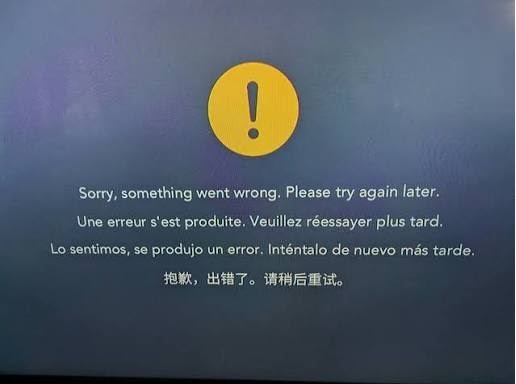
2. Disable IPv6 on Smart TVs (The Secret Killer)
Modern routers push IPv6 network protocols by default, but the Disney+ app on certain Smart TVs (especially LG C1 and newer WebOS models) struggles to resolve IPv6 DNS requests. Go into your TV’s Network or Wi-Fi settings, locate the IPv6 option, and toggle it off. Reconnect to your network and launch the app.
3. The OLED “App Swap” Trick
If your app freezes on the unexpected error screen and your remote becomes unresponsive, you don’t always need to pull the plug. Simply press the dedicated Netflix (or Prime Video) button on your remote to force the TV to suspend Disney+. Once the new app loads, switch back to Disney+. This instantly clears the frozen RAM state.
4. Purge the App Cache
Cached data holds onto outdated IP routing instructions. On Android TVs or Firesticks, navigate to Settings > Apps > Disney+ > Clear Cache. Note: Do not click “Clear Data” unless you are prepared to re-enter your login credentials.
5. Ditch Emulators and Unsupported Browsers
If you see Error Code 83 alongside the unexpected error message, you are likely triggering Disney’s strict anti-piracy DRM. This happens if you watch via an Android emulator, a Linux desktop wrapper, or an unsupported web browser. Always use the native application or a fully updated mainstream browser.
6. Activate Third-Party Subscriptions
Are you a new subscriber who got Disney+ bundled with your phone plan or cable package? The app will throw an unexpected error if your account is created but not yet activated. Search your email inbox for an activation link from your billing provider to finalize the account handshake.
7. Hard Power Cycle the Router
When the app fails to connect entirely, the issue often lies with stale IP addresses. Unplug your modem and router from the wall for a full 60 seconds. This clears the router’s memory cache and establishes a clean connection to your ISP upon rebooting
Why Is Palantir Stock Down Today? 4 Hidden Market Factors Explained
Decoding Disney+ Error Codes
| Error Code | Primary Cause | Best Immediate Fix |
|---|---|---|
| Error 83 | Device compatibility or DRM failure | Update your browser or switch from an emulator to a native app. |
| Error 14 / 92 | Incorrect login details or server timeout | Reset your password and log out of all devices. |
| Error 42 / 73 | Network connectivity or region lock | Reboot router, disable VPNs, and disable IPv6. |
| Generic “Unexpected Error” | Corrupted app cache or ghost session | Clear app cache or use the App Swap trick. |
System Maintenance Check
If you have exhausted all network and cache solutions, the issue may not be on your end. Before reinstalling your apps or resetting your TV, check third-party outage monitors to ensure Disney’s servers haven’t crashed globally. If it’s a worldwide server outage, the system will resolve the unexpected error automatically once service is restored.
