

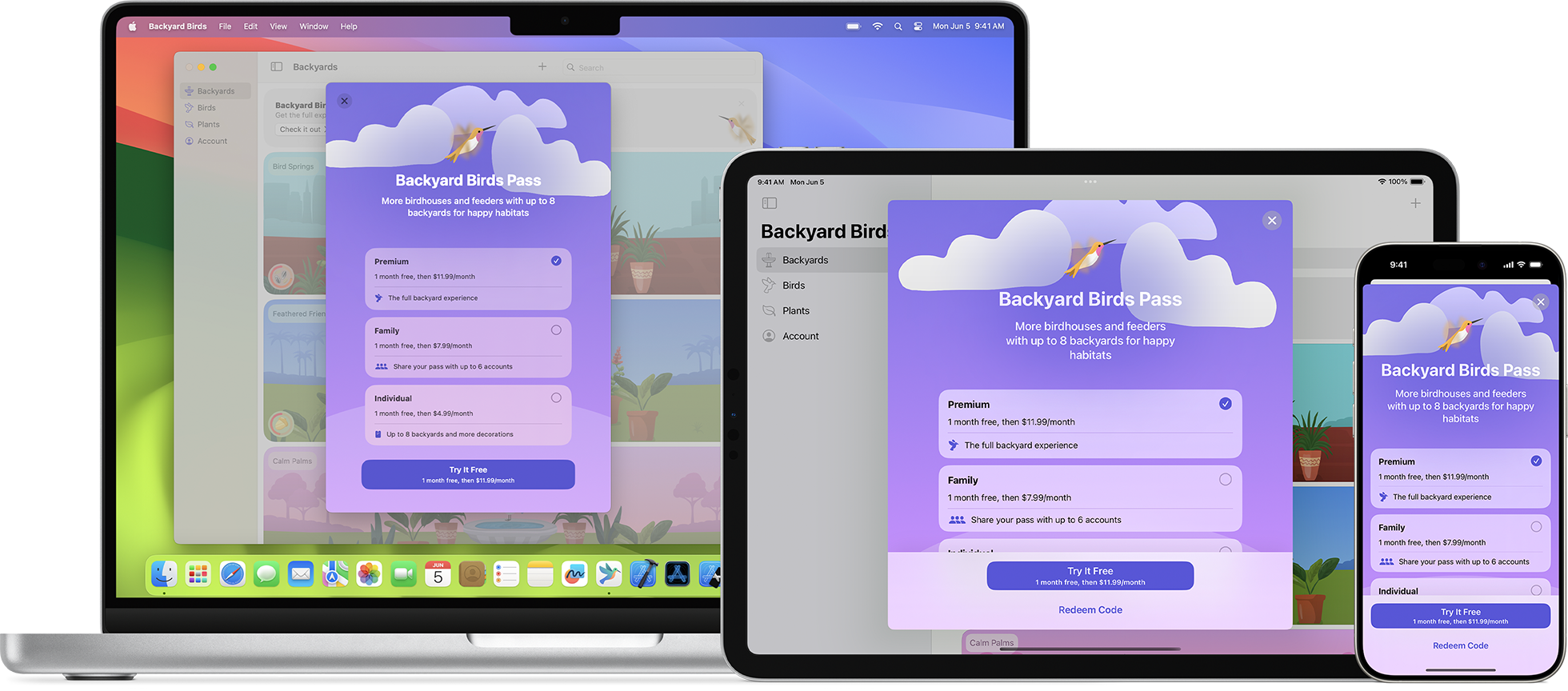
Whether you are an iOS developer testing a new subscription model or an everyday user trying to unlock a Pro feature in apps like Wanderlog, encountering an App Store error can be incredibly frustrating. One of the most common—and perplexing—StoreKit issues is Apple Error 21107.
This specific code triggers the message: “There’s no information available for In-App Purchases. Try again later.” It signifies a breakdown in communication between the app’s internal code and Apple’s App Store Connect servers. Let’s break down exactly why this happens and how to resolve it.
Quick Answer & TLDR
For App Users:
- The developer has misconfigured their StoreKit items or you are caught in a billing glitch.
- Fix: Delete the app, restart your iPhone, and reinstall it. If it fails, you must contact Apple Support directly to request a refund, as the app’s backend is broken.
For iOS Developers:
- Your App Store Connect product ID (SKU) doesn’t match your Xcode project exactly.
- Your “Paid Applications Agreement” in App Store Connect is missing or expired.
- You are attempting to test a Sandbox purchase using a standard, live Apple ID account instead of a Sandbox Tester account.
What Causes Apple Error 21107?
StoreKit Error 21107 (officially flagged as an invalid product identifier in Swift/Objective-C) means Apple’s servers looked for the specific item you are trying to buy, but came up empty-handed. Because of Apple’s strict financial ecosystem, any slight discrepancy will block the transaction to protect consumer data.
| Root Cause | Resolution Strategy |
|---|---|
| Mismatched Product Identifiers | Ensure the string used in SKProductsRequest matches App Store Connect exactly. |
| Missing Paid Apps Agreement | Navigate to Agreements, Tax, and Banking. Accept the latest Paid Applications terms. |
| In-App Purchase “Missing Metadata” | Add a screenshot and proper description to the IAP product in Connect, then save. |
| Live Apple ID in Sandbox Mode | Log out of your personal Apple ID. Use a Sandbox Tester account created in Connect. |
Developer Checklist to Fix the Error
If you are coding an iOS app and are stuck hitting Error 21107 every time you fire your SKProductsRequest, run through this strict diagnostic checklist:
- Check the SKU String: A single typo or misplaced capitalization in your Bundle ID or Product ID will trigger this.
com.myapp.pro_yearlyis not the same ascom.myapp.pro_Yearly. - Clear “Missing Metadata”: Look at your In-App Purchases tab in App Store Connect. If the status is “Missing Metadata,” Apple will not return product data to your app. Upload a 640×920 review screenshot to clear this status.
- Wait for Server Propagation: If you just created the In-App Purchase in Connect 5 minutes ago, be patient. Apple’s servers can sometimes take up to 24 hours to propagate new SKUs globally.
- Review Tax Documentation: The absolute most common hidden culprit is an unsigned tax document. If Apple cannot legally pay you, they instantly disable the StoreKit connection.
What to do if you are a User/Customer?
If you just downloaded an app, hit the “Start Free Trial” button, got charged, and then received Error 21107 when trying to unlock features, do not keep pressing purchase. The developer has broken their purchase configuration.
Since the app cannot communicate with Apple to verify your purchase, the “Restore Purchases” button will also fail. You need to visit reportaproblem.apple.com, log in with your Apple ID, and request a refund stating: “In-App purchase failed to deliver due to developer Error 21107.” Apple is well aware of this specific StoreKit error and routinely grants refunds for it.
Conclusion & Further Reading
Apple Error 21107 is fundamentally an identifier or paperwork mismatch on the backend. By verifying App Store Connect data, using proper sandbox environments, and ensuring tax documents are signed, developers can easily clear this hurdle and get their apps ready for launch.
For more technical deep-dives into debugging Apple frameworks, we recommend browsing the official Apple Developer Forums to see how other engineers tackle StoreKit issues. If you are struggling with broader application setups, read our extensive guide on Mastering App Store Connect Troubleshooting for a flawless release strategy.
